
TL;DR
- Performance Boost For Potato PC mod unlocks hidden graphics settings inaccessible through standard menus
- Requires Cyber Engine Tweaks foundation mod for proper functionality and settings access
- Significant FPS improvements possible by disabling resource-intensive lighting and shadow systems
- Proper file placement in plugins directory essential for mod activation and stability
- Visual quality trade-offs necessary for optimal performance on lower-end hardware configurations
Games and Esports Articles
The Performance Boost For Potato PC modification represents a community-driven solution for Cyberpunk 2077 players struggling with framerate issues on budget hardware. This innovative tool, available exclusively through NexusMods, has gained remarkable traction with nearly 10,000 downloads within its first day of release.
This utility functions by exposing graphics configuration options that developers intentionally concealed from standard settings menus. These hidden parameters typically remain locked due to hardware compatibility concerns or stability considerations. The interface clearly identifies restricted options with distinctive symbols, preventing users from applying incompatible settings that might cause crashes or visual artifacts.
Disabling the majority of these newly accessible options can deliver substantial performance enhancements compared to running the game at default minimum settings. Players should anticipate the most significant gains from adjusting lighting and shadow systems, which consume considerable GPU resources in modern gaming engines.
How to install mod to improve framerate in Cyberpunk 2077:
- Download Cyber Engine Tweaks/CyberEngineTweaks. This foundational mod provides the scripting framework necessary for the performance enhancements. Extract and transfer all contained files directly into your primary Cyberpunk 2077 installation directory.
- Download Performance Boost For Potato PC and similarly relocate its contents to your game folder. The correct path structure should resemble: Cyberpunk2077binx64pluginscyber_engine_tweaksmodsPotatoinit.lua – incorrect placement represents the most common installation error.
For optimal results, launch the game and access the Cyber Engine Tweaks overlay (default hotkey: ~) to verify both mods loaded correctly. The performance options should appear within the mod settings section, allowing you to fine-tune based on your specific hardware capabilities and performance requirements.
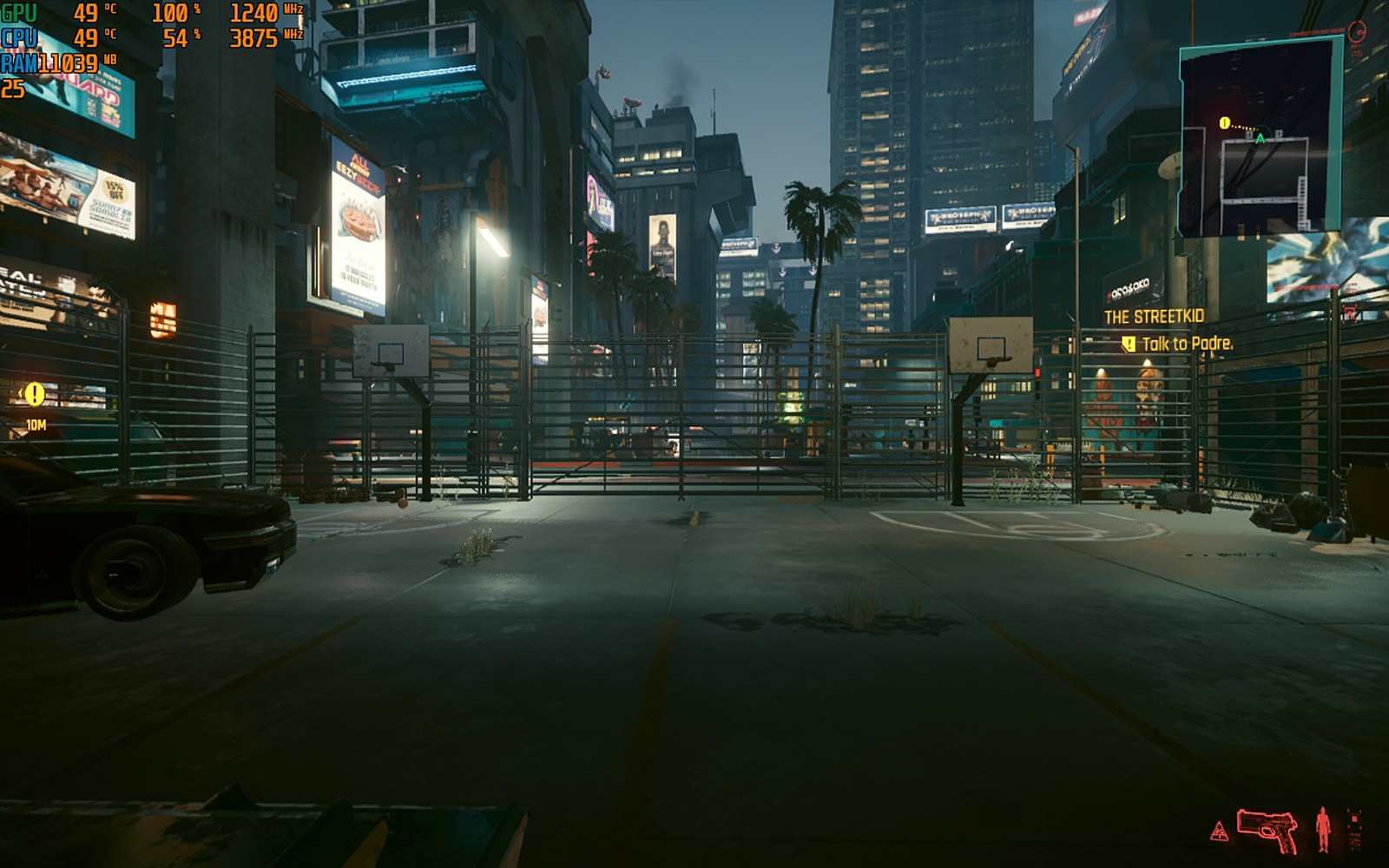
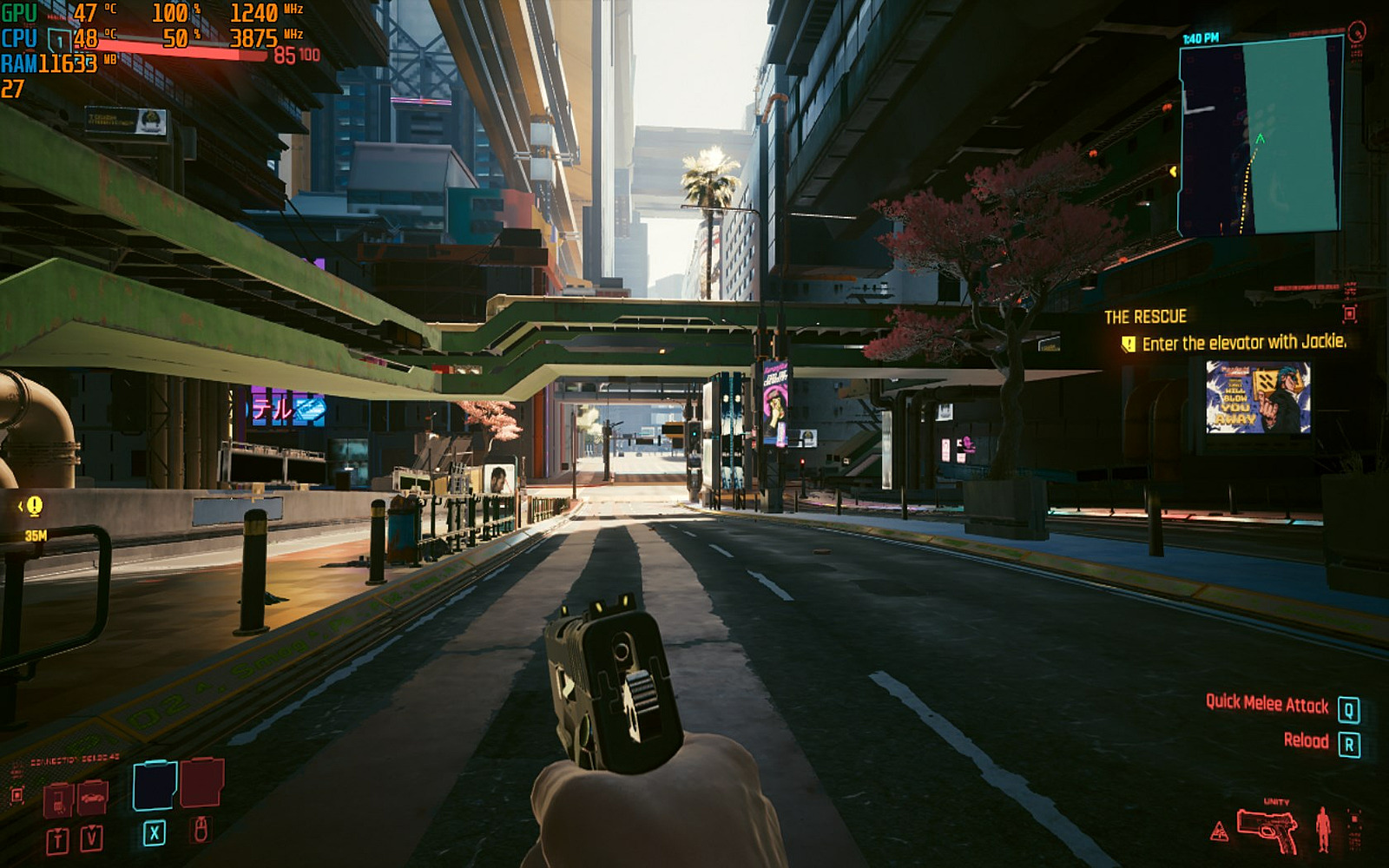
All demonstration screenshots were captured at 720p resolution to accurately represent the visual experience on lower-end systems. The lighting system alterations prove most immediately noticeable, which aligns with technical expectations since illumination calculations represent one of the most computationally demanding subsystems in contemporary game engines.
No mod:
With mod:
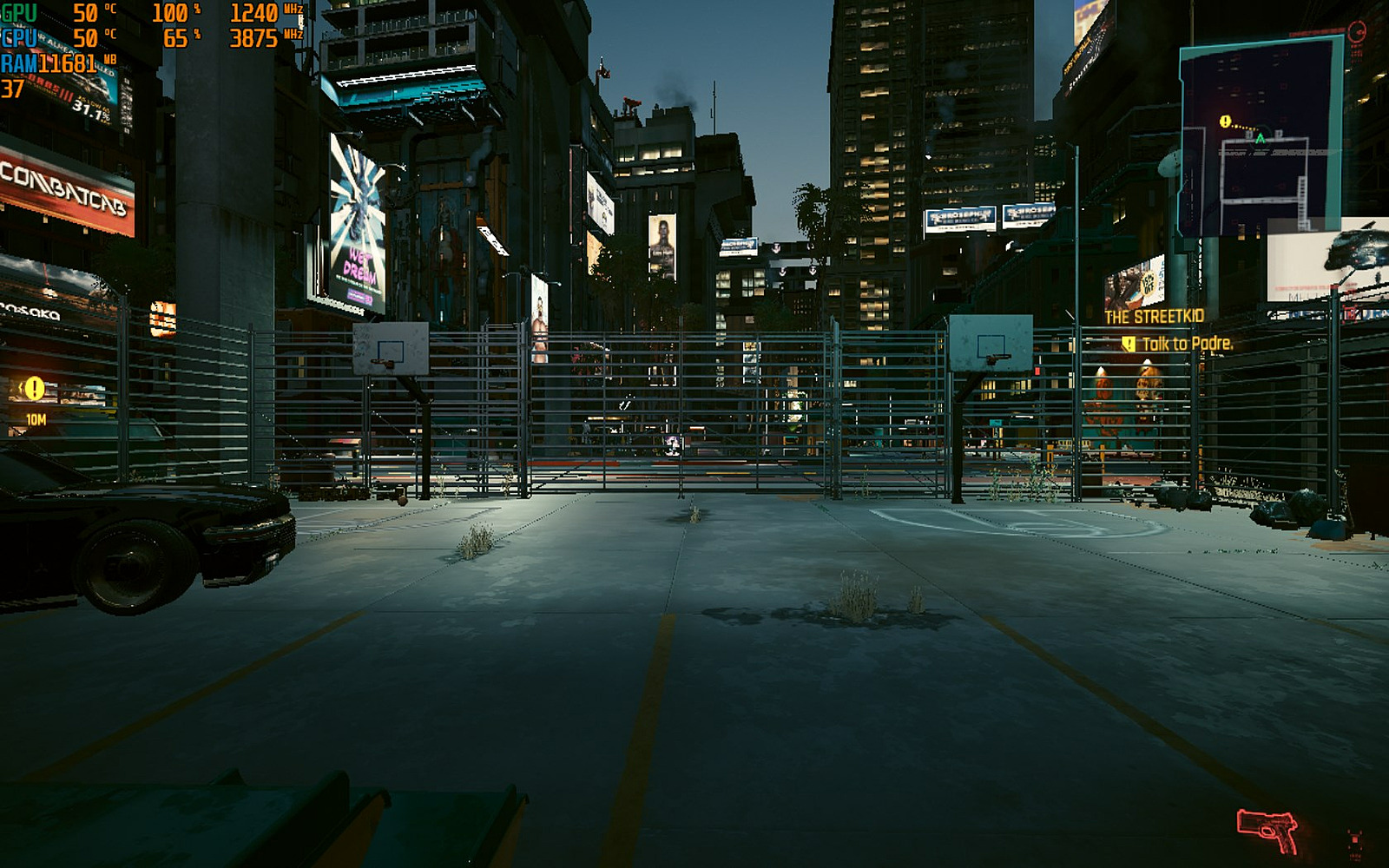
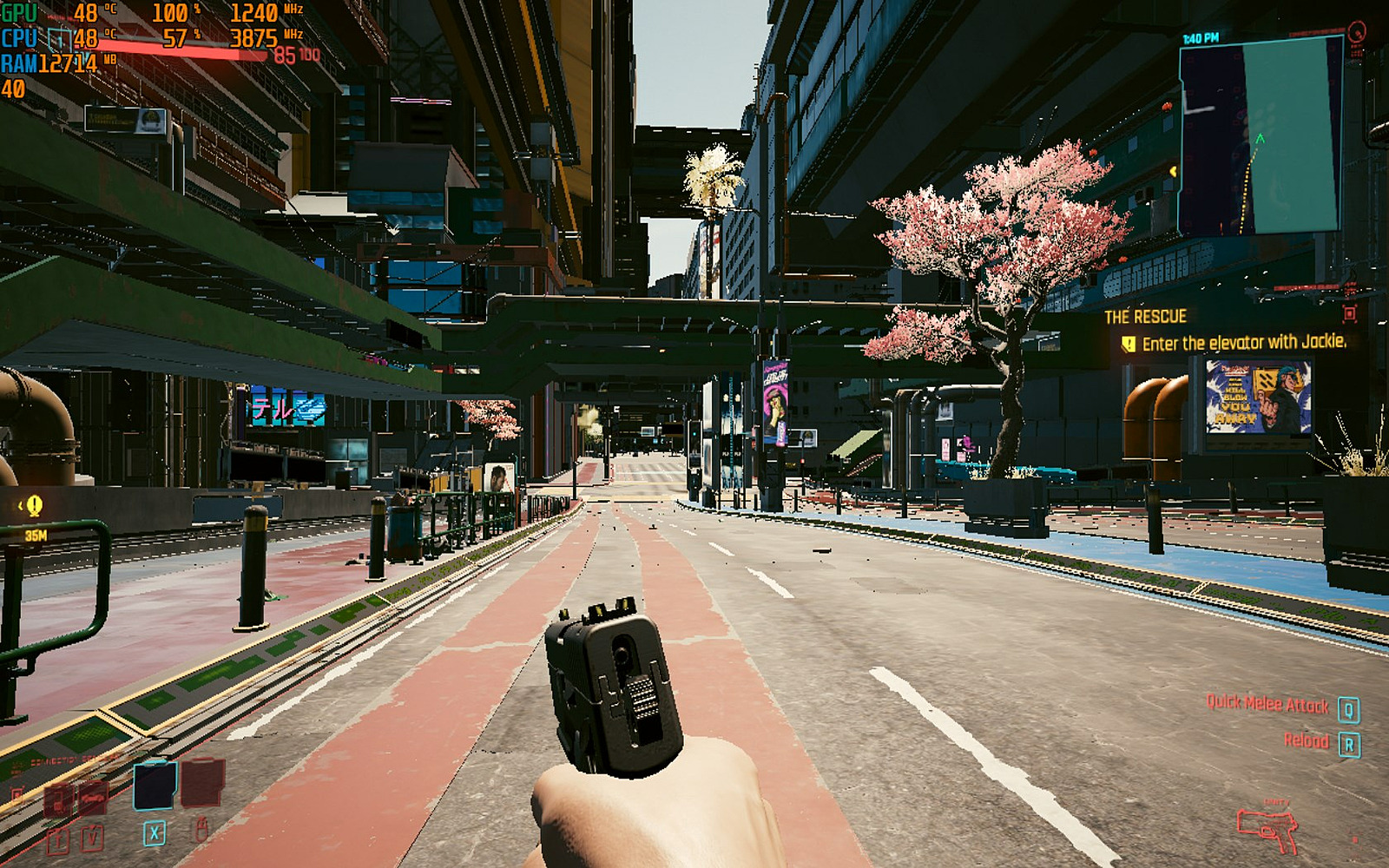
The visual comparison clearly demonstrates the performance versus fidelity trade-off. While lighting quality and shadow detail decrease noticeably, the framerate improvements can transform an unplayable experience into smooth gameplay. For players interested in broader gaming optimization strategies, our Complete Guide covers similar performance enhancement techniques across different game engines.
Action Checklist
- Download and install Cyber Engine Tweaks foundation mod
- Acquire Performance Boost For Potato PC mod from NexusMods
- Place mod files in correct plugins directory structure
- Launch game and verify mod functionality through Cyber Engine Tweaks overlay
- Adjust hidden settings based on performance monitoring and visual preference
No reproduction without permission:SeeYouSoon Game Club » Performance Boost For Potato PC mod to increase framerate in Cyberpunk 2077, where to download. СP2077 hidden options editor Boost Cyberpunk 2077 FPS on low-end PCs with hidden settings mod and optimization guide