
Complete guide to fix Overwatch 2 account merge errors with step-by-step solutions and troubleshooting tips
Understanding the Account Merge Pending Error
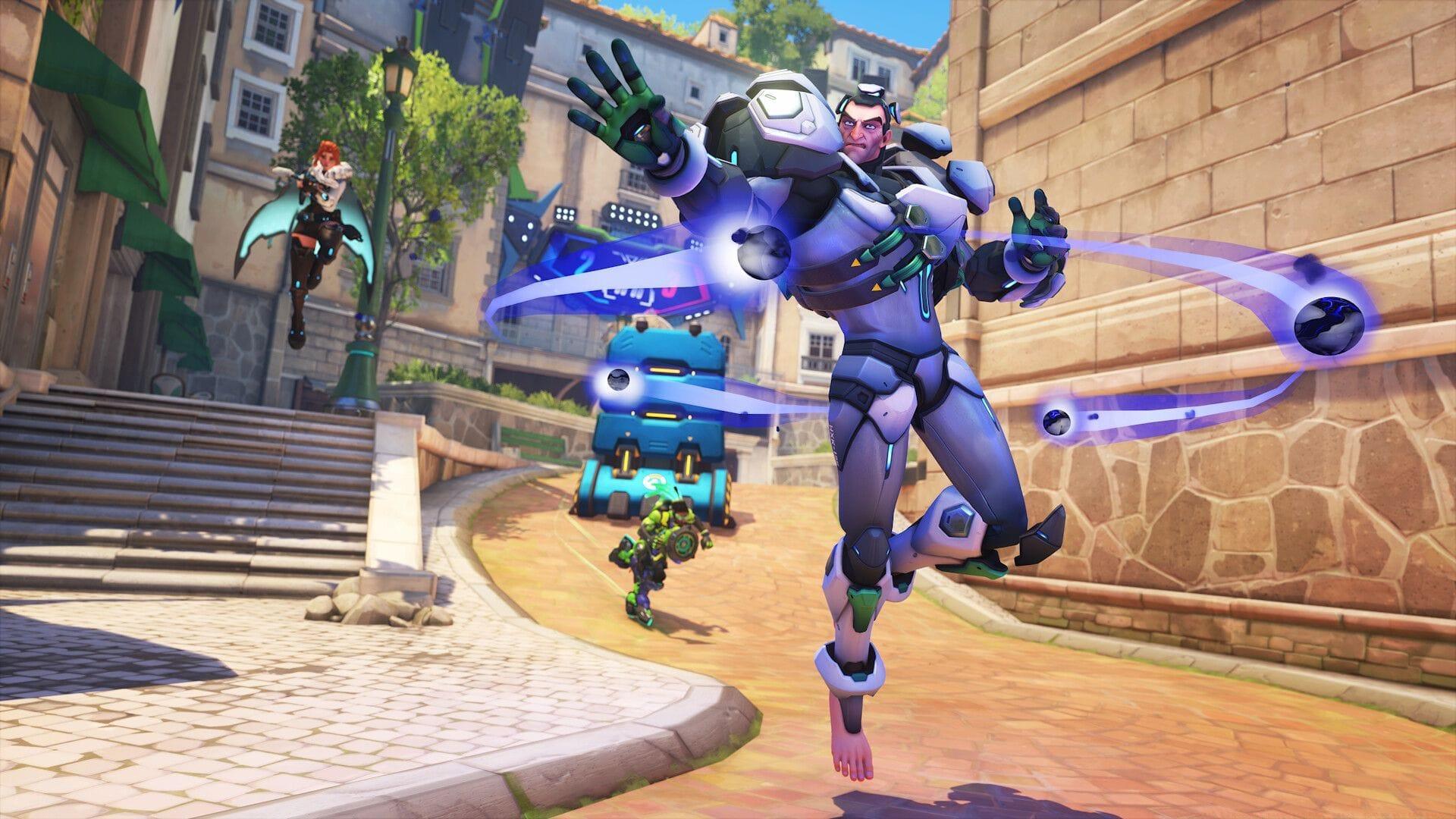
The ‘Account merge pending’ notification in Overwatch 2 typically appears when players attempt to transfer their gaming progress from console platforms to Battle.net. This cross-platform migration affects PlayStation, Xbox, and Nintendo Switch users who want to consolidate their achievements, skins, and competitive rankings into a unified Battle.net profile.
This technical issue manifests through several distinct scenarios. Players might encounter it when their console transfer remains queued indefinitely without completion, or when previous linking attempts created conflicting account associations. Understanding which specific situation applies to your case is crucial for applying the correct solution.
Many users don’t realize that incomplete previous linking attempts can create lingering connection requests that interfere with new merge processes. The system maintains these pending requests in the background, which explains why fresh attempts might still trigger the same error message despite appearing to start from scratch.
Scenario 1: Stuck Account Merge Process
When your account merge appears frozen in progress, follow this systematic approach to restart the connection process:
- Access your primary Battle.net account through a web browser or desktop application
- Navigate to the Connections section within your account management dashboard
- Locate your linked console platform and select the option to temporarily disconnect it
- Wait approximately 2-3 minutes before re-establishing the connection to the same platform
- Complete the re-authentication process by following the platform-specific prompts
This refresh technique clears temporary connection glitches that often cause merges to stall. Many players make the mistake of rushing the re-linking process – ensure you wait briefly between disconnecting and reconnecting to allow the system to fully register the change.
After completing these steps, launch Overwatch 2 and check if the merger queue progresses. If the issue persists, consider clearing your game cache or trying during off-peak hours when server load is reduced, as high traffic can sometimes delay account processes.
Scenario 2: Wrong Battle.net Account Linking
Accidentally linking your console profile to an incorrect Battle.net account requires a more complex resolution process:
- Log into your original Battle.net account where the console was initially connected
- Access the Connections management interface and identify the misplaced console link
- Initiate the disconnection process, being mindful that cooldown periods apply immediately
- These cooldowns typically range from 30 days for newer accounts up to 365 days for established profiles with extensive history
- Once disconnected, immediately sign into your preferred Battle.net account and establish the correct connection
The cooldown period represents Blizzard’s security measure to prevent rapid account switching, which could potentially enable exploitation. Unfortunately, this waiting period is non-negotiable once triggered, so ensure you’re committing to the correct Battle.net account before finalizing connections.
Professional gamers recommend maintaining a spreadsheet tracking your various gaming accounts and their connection status to avoid these situations. Additionally, consider setting up Battle.net authenticator app protection on all associated accounts to enhance security during these transfer processes.
Proactive Prevention Strategies
Preventing account merge issues begins with understanding common pitfalls. Many players encounter problems because they attempt account management through console interfaces rather than using the Battle.net desktop application or website. The PC platform provides more detailed error messages and troubleshooting options when connection issues arise.
Before initiating any account linking process, verify that you’re logged into the correct Battle.net account. Cross-check your email associations and ensure you’re not accidentally using an alternate account you may have created previously. This simple verification step prevents the majority of wrong-account linking scenarios.
Advanced players recommend documenting your cosmetic items, competitive rankings, and achievement progress before beginning any account migration. While modern systems typically preserve this data, having your own records provides insurance against rare data loss incidents during the transfer process.
Remember that patience is crucial during merger queues. These processes can take several hours during peak launch periods or major updates. Avoid restarting the process multiple times, as this can create additional pending merge requests that complicate resolution.
No reproduction without permission:SeeYouSoon Game Club » Overwatch 2 ‘Account merge pending’ error: How to fix and reasons Complete guide to fix Overwatch 2 account merge errors with step-by-step solutions and troubleshooting tips