
TL;DR
- System transfer during initial setup automatically imports all save data
- Cloud saves require Nintendo Switch Online subscription for post-setup transfers
- Prioritize game downloads to access critical saves first
- Ensure stable internet connection for successful cloud transfers
- Backup important saves before attempting any transfer method
When configuring your new Switch 2 console, the system transfer process offers the most efficient pathway for migrating your game progress. This automated method ensures all your hard-earned achievements and gameplay history move seamlessly to the upgraded hardware.
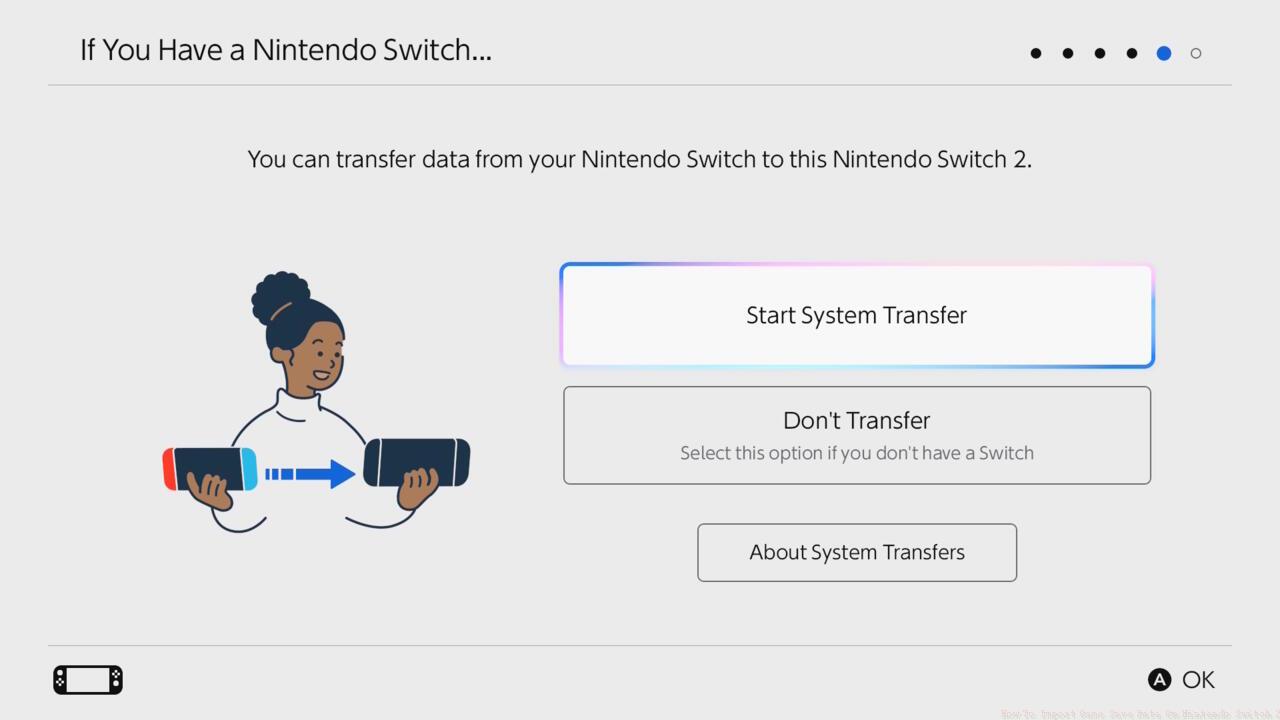
System transfers handle both local and cloud-based save data simultaneously.
During the initial Switch 2 configuration, transferring user data from your original Nintendo Switch automatically imports associated save files. Once you reach the main interface, your complete game collection appears in the download queue. While you can manage download priorities and cancel unnecessary titles, any game containing save data will automatically sync the most recent progress from your user profile upon installation completion.
This functionality operates independently of Nintendo Switch Online membership status, since save data links directly to user accounts rather than cloud services or Nintendo Accounts. Subscribers benefit from additional cloud backup transfers during this setup phase, providing redundant protection for your valuable game progress.
Pro Tip: Position your consoles within close proximity and connect both to power sources to prevent transfer interruptions. The process typically requires 15-45 minutes depending on your data volume and network speed.
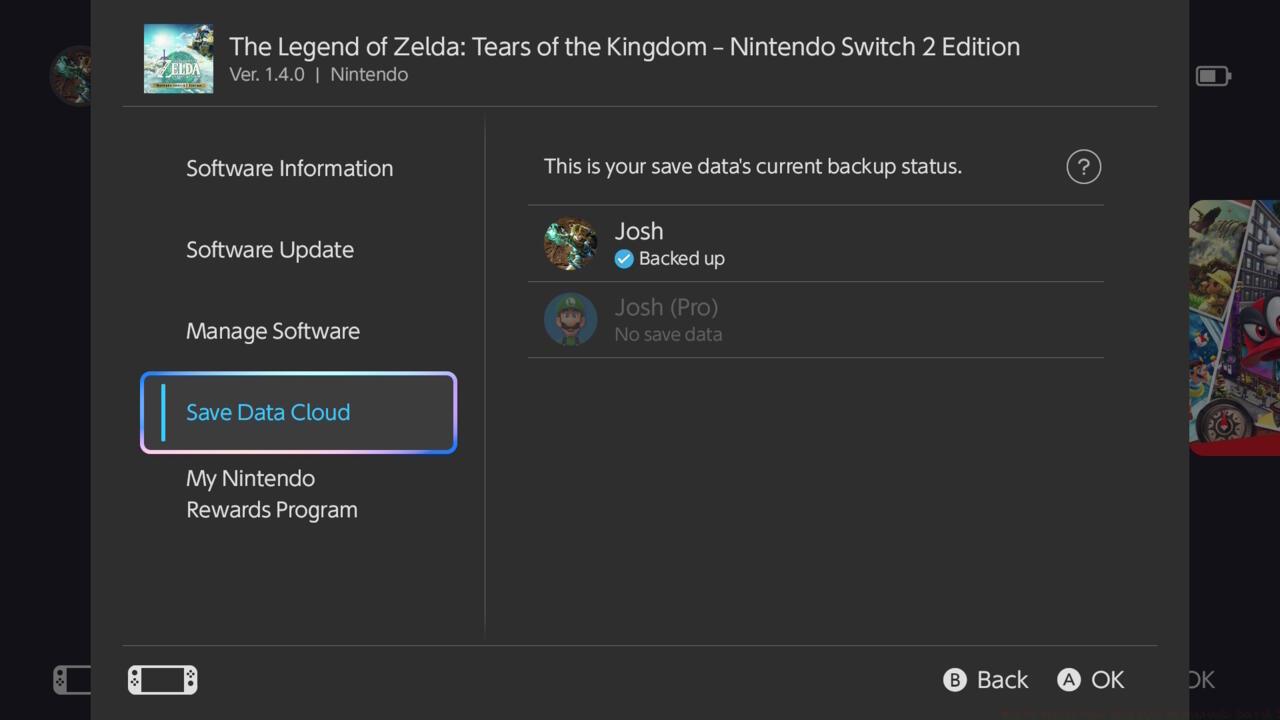
Cloud saves become your primary transfer mechanism after completing initial system configuration.
Should you bypass the system transfer during Switch 2 initialization, cloud saves through Nintendo Switch Online represent your exclusive method for importing game progress. An active subscription is mandatory—though the Expansion Pack enhancement isn’t necessary for basic cloud functionality—and remember that your original Switch must maintain internet connectivity to upload saves to cloud storage.
Follow this comprehensive procedure for successful cloud-based transfers:
- Associate the Nintendo Account connected to your Switch Online membership with your new Switch 2 console
- Verify successful cloud sync on your original hardware before beginning the transfer
- Navigate to System Settings > Data Management > Save Data Cloud on both devices
- Initiate manual upload for any saves not automatically synced from your previous console
- Download saved games individually or enable automatic cloud saving for future protection
Common Mistake: Many users forget to manually upload saves from games that don’t support automatic cloud synchronization, resulting in permanent progress loss.
Our detailed guide for transferring save data to Switch 2 elaborates on each procedural step with visual demonstrations.
Optimizing your save data transfer requires strategic planning and awareness of potential complications. For extensive game libraries, prioritize downloading titles with irreplaceable progress like lengthy RPG campaigns or competitive rankings.
Time Management Strategy: Schedule transfers during off-peak hours (typically 11 PM – 6 AM local time) when internet connectivity tends to be more stable and faster. Large collections may require 2-4 hours for complete synchronization.
Critical Preparation: Before beginning any transfer method, ensure your original Switch has at least 40% battery life or remains connected to AC power to prevent data corruption from unexpected shutdowns.
For troubleshooting failed transfers, first verify both consoles run the latest system software. If cloud saves won’t download, check your Nintendo Switch Online subscription status and ensure adequate storage space remains available on your Switch 2 internal memory.
Some specialized game modes or certain titles may have transfer restrictions. Consult our Complete Guide for title-specific limitations and workarounds.
Advanced Technique: Power users can utilize wired internet connections via USB-C Ethernet adapters on both consoles to accelerate transfer speeds by up to 300% compared to standard Wi-Fi.
Action Checklist
- Charge both consoles above 40% or connect to power sources
- Select system transfer during Switch 2 initial configuration
- Verify Nintendo Switch Online active subscription status
- Manually upload non-auto-sync game saves from original Switch
- Prioritize download of games with critical save data
No reproduction without permission:SeeYouSoon Game Club » How To Import Game Save Data On Nintendo Switch 2 Complete guide to transferring Nintendo Switch save data to Switch 2 with practical tips and troubleshooting