
TL;DR
- Force DX11 via Steam launch options using -dx11 parameter
- Update graphics drivers through manufacturer websites or Windows Device Manager
- Verify game file integrity through Steam’s built-in validation tool
- Install latest DirectX runtime even if Windows claims it’s updated
- Check hardware compatibility and disable conflicting background applications
Games and Esports Articles CS 2
The Counter-Strike 2 beta has attracted over half a million calibrated players who continue discovering various technical issues. Many users encounter the “This application requires dx11” warning message when attempting to launch the game. This comprehensive guide provides detailed solutions to resolve this DirectX-related problem permanently.
How to switch from DirectX to Vulkan and what gives best FPS for CS2 beta?
DirectX 11 (DX11) represents Microsoft’s collection of application programming interfaces handling multimedia tasks, particularly gaming and video rendering. The error notification indicates either missing DX11 components or CS2’s inability to access them properly. Understanding that this isn’t necessarily a game bug but rather a system compatibility issue helps approach the solution methodically.
Common scenarios triggering this error include outdated graphics drivers, corrupted game files, incorrect launch parameters, or insufficient DirectX runtime components. Some players mistakenly believe their systems don’t support DX11 when in reality, the installation might be incomplete or corrupted.
Force DX11 Execution Through Steam Parameters
This method directly instructs CS2 to utilize DirectX 11 rendering, bypassing any automatic detection issues. The process typically resolves the problem within minutes and requires no technical expertise.
- Navigate to your Steam Library and right-click on Counter-Strike 2, then select Properties from the context menu
- Locate the Launch Options field positioned under the General settings tab
- Enter the command -dx11 precisely in the available text box
- Close the properties window and launch CS2 to test the solution
If the basic parameter doesn’t resolve the issue, consider additional launch options: -vulkan to switch rendering APIs or -autoconfig to reset video settings. Some users benefit from combining parameters like -dx11 -high which forces DX11 while setting high process priority.
Pro Tip: Always test launch options individually before combining them. Incorrect parameter combinations can create additional launch problems rather than solving existing ones.
Valve launches second wave of invites with access to CS2 beta in September
Comprehensive Graphics Driver Update Process
Outdated, corrupted, or missing graphics drivers represent the most frequent cause of DX11 errors in CS2. Modern GPU drivers receive weekly optimizations specifically for new game releases.
Visit your graphics card manufacturer’s official website for the most current drivers:
- NVIDIA users: Access GeForce Experience or download directly from nvidia.com
- AMD users: Use AMD Adrenalin software or download from amd.com
- Intel users: Download Intel Graphics Command Center or visit Intel’s driver download page
- Alternatively, utilize Windows Device Manager for basic driver updates
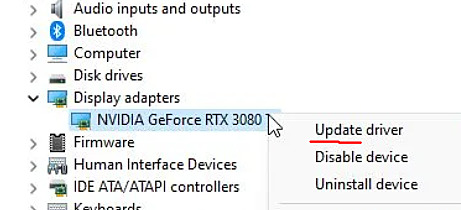
For Windows Update method: Type “Device Manager” in the search field, expand Display Adapters, right-click your graphics card, and select “Update driver.” Choose automatic search for the latest available drivers.
Advanced Solution: Perform clean driver installation using Display Driver Uninstaller (DDU) in Safe Mode. This removes all previous driver fragments that might conflict with new installations.
S1mple’s meme phrase goes viral on Juventus TikTok: 2.7 mln views in 2 days
Comprehensive Game File Verification Process
Corrupted or missing game files frequently trigger DX11 compatibility errors. Steam’s validation feature scans and replaces damaged files automatically.
- Right-click Counter-Strike 2 in your Steam Library and access Properties
- Navigate to Installed Files section and select “Verify Integrity of Game Files”
- Allow Steam to complete the scanning and repair process entirely
- Restart your computer before launching CS2 to ensure changes take effect
DirectX Runtime Installation: Download the latest DirectX End-User Runtime from Microsoft’s official website. Even if Windows indicates DX11 is installed, the runtime components might require updating separately from Windows Update.
Hardware Compatibility Check: Ensure your graphics card supports DirectX 11 feature level 10_0 or higher. Cards older than NVIDIA 400 series or AMD HD 5000 series might lack proper DX11 support.

Will CS2 ranks reset after release date? Will you keep Elo points after CS2 launch?
Don’t worry too much.
Proactive System Maintenance Strategies
Preventing future DX11 errors involves regular system maintenance and understanding CS2’s technical requirements. Like mastering game weapon mechanics, understanding technical requirements improves overall gaming experience.
Establish a monthly driver update routine using your manufacturer’s notification system. Enable automatic game file verification through Steam settings to catch corruption early. Maintain updated DirectX runtimes regardless of Windows update status.
Performance Optimization: Beyond fixing the immediate error, optimize your system for maximum CS2 performance. Close background applications consuming GPU resources, adjust Windows power settings to high performance, and ensure adequate system cooling during extended gaming sessions.
For comprehensive gaming optimization, explore our complete system tuning guide for additional performance enhancement techniques applicable across multiple games.
Future-Proofing: As CS2 continues development, anticipate additional graphical requirements. Consider our advanced configuration guide for additional system optimization strategies that benefit all modern games.
Action Checklist
- Add -dx11 to Steam launch options and test game launch
- Update graphics drivers via manufacturer website or Device Manager
- Verify game file integrity through Steam properties
- Install latest DirectX runtime from Microsoft website
- Check hardware compatibility and disable conflicting applications
No reproduction without permission:SeeYouSoon Game Club » How to fix “This application requires DX11” error in CS2? Complete guide to fix DX11 errors in CS2 with driver updates, launch options, and system optimization