
TL;DR
- Enable ‘Streamlined Push to Talk’ in CS2 audio settings to resolve immediate freeze issues
- Update audio drivers and verify microphone permissions for comprehensive system compatibility
- Adjust FPS limits and monitor system resources to prevent performance-related voice chat problems
- Implement regular game file verification and system maintenance routines for long-term stability
- Explore alternative communication methods if software solutions prove insufficient
Games and Esports Articles CS 2
Counter-Strike 2 players frequently encounter disruptive game freezes specifically when activating voice communication through microphone input. This technical issue emerged prominently following the December 21 update, indicating potential compatibility conflicts between voice processing and game engine performance. Valve Corporation has officially acknowledged the problem through in-game notifications that explicitly warn users about potential hardware-specific freezing scenarios. While developers work on a permanent software patch, implementing targeted configuration adjustments can immediately restore smooth gameplay functionality.
The underlying technical challenge involves real-time audio processing competing with game engine resources, creating contention that manifests as temporary system hangs. Different hardware configurations experience varying severity levels, with some systems experiencing brief stutters while others suffer complete game lockups requiring task manager intervention. Understanding this distinction helps users implement appropriate solution tiers based on their specific symptom severity.
How to fix CS2 freezing when using voice chat
When engaging the ‘Press to use microphone’ functionality within CS2, many users report severe performance degradation characterized by multi-second freezes that compromise competitive gameplay. The most effective immediate resolution involves navigating to the game’s settings menu and selecting the Audio configuration tab. Within this interface, locate the ‘Streamlined push to talk’ option positioned in the audio preferences section and toggle its setting from disabled (‘No’) to active (‘Yes’). This streamlined audio processing method optimizes voice chat resource allocation, significantly reducing system contention.
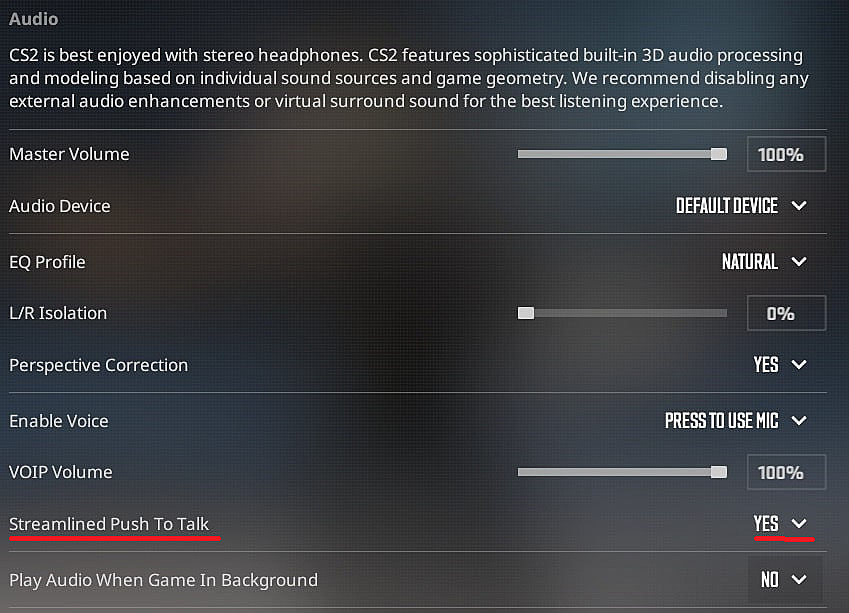
After implementing this configuration change, completely restart Counter-Strike 2 to ensure the new audio processing parameters initialize correctly. Many users overlook this crucial step, but it’s essential for the updated settings to take full effect. Verify the solution’s effectiveness by testing voice communication in a practice session before entering competitive matches to confirm stability under actual gameplay conditions.
If microphone-induced freezing persists despite enabling streamlined push-to-talk, the issue may stem from deeper system-level incompatibilities requiring additional intervention. Begin by updating your audio drivers to the latest manufacturer-certified versions, as outdated drivers frequently conflict with CS2’s real-time processing demands. Additionally, inspect Windows microphone permissions to ensure CS2 has proper authorization for audio input access, as restrictive privacy settings can create unexpected conflicts.
Consult our comprehensive performance optimization guide for addressing broader stuttering concerns beyond voice chat specific issues. Many players find that reducing maximum FPS limits alleviates system resource pressure, creating additional headroom for voice processing operations. Consider implementing frame rate caps slightly above your display’s refresh rate for optimal balance between visual smoothness and system stability.
Valve adds new console command to improve frame times with “fps_max” and remove stutters in CS2
For persistent cases, explore third-party communication alternatives like Discord for team coordination while Valve develops permanent fixes. This temporary workaround maintains competitive communication capabilities without sacrificing game performance, though it requires additional software configuration.
Establishing a regular maintenance routine significantly reduces recurrence probability for CS2 voice chat issues. Periodically verify game file integrity through Steam’s validation tools to detect and repair corrupted configuration files that might contribute to performance problems. Monitor system resource usage during gameplay sessions to identify potential bottlenecks before they manifest as disruptive freezes during critical moments.
Valve’s development team continues investigating the root causes behind microphone-related freezing, with community testing providing valuable data for future patches. Stay informed about upcoming CS2 updates through official channels, as comprehensive fixes will likely deploy incrementally rather than through a single resolution update.
Community-driven solutions continue emerging as players share successful configuration combinations across various hardware setups. Documenting your system specifications alongside successful fixes contributes to community knowledge while helping identify patterns across different component combinations.
Action Checklist
- Enable Streamlined Push to Talk in audio settings
- Completely restart CS2 to activate new audio processing settings
- Update audio drivers to latest stable versions
- Verify microphone permissions in Windows privacy settings
- Adjust FPS limits and monitor system resource allocation
No reproduction without permission:SeeYouSoon Game Club » How to fix CS2 game freezes when using press to talk. Microphone voice chat talk glitch fix in CS2 Comprehensive guide to eliminate CS2 microphone freeze issues with advanced troubleshooting techniques