CS2 replaces net_graph with built-in Telemetry settings accessible through Game Settings menu
Use cl_showfps 2 for detailed FPS monitoring and cl_showfps 3 for server performance data
Enable Developer Console in Game settings tab to access advanced command options
Performance data displays in top-right corner above kill feed with customizable visualization
Combine console commands with Steam overlay for comprehensive performance tracking
Games and Esports Articles CS 2
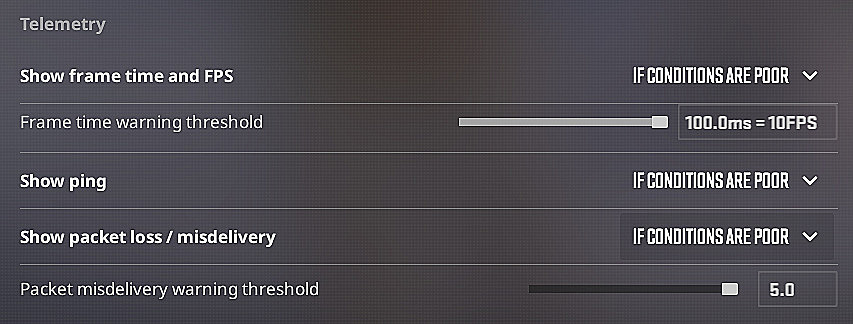
Latest Update, February 16: Valve has integrated a comprehensive Telemetry system directly into CS2’s settings interface. To activate real-time FPS and network performance monitoring, navigate to Game → Settings and locate the Telemetry section towards the bottom of the menu. This integrated solution provides multiple configuration options to customize your performance display preferences.
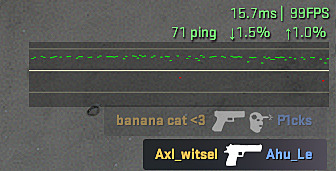
The performance metrics appear discreetly in the top-right screen area, positioned above the kill feed for optimal visibility during gameplay. For additional data visualization capabilities, utilize the following console command to toggle advanced graph displays:
Background Context: Counter-Strike 2 introduces significant technical improvements over CS:GO, including the replacement of traditional console commands. The familiar net_graph functionality that displayed comprehensive technical statistics has been either removed or temporarily unavailable in the current build. Here’s your comprehensive approach to replicating these essential monitoring capabilities.
How to use net_graph analogue in CS2?
Game enthusiast and technical analyst RemIx discovered and documented the alternative command structures that deliver equivalent functionality. While these commands operate differently from their predecessors, they provide enhanced performance monitoring with greater precision and additional data points.
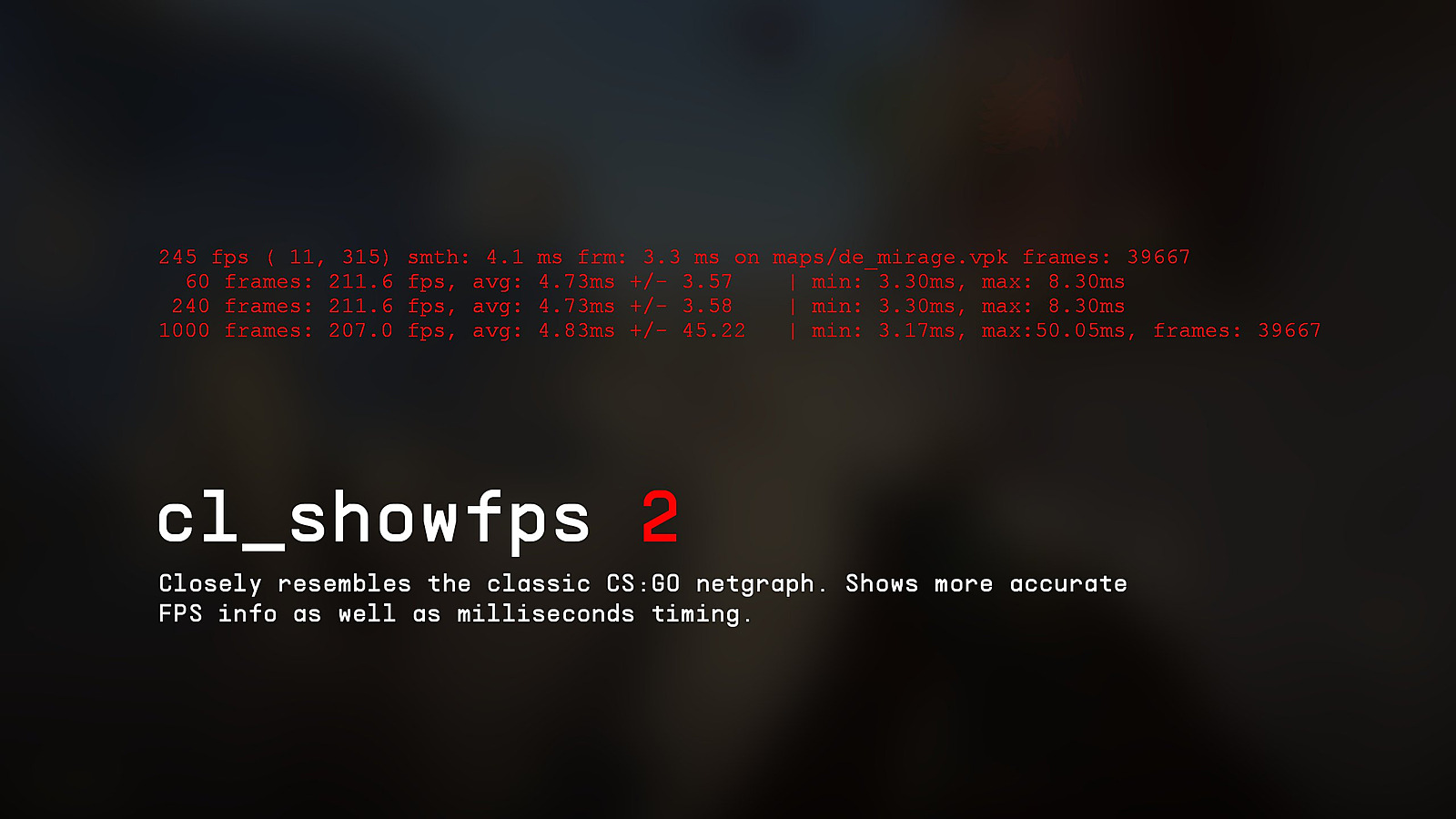
cl_showfps 2 — Functions similarly to the standard CS:GO command but offers superior accuracy: displays more precise FPS measurements and millisecond-level timing data
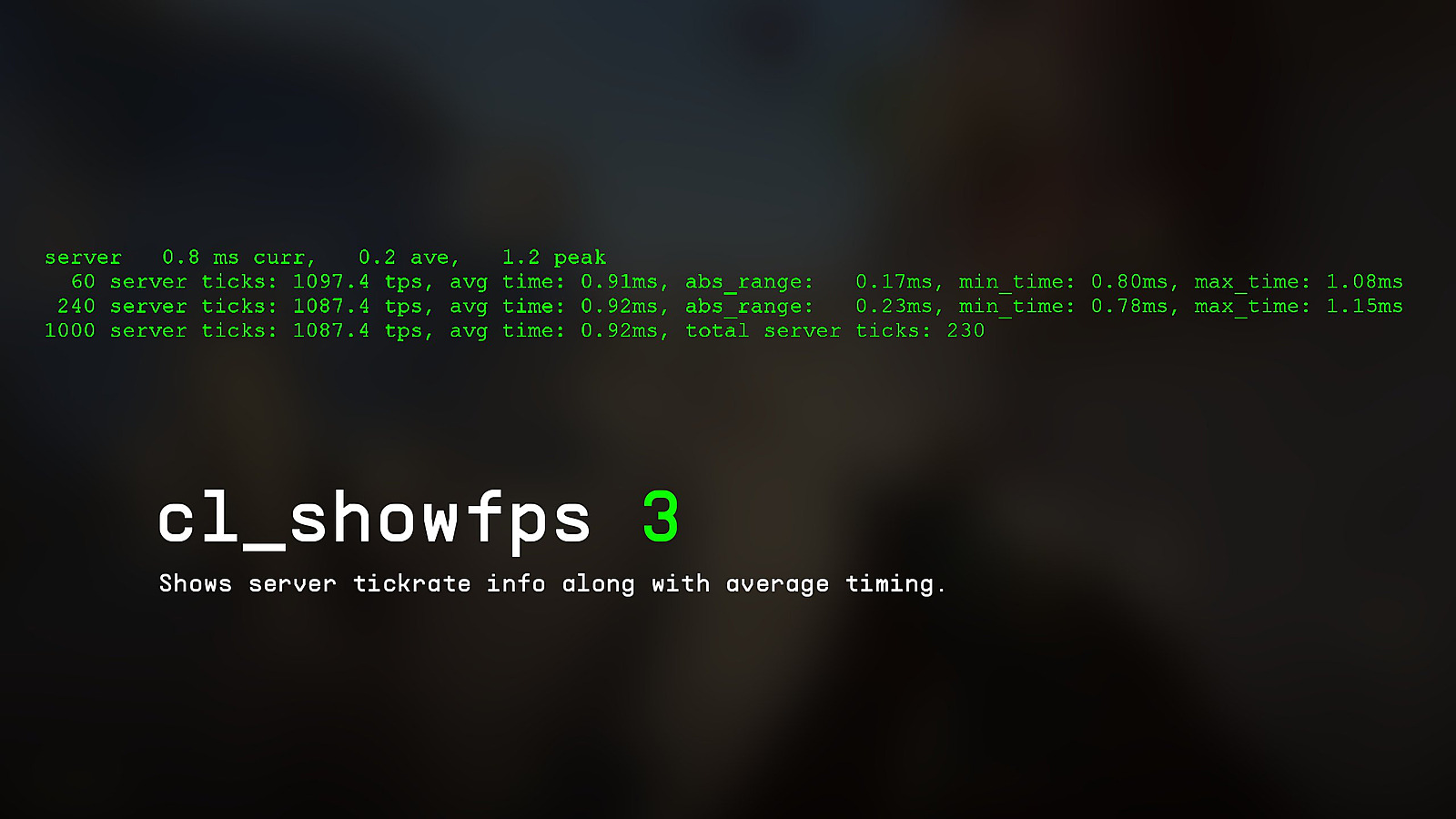
cl_showfps 3 — This advanced mode reveals server tick rate information and average timing statistics
Source: RemIxFloats on Twitter Source: RemIxFloats on Twitter
Where to find FPS counter in CS2? How to activate FPS command in console or Steam overlay in CS2
How to enable the cl_showfps commands in CS2?
All performance monitoring commands operate through CS2’s developer console interface. To activate this feature, access the in-game Settings menu and select the “Game” configuration tab. At the beginning of the options list, find the “Enable Developer Console” setting. Choose “Yes” to confirm activation. You can subsequently open the console interface at any time by pressing the “~” key. Then, either manually enter or paste the required command text and execute by pressing “Enter.”
Pro Tip: For optimal performance tracking, combine console commands with Steam’s built-in FPS counter. Access Steam Settings → In-Game → In-Game FPS Counter to enable dual monitoring layers. This approach provides redundancy if either system experiences temporary issues during competitive matches.
Common Configuration Mistake: Many players forget to enable the developer console before attempting command execution, resulting in apparent command failure. Always verify console activation before troubleshooting other potential issues.
Advanced Technique: Create custom bind configurations to toggle performance displays quickly during gameplay. Use commands like “bind f5 toggle cl_showfps 1 0” for instant FPS monitoring activation without console access.
CS2 might get VIP mode, seasonal medals, and comic books for operations
Performance Benchmarking Strategy: Establish baseline performance metrics during practice sessions to identify optimization opportunities. Monitor FPS stability across different maps and game modes to pinpoint performance bottlenecks before competitive matches.
Network Performance Analysis: Beyond FPS monitoring, pay close attention to ping fluctuations and server tick rate consistency. Sudden variations in these metrics often indicate connection issues that could impact gameplay responsiveness.
Optimal Command Combinations: For comprehensive performance monitoring, experienced players often run multiple commands simultaneously. Consider combining cl_showfps 1 with network-specific commands for complete system performance visibility.
Troubleshooting Framework: When performance displays malfunction, systematically check console activation, command syntax accuracy, and game update compatibility. Many display issues resolve after verifying these three critical components.
Visual Customization Options: The telemetry system allows adjustment of text size, opacity, and positioning to minimize visual distraction while maintaining accessibility.
For players transitioning from other tactical shooters, our Complete Guide provides additional performance optimization strategies that translate well to CS2’s engine.
Action Checklist
Enable Developer Console in Game Settings tab
Activate built-in Telemetry system in Settings menu
Execute cl_showfps commands for FPS monitoring
Configure Steam overlay FPS counter as backup monitoring
Create custom bind configurations for quick performance toggling