
TL;DR
- Crossplay enables PC, Xbox, and PlayStation 5 players to unite in Palworld multiplayer sessions
- Only the host needs to enable crossplay via world settings – joining players connect automatically
- The feature requires v0.50 update and works with both new and existing game worlds
- Global Palbox allows cross-platform Pal showcasing and progression sharing
- Proper network configuration prevents most connection issues between platforms
Unite gaming communities across different hardware platforms with Palworld’s crossplay functionality, which bridges the gap between PC, PlayStation 5, and Xbox ecosystems.
Crossplay revolutionizes multiplayer gaming by allowing seamless connectivity between personal computer, Microsoft Xbox, and Sony PlayStation 5 platforms within the Palworld universe. This interoperability means friend groups no longer need to own identical gaming systems to embark on adventures together.
Gamers from different platforms can collaboratively tackle tower boss challenges and progress through the game’s narrative with their collected Pals. However, activating this feature may present initial confusion for those unfamiliar with world configuration menus and multiplayer setup procedures.
The cross-platform capability debuted as a headline feature in March 2025’s substantial v0.50 content update. This significant patch also introduced the revolutionary Global Palbox storage system and expanded character customization through armor appearance options.

Activating cross-platform multiplayer works in both freshly created worlds and established bases with existing progression. Crucially, only the session host needs to adjust settings – joining participants connect without additional configuration.
To configure crossplay functionality in your Palworld experience:
- Navigate to and select your designated multiplayer world from the main menu interface
- Locate and click the “Change World Settings” option positioned at the screen’s lower section
- Toggle the “Cross-Play” switch to your preferred state (enabled or disabled based on your multiplayer needs)
When properly activated, crossplay eliminates platform barriers, enabling Xbox, PlayStation 5, and computer gamers to join shared sessions. This connectivity extends to base visitation rights and the ability to showcase favorite Pals through the integrated Global Palbox system.
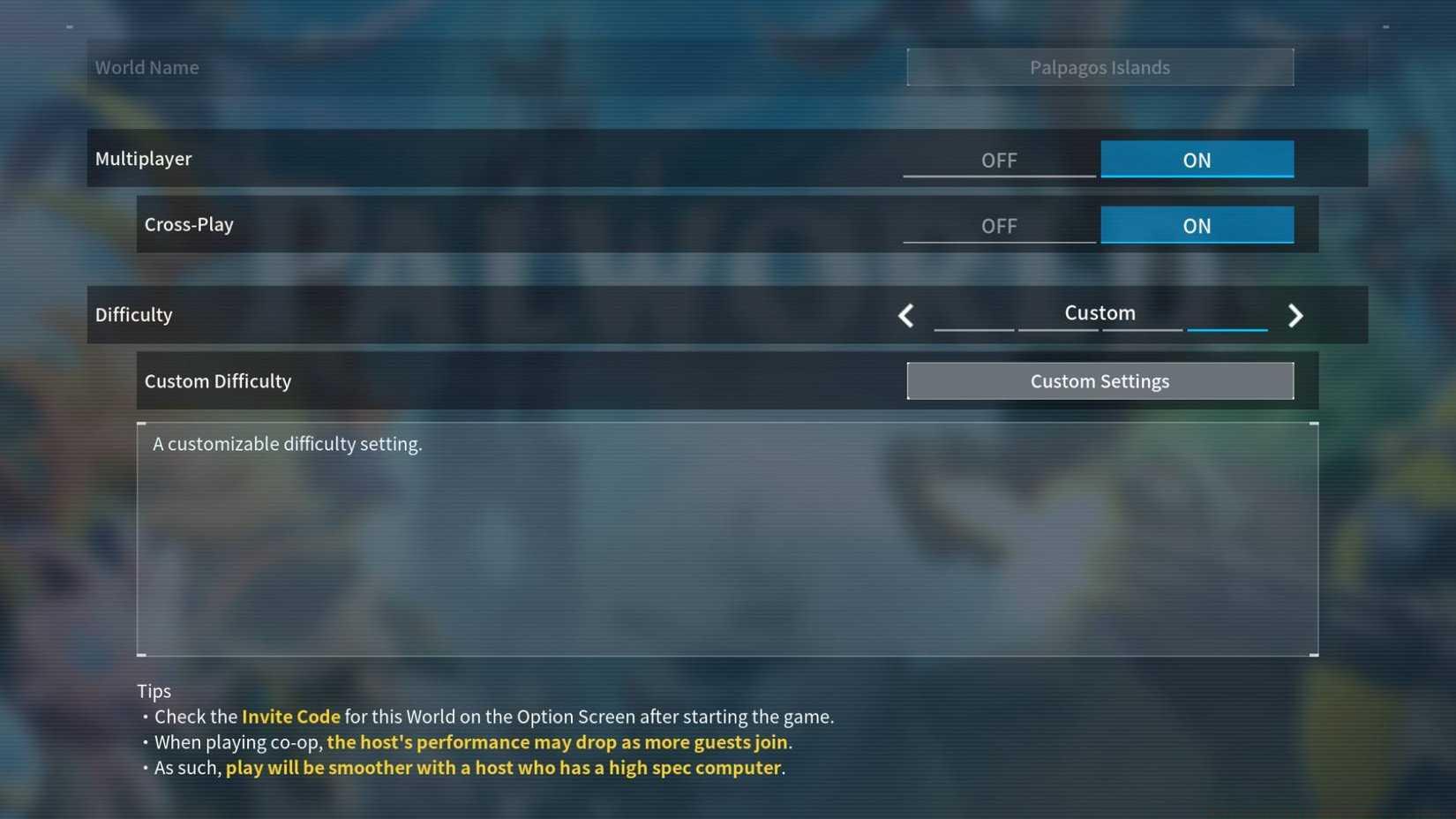
Image: Pocketpair via Polygon
The Global Palbox represents one of crossplay’s most significant advantages, functioning as a universal storage system accessible across all connected platforms. This shared inventory allows players to transfer Pals between platforms and showcase their rarest creatures to friends regardless of their gaming system.
Cross-platform progression extends beyond simple connectivity, enabling coordinated boss attempts and shared world exploration. Players can combine resources and strategies across Xbox, PlayStation, and PC ecosystems to tackle the game’s most challenging content more effectively.
While crossplay removes platform barriers, certain limitations remain. Platform-specific exclusives or timed content may not transfer immediately between ecosystems, and performance variations between console and PC hardware can affect gameplay experience consistency.
Connection failures between platforms often stem from version mismatches – ensure all players have installed the v0.50 update or later. Network configuration problems can frequently be resolved by verifying NAT type settings and ensuring proper port forwarding on the host’s internet connection.
Performance optimization becomes crucial in cross-platform sessions, as hardware variations between consoles and PCs can create inconsistent frame rates. Hosts should consider disabling resource-intensive settings when including console players to maintain smooth gameplay across all connected systems.
For those seeking to master other aspects of multiplayer gaming, our Complete Guide offers comprehensive strategies that complement your Palworld crossplay experience with additional tactical insights.
Action Checklist
- Verify all players have v0.50 update installed
- Host selects multiplayer world and accesses settings
- Toggle Cross-Play option in world settings menu
- Test connectivity with one cross-platform player
- Optimize performance settings for mixed-platform sessions
No reproduction without permission:SeeYouSoon Game Club » How to enable (and disable) crossplay in Palworld Complete guide to enabling cross-platform multiplayer in Palworld with setup tips and troubleshooting advice