
Complete guide to managing crossplay and cross-progression in Delta Force: Platform settings and gameplay strategies
Understanding Crossplay Mechanics
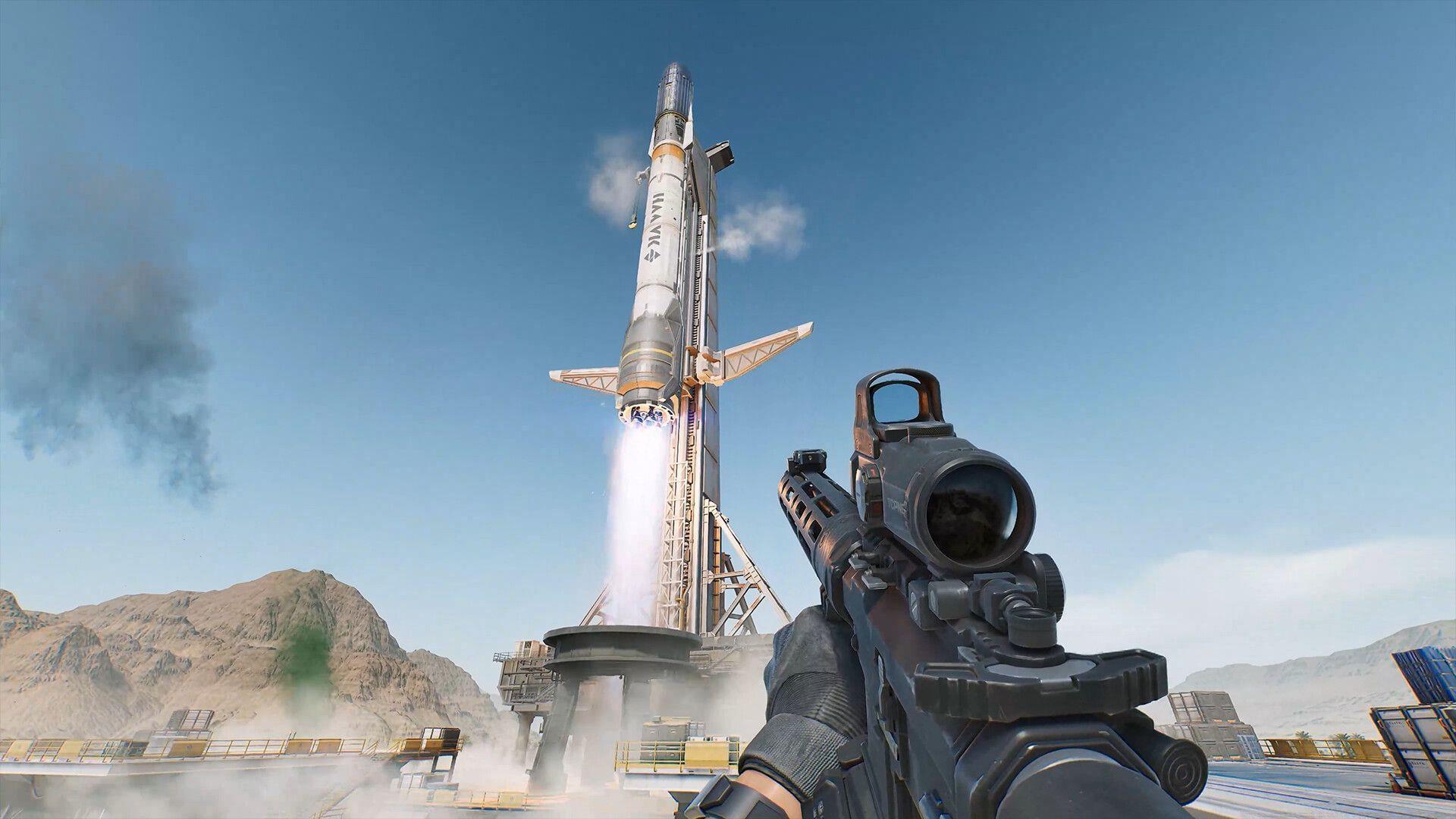
Crossplay functionality in Delta Force emerged alongside the console edition launch, creating unified matchmaking pools that bridge platform divides. This integration facilitates squad formation with comrades regardless of their hardware preferences, though it introduces unique gameplay dynamics that merit careful consideration.
The cross-platform matchmaking system automatically pairs keyboard-mouse users with controller operators, creating potential input method disparities that impact competitive balance. Many competitive players express preference for input-based matchmaking segregation to maintain fair gameplay conditions, while casual gamers often prioritize accessibility over competitive purity.
Step-by-Step Crossplay Configuration
Navigating Delta Force’s crossplay settings requires precise menu navigation. Begin from the main interface where visual cues guide your configuration journey.
- Access the settings menu via the gear icon positioned in the screen’s upper-right quadrant. Alternative activation is available through your controller’s Options or Menu buttons for streamlined navigation.
- Proceed to the Game configuration tab where crossplay preferences reside among other matchmaking parameters. This centralized location houses all multiplayer connectivity options.
- Toggle the crossplay switch to your preferred state—activated for expanded player pools or deactivated for platform-specific matchmaking. This binary choice directly impacts queue times and opponent variety.
Strategic Crossplay Management
The staggered release schedule between PC and console editions creates skill disparity environments where veteran players may overwhelm newcomers. This experience gap makes strategic crossplay management essential for enjoyable gameplay sessions.
Recommended practice: Disable crossplay temporarily during your initial gameplay hours to develop fundamental skills without facing seasoned opponents. This controlled environment allows weapon familiarity and map knowledge development at your own pace. Reactivate crossplay once you’ve established combat proficiency and understand game mechanics thoroughly.
Platform limitation awareness: The PC version currently lacks crossplay toggle functionality, restricting configuration options for computer users. This design choice potentially creates imbalanced matches where console players cannot opt out of PC matchmaking. Development team Team Jade may introduce this feature in future updates based on community feedback and technical feasibility.
Cross-Progression System Explained
Delta Force’s cross-progression system enables seamless continuity across gaming platforms, though it requires specific account configuration to unlock its full potential.
The progression synchronization mechanism mandates Level Infinite account linkage to authorize data transfer between gaming devices. This single account association serves as the gateway for all cross-platform content preservation.
Successful account linking transmits your complete gaming profile including cosmetic collections, experience progression, and all operational mode acquisitions. This comprehensive transfer ensures no content abandonment when switching between gaming setups, maintaining your investment across the Delta Force ecosystem.
No reproduction without permission:SeeYouSoon Game Club » How to enable and disable crossplay in Delta Force Complete guide to managing crossplay and cross-progression in Delta Force: Platform settings and gameplay strategies