
TL;DR
- Download Roblox only from official sources: Roblox website, Microsoft Store, Apple App Store, or Google Play Store
- PC installation requires launching any game from the website to trigger client download automatically
- Mobile installation is straightforward through official app stores with verified developer credentials
- Updates typically happen automatically but manual methods exist for troubleshooting
- Security measures include account verification and parental controls for younger players
This comprehensive installation guide walks you through downloading Roblox safely across all supported platforms while highlighting essential security considerations and performance optimization tips.
Whether you’re setting up Roblox for yourself or your children, knowing the correct installation procedures ensures you avoid potentially harmful unofficial versions. The platform’s availability through multiple distribution channels requires careful attention to source verification.
Before proceeding with installation, consider reviewing Roblox’s safety features and parental control options, especially if younger family members will be using the platform. Understanding the system requirements helps prevent performance issues and ensures optimal gaming experiences across different device types.
Windows users have two primary methods for obtaining Roblox: through the official website or via the Microsoft Store. Both approaches provide legitimate versions, but each offers distinct advantages depending on your preferences and system configuration.
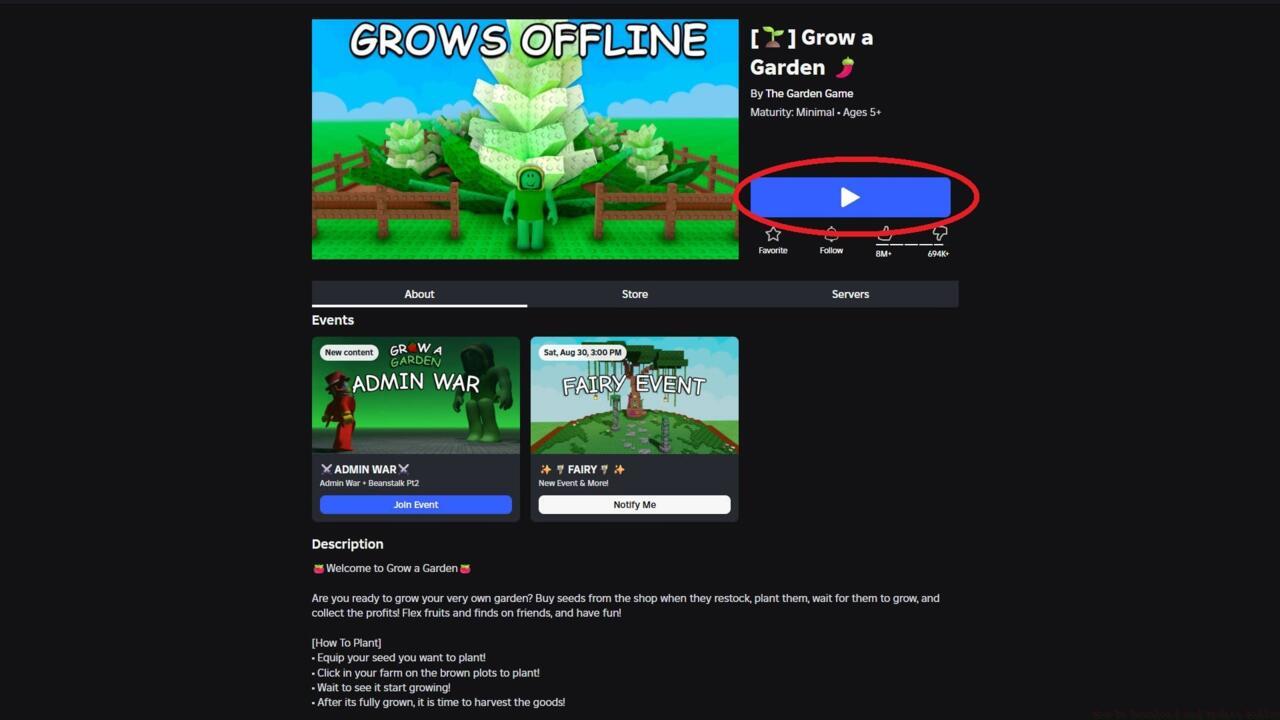
Identify the Play button location on game pages to initiate the Roblox client download process on your Windows system.
Official Website Method: Begin by visiting the Roblox website and logging into your account. Select any available game and click the prominent Play button, which automatically downloads the installation client. Run the downloaded file and follow the on-screen setup instructions. Once installation completes, launch the Roblox application and authenticate with your credentials to access the full game library.
Microsoft Store Method: Open the Microsoft Store application and search for “Roblox” using the built-in search functionality. Click the “Get” button to download and install the application seamlessly through Microsoft’s verified distribution platform.
Common Installation Issues: If the client fails to download, check your browser’s security settings and ensure pop-up blockers aren’t preventing the download dialog. Administrator privileges may be required for installation on some systems, and temporary firewall adjustments might be necessary during the initial setup phase.
Mobile installation offers the most straightforward approach with built-in security verification through official app stores. The process varies slightly between iOS and Android platforms but maintains consistent safety protocols.
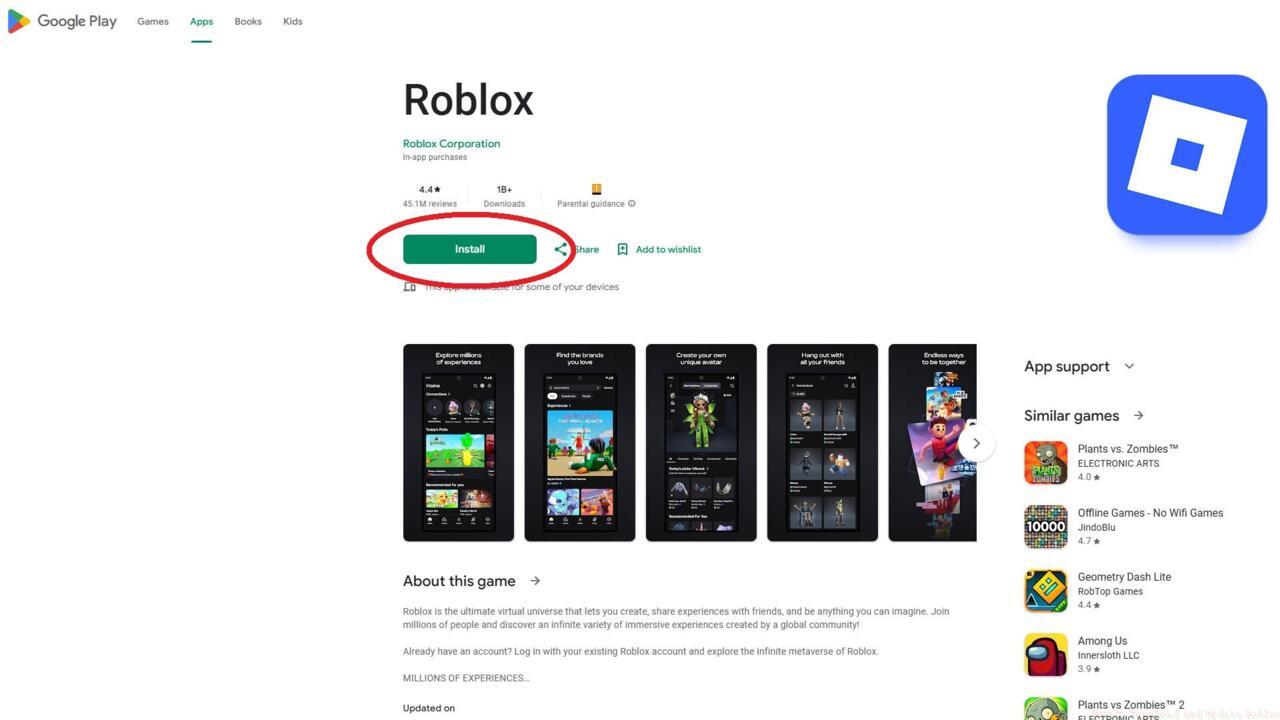
Official app store pages display verified developer information to ensure you’re downloading the authentic Roblox application.
iOS Installation: Open the Apple App Store on your iPhone or iPad and search for “Roblox.” Verify that “Roblox Corporation” appears as the listed developer before tapping the download button. The application automatically installs and appears on your home screen upon completion.
Android Installation: Access the Google Play Store on compatible devices including Samsung, Google Pixel, Motorola, Honor, and other Android OS smartphones and tablets.
Cross-Platform Installation: You can also initiate mobile installation from a desktop computer by visiting either the Apple App Store or Google Play Store websites and using the remote install functionality.
Mobile Optimization Tips: Ensure sufficient storage space (minimum 80MB plus additional space for game assets) and a stable internet connection for optimal download performance and subsequent gameplay experiences.
Regular updates deliver critical security patches, performance enhancements, and new features. Understanding update mechanisms helps maintain optimal functionality and security across all your devices.
Automatic Updates: Both PC and mobile versions typically update automatically when new versions become available. Ensure your system settings permit automatic application updates to benefit from the latest improvements.
Manual Update Methods: If automatic updates fail or you suspect an outdated version, PC users can trigger updates by launching any game from the website, which checks for client updates. Mobile users can visit their respective app stores and check for available updates in the application management section.
Update Troubleshooting: Persistent update issues may require completely uninstalling and reinstalling the application. Before taking this step, ensure your device meets current system requirements and has adequate storage capacity for the updated version.
Update Verification: After updating, verify your client version matches the current release by checking the version information in the application settings menu.
Protecting your account and device begins with installation source verification and continues through ongoing security practices. These guidelines help ensure safe Roblox experiences for users of all ages.
Official Sources Only: Always download Roblox from verified platforms: the official Roblox website, Microsoft Store, Apple App Store, or Google Play Store. Third-party sources may contain modified clients with security vulnerabilities or malicious code.
Account Protection: Enable two-step verification in your account settings and use unique passwords not shared with other services. Regularly review your account activity for unauthorized access attempts.
Parental Controls: For younger players, configure parental controls to restrict chat functions, spending limits, and content accessibility based on age appropriateness.
Performance Optimization: For optimal performance, close unnecessary background applications during gameplay and ensure your device meets or exceeds the recommended system specifications for smooth operation.
Action Checklist
- Verify device meets minimum system requirements and has adequate storage space
- Choose installation method: official website or app store based on device type
- Download from verified source ensuring correct developer identification
- Configure security settings including two-step verification and parental controls
- Test installation by launching a game and verify update settings for automatic maintenance
No reproduction without permission:SeeYouSoon Game Club » How To Download And Update Roblox Complete guide to safely download Roblox on PC and mobile devices with troubleshooting tips and security best practices