
A complete guide to casting Oculus Quest 2 gameplay to TVs, PCs, phones, and Chromecast with expert tips
Why Cast Your Oculus Quest 2 Gameplay?
Broadcasting your virtual reality sessions transforms a solitary experience into a shared spectacle. Whether you’re demonstrating advanced techniques in Beat Saber, guiding a newcomer through Superhot VR‘s time-bending mechanics, or simply letting friends watch your adventures in Population: One, casting creates a bridge between the VR user and their audience.
Mastering Oculus Quest 2 casting unlocks multiple social and practical benefits beyond basic screen sharing. The Meta Quest 2 (formerly Oculus Quest 2) hosts an extensive library of immersive titles perfect for group viewing. While VR inherently offers personal immersion, strategically sharing gameplay amplifies entertainment value during parties, family gatherings, or streaming sessions. Beyond entertainment, casting serves practical purposes: coaches can analyze player movements in real-time, content creators can produce reaction videos without external capture cards, and developers can demo prototypes to stakeholders without additional hardware. This guide delivers comprehensive methods for broadcasting to televisions, computers, mobile devices, and Chromecast receivers with enhanced reliability.
Direct Casting to TVs and PC Browsers
 Reality Labs
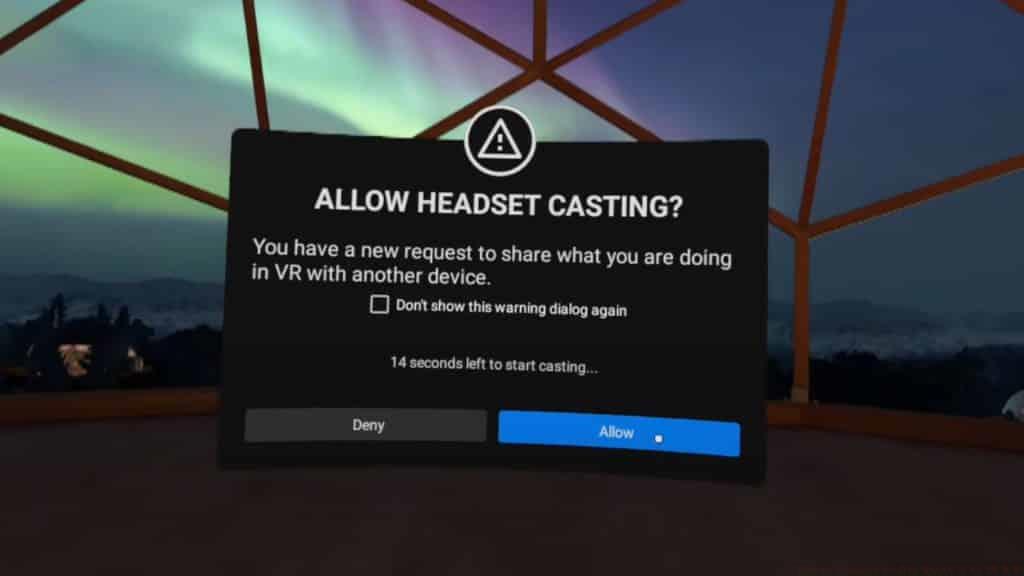
The Quest 2’s native casting function provides the simplest method for real-time viewing on large screens. Follow this optimized sequence to establish a stable broadcast to televisions or computer browsers:
Upon successful pairing, your VR perspective streams with minimal latency to the selected display. Note that casting to browsers works best with Chrome or Edge; Safari may experience compatibility issues.
Connecting to PC for SteamVR and Oculus Rift Content
Unlock your Quest 2’s potential as a PC VR headset to experience titles like Half-Life: Alyx or Microsoft Flight Simulator. This process transforms your standalone device into a wired or wireless PC peripheral.
- Wired Link Cable: Any USB-C 3.0 cable functions, but Meta’s official 5-meter fiber-optic cable offers optimal length and data throughput. Connect directly to a USB 3.0 port on your PC—avoid USB hubs for consistent performance.
- Wireless Air Link: Enable this experimental feature within your headset’s Settings > Experimental menu. Toggle Air Link on, then establish pairing through both the headset interface and PC application prompts.
SteamVR integration mirrors the Oculus connection process. After establishing Link or Air Link, launch Steam followed by SteamVR. The SteamVR dashboard should appear within your headset, granting access to your entire Steam VR library alongside Oculus PC content.
Mobile and Chromecast Casting via Oculus App
 Reality Labs
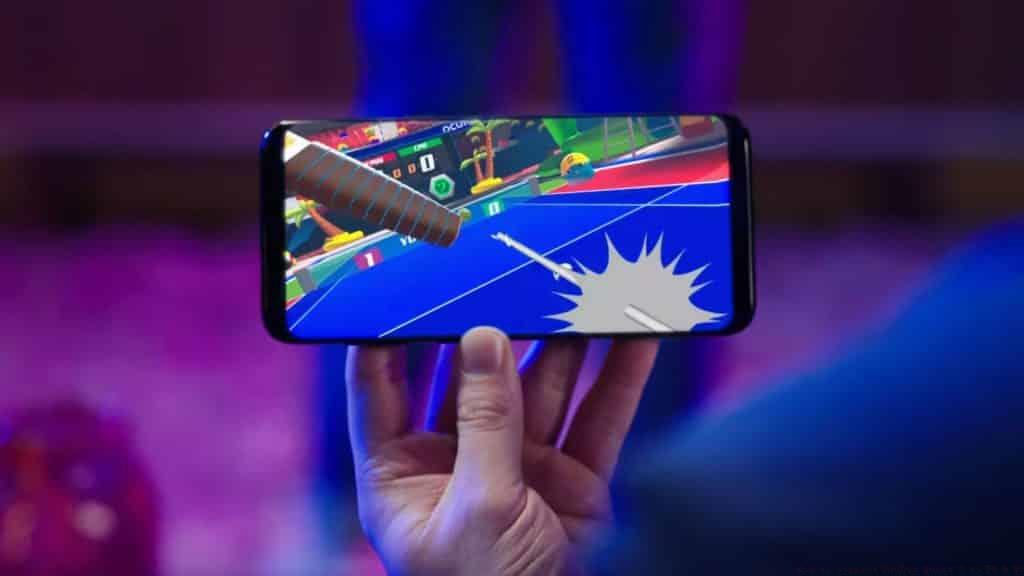
Smartphone casting delivers portable viewing options, ideal for impromptu demonstrations or secondary angle viewing. The Oculus mobile application (iOS/Android) facilitates this process with intuitive device selection:
Mobile casting excels for quick demonstrations but may exhibit slightly higher latency than direct TV casting. For optimal results, close bandwidth-intensive applications on your phone during casting sessions.
Advanced Optimization and Troubleshooting
Beyond basic setup, these professional refinements dramatically improve casting reliability and quality:
Network Configuration: Most home routers default to combined 2.4GHz/5GHz SSIDs—separate these bands and connect your Quest 2 exclusively to 5GHz. Enable QoS (Quality of Service) settings prioritizing VR traffic. Position your router centrally within your play space, avoiding concrete walls or microwave interference.
Latency Reduction: For PC casting, reduce encoding resolution in Oculus Debug Tool if experiencing stuttering. Lower refresh rates to 72Hz during casting sessions to free bandwidth. Disable Windows Game Mode and background applications that consume GPU resources.
Common Failure Points: If casting disconnects intermittently, check for router overheating or channel congestion using WiFi analyzer apps. Ensure your headset firmware and Oculus applications are updated to latest versions. Factory reset your Chromecast device if it consistently fails detection.
Cross-Platform Considerations: When purchasing games, research cross-buy eligibility on developer websites. Some titles like Beat Saber and Superhot VR offer cross-buy, while most do not. Consider purchasing PC VR versions if you anticipate frequent casting to larger audiences.
No reproduction without permission:SeeYouSoon Game Club » How to connect Oculus Quest 2 to TV & PC A complete guide to casting Oculus Quest 2 gameplay to TVs, PCs, phones, and Chromecast with expert tips