
TL;DR
- Connect Discord to Xbox via mobile app integration requiring both apps installed
- Link accounts through Discord’s Connections menu and Xbox authentication process
- Transfer voice chat from mobile to console using the Join on Xbox feature
- Optimize audio quality by adjusting both Discord and Xbox sound settings
- Troubleshoot common issues like connection drops and audio distortion
Getting Discord voice chat working on your Xbox requires specific hardware and software components that ensure seamless cross-platform communication. Understanding these prerequisites helps prevent setup frustrations and ensures optimal performance.
To establish Discord connectivity with your Xbox console, you’ll need several key components. First, ensure you have an active Xbox Live Gold or Game Pass Ultimate subscription, as voice chat functionality typically requires these premium tiers. You’ll also need a stable internet connection on both your mobile device and Xbox console, with minimum 5Mbps upload/download speeds recommended for clear audio transmission.
The essential software requirements include having the latest versions of both Discord and Xbox mobile applications installed on your smartphone. Both iOS and Android platforms are supported, but ensure your operating system is updated to avoid compatibility issues. Additionally, your Xbox console should be running the most recent system software update to support Discord integration features.
Many users overlook the importance of having their gaming headset properly configured before starting the setup process. Ensure your headset is compatible with Xbox voice chat and test it separately in Xbox party chat to verify functionality. This preliminary check saves significant troubleshooting time later in the process.
Linking your Discord and Xbox accounts establishes the foundation for cross-platform voice communication. This process involves careful navigation through both applications with specific attention to authentication details.
Begin by launching the Discord application on your mobile device and accessing your user profile through the bottom-right navigation menu. Within the profile settings, locate the Connections section which manages external platform integrations. This menu consolidates all your connected services in one centralized location for easy management.
When you reach the Connections interface, select the Add option positioned in the upper-right corner. Scroll through the available platform options until you identify Xbox, then initiate the linking sequence. The system will present authentication prompts guiding you through the account verification workflow.
After successfully linking both accounts, you’ll receive confirmation notifications within both applications. The Discord app will specifically indicate that Xbox Mobile App installation is necessary for full functionality. Ensure you’ve downloaded this complementary application beforehand to streamline the setup progression.
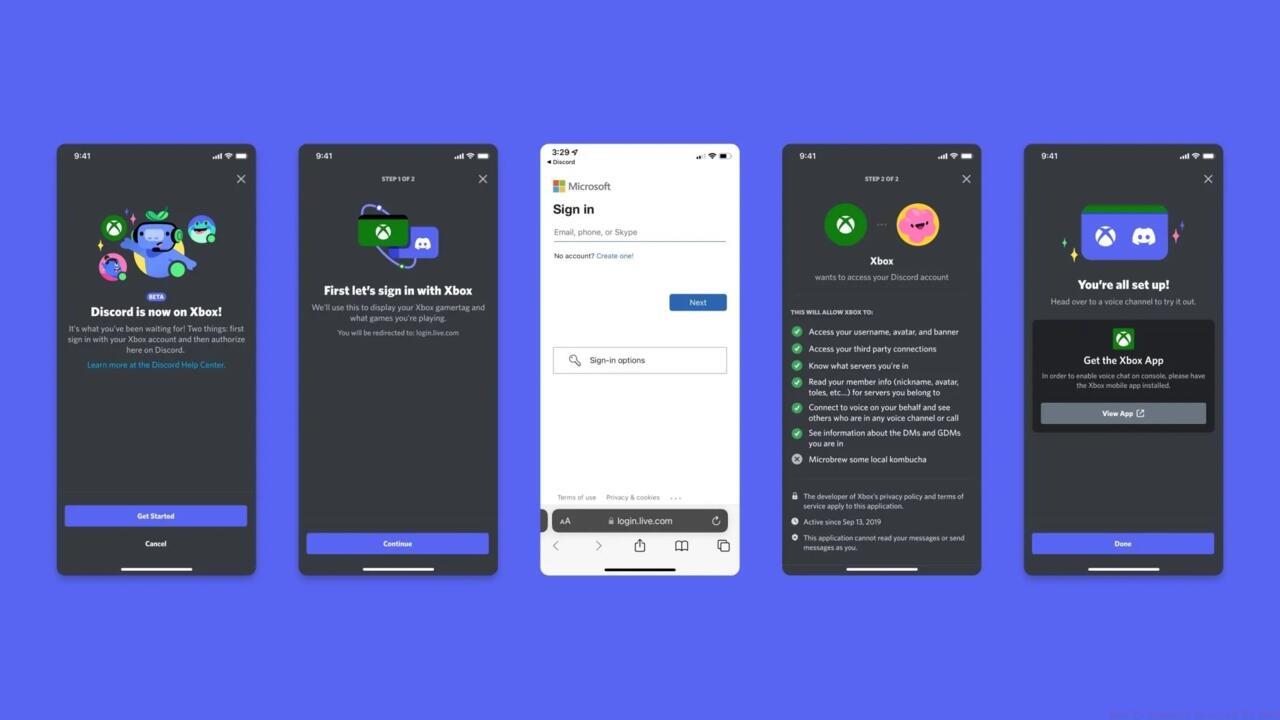
Account linking confirmation screen showing successful integration between Discord and Xbox platforms
Common mistakes during this phase include using incorrect login credentials or attempting to link through outdated app versions. Always verify you’re using the most recent software releases and double-check your Xbox account details during authentication. These precautions prevent repeated failed connection attempts and account lockout scenarios.
Once your accounts are properly linked, activating Discord voice chat on your Xbox involves a specific transfer process that bridges mobile and console functionality. Mastering this procedure ensures reliable cross-platform communication during gameplay sessions.
Initiate the voice transfer by joining your desired Discord voice channel directly from your mobile device. After establishing the connection, navigate upward within the Discord interface to locate the Join on Xbox option. This specialized feature initiates the console handoff sequence for voice transmission.
Selecting the Join on Xbox command automatically launches the Xbox mobile application and presents the Transfer Voice interface. Activating this final transfer step seamlessly moves your voice chat session from mobile to console, enabling direct communication through your Xbox headset while maintaining Discord channel participation.
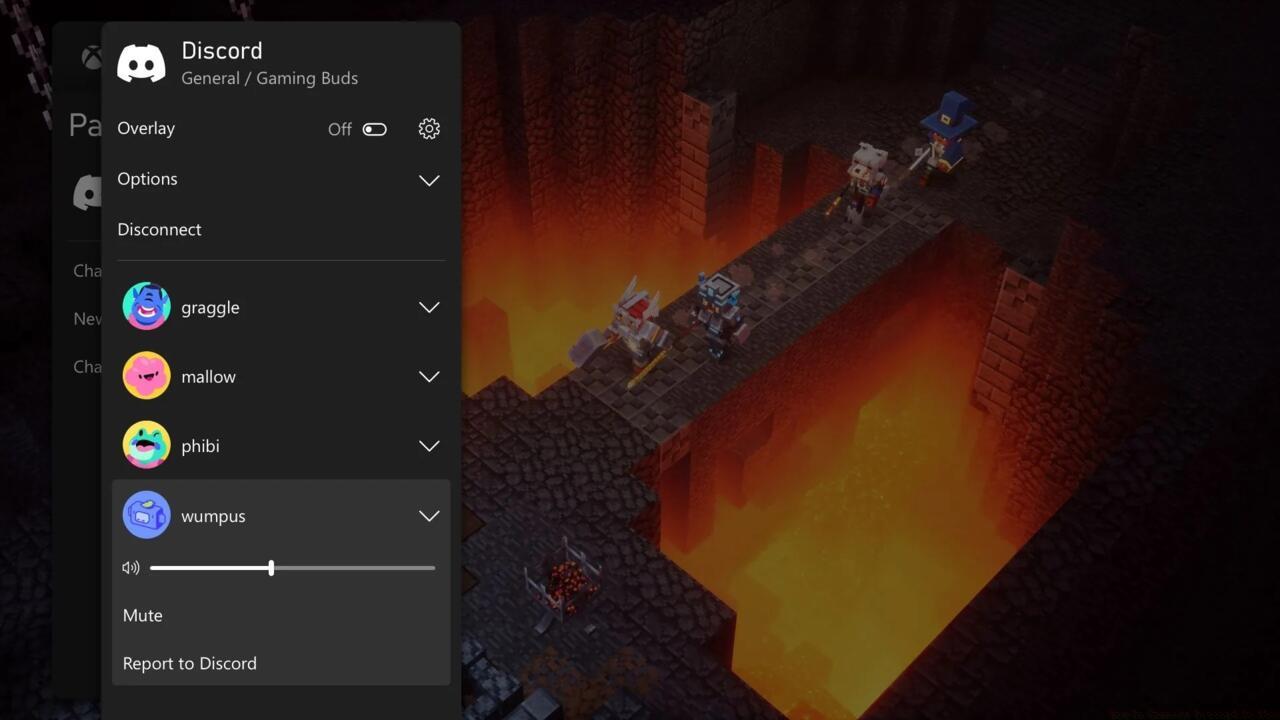
Successful voice transfer interface showing active Discord chat on Xbox console display
For optimal audio performance, adjust both Discord’s input sensitivity settings and Xbox’s audio balance controls. Position Discord’s input threshold slightly above your normal speaking volume to minimize background noise pickup. Simultaneously, balance game audio and chat volume through Xbox settings to prevent one overwhelming the other during intense Battlefield 6 gameplay sessions where situational awareness is critical.
Advanced users can enhance their experience by creating dedicated Discord servers specifically for gaming squads, complete with specialized channels for different game modes like class-specific coordination in team-based matches. This organizational approach streamlines communication during complex multiplayer scenarios.
Even with proper setup, Discord voice chat on Xbox can encounter technical challenges that disrupt communication. Understanding these common problems and their solutions ensures uninterrupted gaming sessions.
Connection failures often stem from authentication token expiration between sessions. If voice transfer fails, unlink and relink your accounts through Discord’s Connections menu to refresh the authorization. This simple reset frequently resolves persistent connection problems without requiring more extensive troubleshooting.
Audio distortion or intermittent dropouts typically indicate network congestion or bandwidth limitations. Prioritize your Xbox’s network connection through Quality of Service (QoS) settings on your router, or temporarily disable other bandwidth-intensive applications during gaming sessions.
Mobile application conflicts represent another common issue, particularly when both Discord and Xbox apps run simultaneously. Ensure you’ve granted necessary permissions for both applications, including microphone access and background activity allowances. These permissions ensure uninterrupted voice transfer between applications.
For persistent audio quality issues, consider adjusting both in-game voice settings and Discord’s individual user volume controls. Sometimes specific squad members may require individual volume adjustment to balance overall chat audio levels, especially when coordinating complex weapon loadout strategies that require precise communication timing.
If all else fails, the nuclear option involves completely removing both applications, restarting your mobile device, and performing a clean reinstallation. This comprehensive reset eliminates corrupted configuration files and conflicting cache data that may impede proper functionality.
Action Checklist
- Verify Xbox Live Gold/Game Pass Ultimate subscription status
- Install latest Discord and Xbox mobile apps on your smartphone
- Link accounts through Discord Connections menu with Xbox authentication
- Join Discord voice channel and initiate Join on Xbox transfer
- Optimize audio settings in both Discord and Xbox sound menus
No reproduction without permission:SeeYouSoon Game Club » How To Connect Discord To Xbox Complete guide to connecting Discord voice chat on Xbox with troubleshooting tips and optimization strategies