
TL;DR
- Minecraft offers distinct skin customization methods for Java and Bedrock editions
- Official website access provides the most reliable skin management for Java players
- Custom skin creation requires specific dimensions and format compliance
- Community resources offer thousands of free, high-quality skin options
- Proper skin management prevents common display and synchronization issues
While the default character appearance in Minecraft serves its purpose, many players quickly discover the creative potential of personalizing their avatar. Custom skins transform your gaming identity, allowing you to stand out in multiplayer servers and express your unique style throughout your adventures.
Every Minecraft account begins with a basic character model, typically the iconic “Steve” or “Alex” designs. Although functional, these starter options lack personality. The ability to modify your character’s appearance adds significant depth to your gameplay experience, making your journey through blocky worlds more personally meaningful.
Skin modification procedures differ substantially between Minecraft’s primary editions. Java Edition utilizes web-based management through official channels, while Bedrock Edition offers in-game customization options. Understanding these distinctions ensures a smooth skin-changing process regardless of your platform.
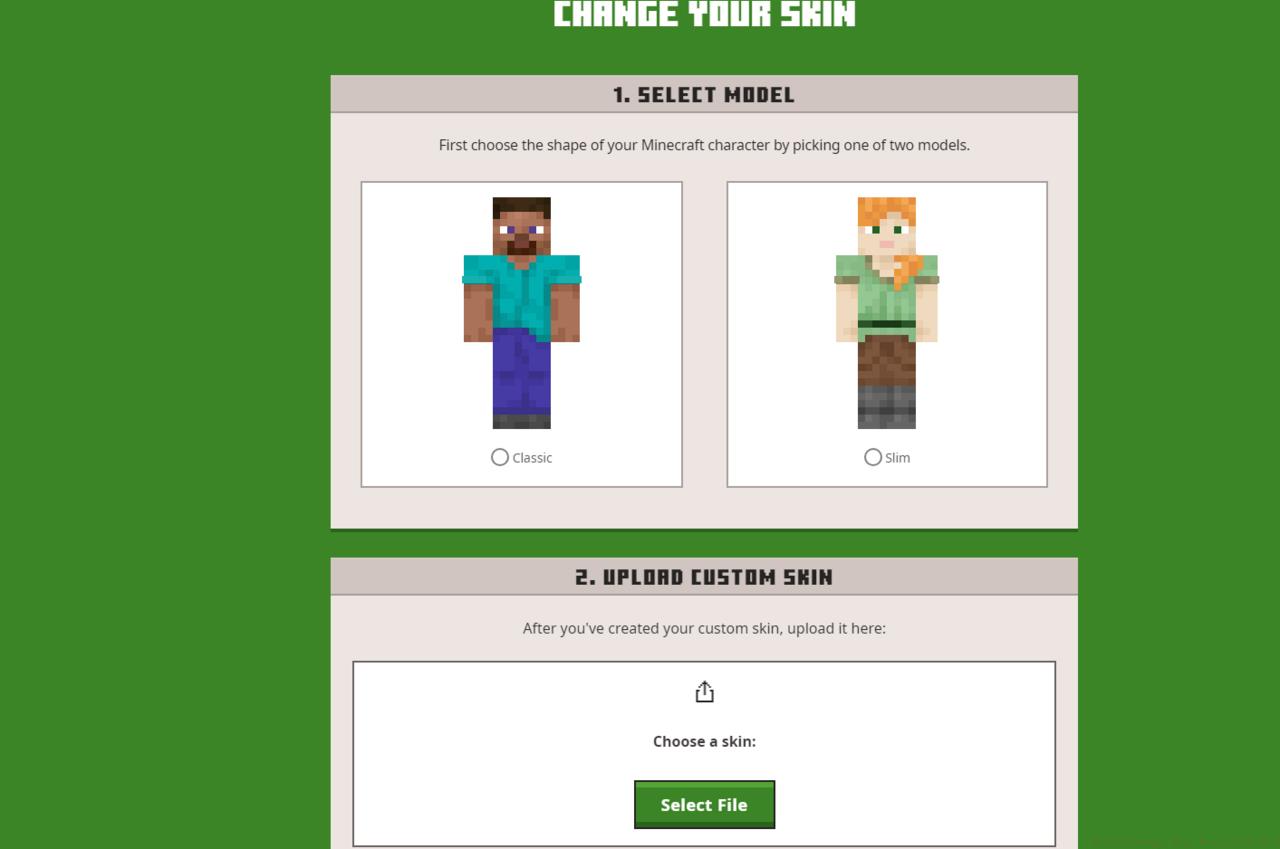
Changing your skin for Java Edition
Java Edition players benefit from a straightforward web-based system for managing their character appearance. This method provides greater control over your skin library and easier switching between multiple designs.
The step-by-step procedure for Java Edition skin modification:
- Navigate to the official Minecraft website at minecraft.net
- Authenticate your identity by selecting the “Login” option positioned in the upper-right corner
- Once successfully logged in, locate and click the “Account” button, also in the top-right area
- Proceed to the “Profile” section and identify the “Minecraft: Java Edition” panel
- Within this panel, you’ll find the “Change Skin” feature clearly marked
- Select this option to choose from default models or upload your custom skin file
When uploading custom skins, ensure your image file meets the required 64×64 pixel dimensions for the base layer. Advanced creators can utilize the 64×64 pixel overlay layer for additional detailing. The system supports PNG format with transparent backgrounds for optimal results.
Common Java Edition skin issues include synchronization delays (allow up to 15 minutes for changes to propagate), incorrect file dimensions causing distortion, and transparency handling problems. Most issues resolve by verifying file specifications and refreshing your game client.
Creating original Minecraft skins requires both artistic vision and technical understanding. Begin with a clear concept of your character design, considering color schemes, themes, and distinctive features that will make your avatar memorable.
Professional skin creators recommend starting with template files to ensure proper dimension compliance. Popular design software includes GIMP, Photoshop, or specialized Minecraft skin editors that provide layer management and real-time previews.
The Minecraft community offers incredible resources for players not interested in creating skins from scratch. Websites like Planet Minecraft, Minecraft Skins, and Nova Skin host thousands of community-created designs across every imaginable theme—from historical figures to pop culture characters.
Skin management best practices include maintaining an organized library of your favorite designs, creating seasonal or thematic skin rotations, and backing up custom creations to prevent loss. For players engaged in multiple gaming universes, understanding character customization across different titles can enhance your overall experience. Our BF6 Class Selection Guide explores similar personalization concepts in military shooters.
Advanced players often develop signature skins that become recognizable across servers. This level of personal branding adds a social dimension to Minecraft gameplay, much like specialized loadouts in other game genres. Discover how weapon customization in our BF6 Weapons Unlock Guide demonstrates comparable personalization principles in tactical shooters.
Action Checklist
- Determine your edition (Java or Bedrock) and follow appropriate method
- Access official Minecraft website for Java Edition or in-game store for Bedrock
- Select or upload skin following platform-specific dimension requirements
- Verify skin appearance in-game and troubleshoot any display issues
- Explore community resources for inspiration or advanced creation tools
No reproduction without permission:SeeYouSoon Game Club » How To Change Your Minecraft Skin Master Minecraft skin customization with expert techniques for Java and Bedrock editions