
TL;DR
- Access themes through Settings > System > Appearance > Appearance and Sound
- Choose from PS1, PS2, PS3, PS4, or Default PS5 visual and audio packages
- Preview each theme’s color scheme and sound effects before applying
- Combine themes with custom backgrounds for enhanced personalization
- Switch themes freely without system performance impact
Personalizing your PlayStation 5 interface goes beyond basic functionality—it’s about creating an environment that reflects your gaming preferences and nostalgia. Sony has transformed what began as limited-time 30th Anniversary commemorative themes into permanent customization features, allowing players to immerse themselves in console generation aesthetics spanning from the original PlayStation to the PS4 era.
Each retro theme package comprehensively alters both visual elements and auditory feedback. The PS1 theme delivers that classic gray and black color palette reminiscent of the 1994 original, while PS2 introduces the sleek blue tones that defined the early 2000s. PS3 brings the sophisticated black and silver scheme, and PS4 maintains the familiar deep blue ambiance. Importantly, the core user interface structure remains consistent across all themes—you’re modifying the decorative layers rather than the functional framework.
One notable omission from the current theme implementation involves startup sounds. The initial 30th Anniversary releases included authentic console boot-up audio that matched each generation, but these distinctive sounds didn’t carry over when Sony made the themes permanently available. Many community members hope future updates might restore these nostalgic audio elements to complete the retro experience.
Transforming your PS5’s appearance requires navigating through a straightforward menu path. Begin by selecting the gear-shaped Settings icon positioned in your home screen’s upper-right corner. This gateway leads to all system customization options, where you’ll progressively drill down through System then Appearance before arriving at the Appearance and Sound submenu.
Within the theme selection interface, you’ll encounter five distinct options: PS1, PS2, PS3, PS4, and the standard Default (PS5) configuration. Each selection immediately previews the corresponding color scheme at the screen’s bottom section, allowing you to assess the visual impact before commitment. The changes manifest primarily through altered background colors on system pages and modified navigation sound effects—subtle yet impactful alterations that refresh your daily interaction with the console.
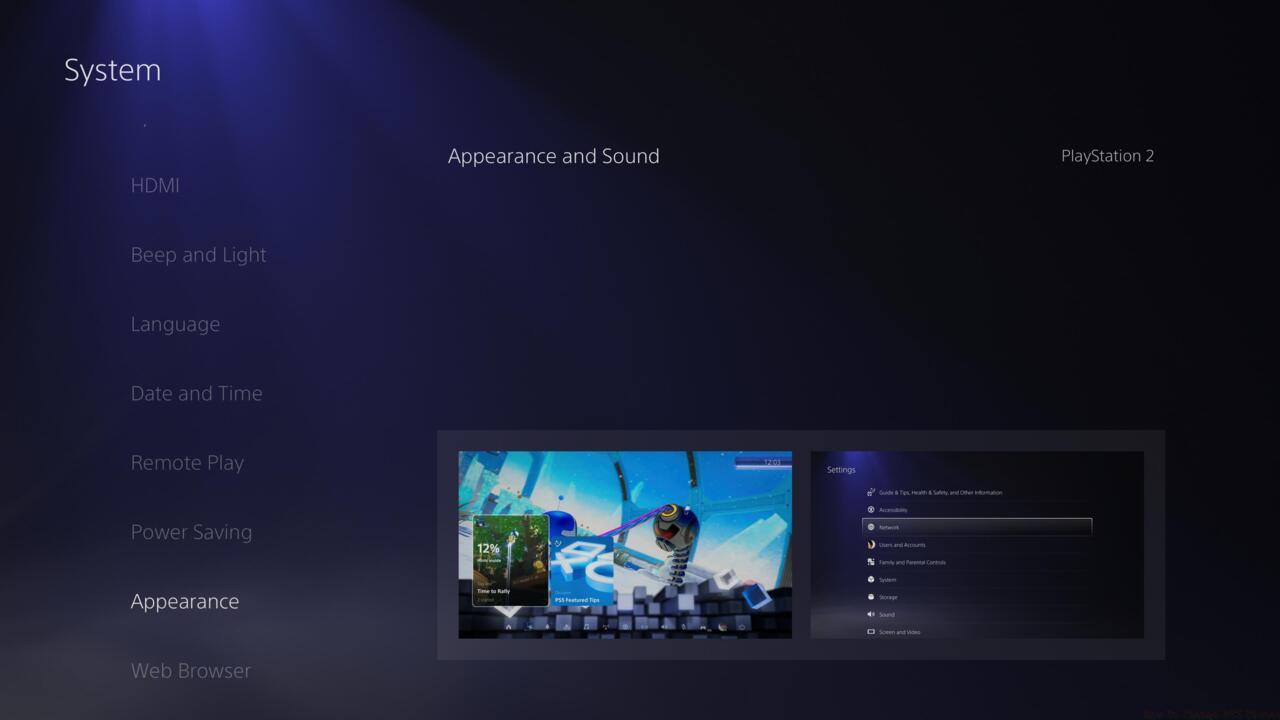
You can select between PS1, PS2, PS3, PS4, or Default (PS5) themes.
The flexibility of this system means you’re never locked into any particular aesthetic. Should you grow tired of a specific generation’s look or simply want to match your theme to whatever game you’re currently playing, returning to this menu takes mere seconds. This reversible customization approach encourages experimentation without permanent consequences.
Beyond basic theme application, consider developing a rotation strategy to keep your interface feeling fresh. Many experienced PS5 owners switch themes seasonally or when transitioning between different gaming genres. The PS1 and PS2 themes work exceptionally well with retro-style games, while the PS4 theme provides a seamless transition for those upgrading from the previous generation.
Complement your chosen theme with appropriate Welcome screen backgrounds for a cohesive visual experience. The PS5 offers extensive background customization separate from themes, allowing you to coordinate colors and imagery for a truly personalized setup. Understanding how to customize your gaming environment extends beyond mere aesthetics—it enhances your overall gaming immersion.
A common mistake involves assuming themes will significantly impact system performance or game loading times. Rest assured, these are lightweight cosmetic changes that don’t affect the console’s operational efficiency. The themes consume negligible resources, so feel free to experiment without concern for technical repercussions.
For those seeking comprehensive PlayStation mastery, our Complete Guide covers broader system optimization techniques. Meanwhile, if you’re interested in how interface customization relates to gameplay, our Class Guide demonstrates how visual preferences can influence in-game performance and comfort.
Remember that theme customization represents just one aspect of personalizing your gaming experience. As you become more familiar with these options, you’ll develop preferences that make your PS5 truly feel like your personal gaming command center.
Action Checklist
- Navigate to Settings via gear icon in top-right home screen corner
- Select System > Appearance > Appearance and Sound menu path
- Preview each theme’s color scheme and sound profile before selecting
- Apply your preferred theme and immediately test navigation sounds
- Coordinate Welcome screen background with chosen theme for visual consistency
- Establish a theme rotation schedule based on gaming seasons or genres
No reproduction without permission:SeeYouSoon Game Club » How To Change PS5 Themes Master PS5 theme customization with retro console aesthetics and sound profiles for personalized gaming experience