
TL;DR
- Use PlayStation Plus cloud storage for seamless save transfers between consoles
- USB drive method works offline but requires manual file management
- Enable auto-upload to maintain synchronized save data automatically
- Navigate Settings > Saved Data menu to access all transfer options
- Verify file integrity after transfer to prevent corrupted save data
The PlayStation 5 offers extensive backwards compatibility support, allowing you to transition smoothly to next-generation gaming while maintaining access to your PlayStation 4 library. This feature ensures that your investment in previous-generation titles remains valuable as you upgrade your console hardware.
Transferring your game installations can be accomplished through multiple methods including physical discs, wired Ethernet connections, or wireless network transfers. However, migrating your precious save files requires additional steps that many users overlook during the setup process.
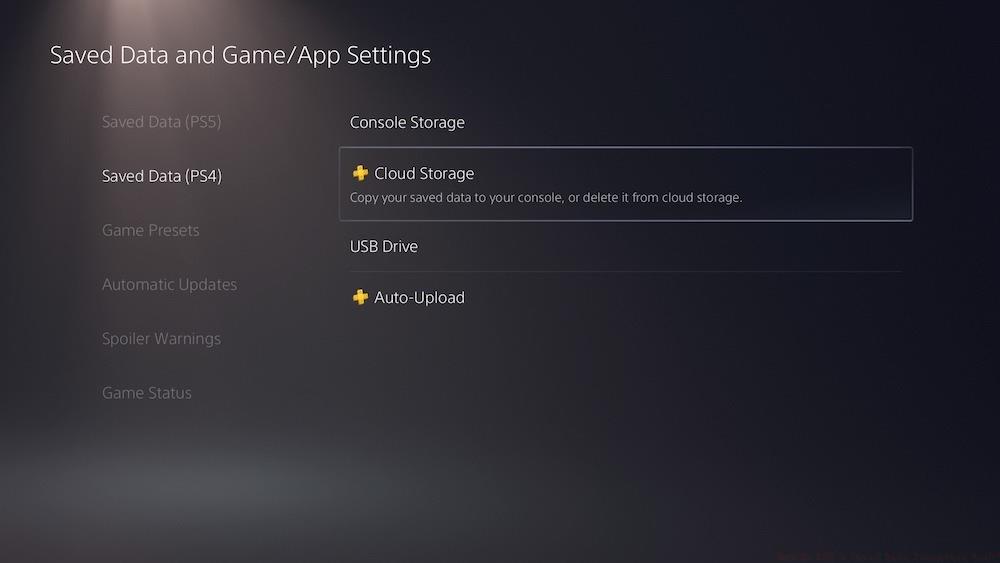
The most efficient approach for moving your game saves involves utilizing PlayStation Plus cloud storage capabilities. This subscription service provides seamless synchronization between your consoles without requiring physical media or direct connections.
Begin by accessing the Settings menu on your PS5, identifiable by the gear icon positioned at the top-right of your home screen interface. Navigate to “Saved Data and Game/App Settings” where you’ll find comprehensive management options for both local and cloud-based save files.
Select “Saved Data (PS4)” followed by “Cloud Storage” to view your uploaded game data. This interface displays storage utilization metrics and enables selective downloading of specific game saves while offering deletion capabilities for data management.
The auto-upload functionality represents a powerful feature for maintaining synchronized save data across platforms. When activated, this setting automatically transmits your PS5 save files to cloud storage, facilitating easy retrieval on your PS4 if you revert to your previous console. To prevent accidental overwriting of important PS4 saves, you can manually upload individual files through the “Console Storage” menu option instead.
For gamers preferring offline solutions or lacking consistent internet access, USB drive transfers offer a reliable alternative. This method involves physically moving save files between consoles using standard flash storage devices.
Within the same settings menu, locate the “USB Drive” option which facilitates console-to-console save migration without network dependency. You can copy files from your connected USB device directly to your PS5’s internal storage through this interface.
To transfer saves from your PS5 back to a PS4 using USB storage, access the Console Storage menu to selectively choose which game data to copy to your removable drive. This bidirectional capability ensures flexibility regardless of your primary gaming platform.
When managing extensive game libraries, prioritize your most recently played titles first to minimize disruption to your gaming routine. Cloud transfers typically complete within 2-5 minutes per game depending on file size and internet connection quality.
A common mistake involves attempting to transfer save files for games that don’t support cross-generation progression. Always verify compatibility before initiating transfers to avoid wasted effort. For optimal results, ensure both consoles are updated to the latest system software versions to prevent transfer failures.
Advanced users should consider creating backup copies of critical save files before initiating any transfer process. This precautionary measure provides insurance against potential data corruption during the migration procedure.
If you encounter transfer errors, first check your PlayStation Network connection status and ensure your PlayStation Plus subscription remains active. For USB transfers, verify the drive is formatted correctly using the PS4’s formatting tool to ensure compatibility.
For comprehensive gaming strategies beyond save management, explore our Battlefield 6 Complete Guide for expert tactics and gameplay optimization techniques.
Action Checklist
- Verify PlayStation Plus subscription status for cloud access
- Upload PS4 saves to cloud storage via Settings menu
- On PS5, navigate to Settings > Saved Data (PS4) > Cloud Storage
- Download specific game saves to PS5 console storage
- For USB method, format drive on PS4 and copy saves to removable storage
- Test transferred saves by launching games and checking progress
No reproduction without permission:SeeYouSoon Game Club » How Do PS5’s Saved Data Transfers Work? Complete guide to transferring PS4 game saves to PS5 using cloud storage and USB methods with pro tips