
TL;DR
- Enable cross-saves by linking your Steam account through the Switch main menu
- Use QR code scanning via the Steam mobile app for fastest authentication
- Always use Sync & Quit from pause menu to ensure cloud save updates
- Monitor connection status and troubleshoot common sync issues proactively
- Maintain both local and cloud saves for backup protection
Seamlessly transition your gaming sessions between different platforms with Hades 2’s cross-save system. This feature becomes especially valuable now that the game has completed its Early Access phase and launched officially on Nintendo Switch and Switch 2 consoles.
The cross-platform save functionality mirrors the successful implementation seen in the original Hades game, allowing players to continue their progression regardless of which device they’re using. Whether you’re deeply invested in Early Access content or beginning your journey fresh, this system ensures your accomplishments follow you everywhere.
Setting up cross-saves requires careful attention to several technical steps. For gamers wondering how to activate this feature between their Switch and PC installations, we provide comprehensive guidance below.
.jpg)
Maintaining both local and cloud save files provides essential backup protection against data loss scenarios.
Launch Hades 2 on your Nintendo Switch or Switch 2 console and locate the “Cross-Saves” option prominently displayed on the main menu interface. From this screen, you’ll need to establish connection with either your Steam or Epic Games account. Since Steam represents the most common platform, we’ll focus primarily on that integration method.
Regardless of where you purchased Hades 2, verifying that cloud saves are activated on your primary platform constitutes a critical prerequisite step many players overlook.
After selecting the cross-save option, your Switch will display a Steam authentication page requesting login credentials. You have two primary methods available: manual entry using the on-screen keyboard or streamlined QR code scanning. The QR approach typically proves more efficient—simply open your Steam mobile application, navigate to the menu in the lower right corner, and access Steam Guard functionality.
Within Steam Guard, select the QR code scanner option and position your phone’s camera toward the Switch display. This initiates a secure authentication sequence requiring confirmation on both devices to complete the linkage process successfully.
Your mobile device will first request authorization approval—accept this prompt, then return to your Switch where additional confirmation screens await. You may encounter a secondary permissions screen asking to allow or deny access; selecting allow completes the connection. Successful implementation displays a confirmation message: “Connected! Successfully linked Steam account. Cross-Saves enabled.”
Returning to the main menu and selecting play triggers an automatic synchronization process with Steam’s cloud servers. This data transfer typically completes within 10-15 seconds under normal network conditions. Once finished, your existing save file becomes accessible with cloud-specific indicators showing synchronization status.
Cross-save functionality operates retroactively, meaning existing progress transfers immediately upon connection. To guarantee your latest gameplay updates propagate to Steam’s servers, consistently utilize the Sync & Quit option from the pause menu (+) before ending sessions. This practice ensures all recent achievements and progression markers properly save to the cloud infrastructure.
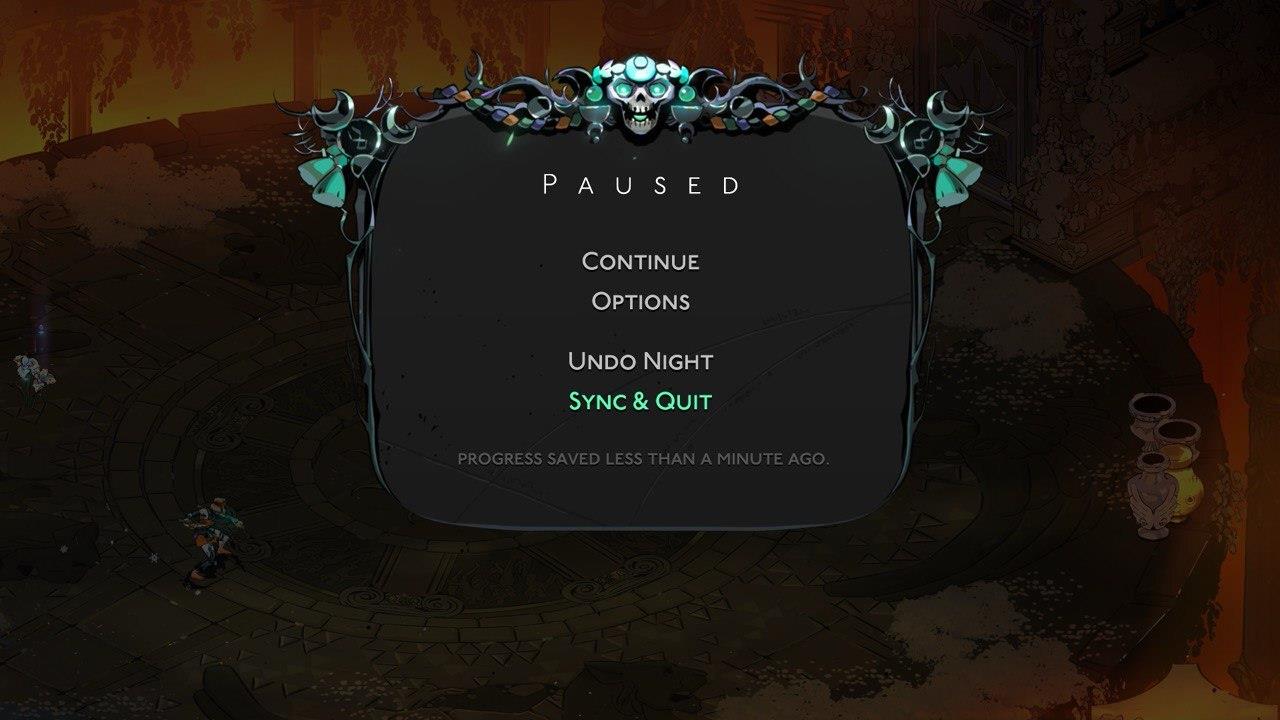
Proper exit procedures via the pause menu prevent potential save corruption that can occur when using the Home button interruption method.
During active gameplay sessions, particularly mid-run, the system may display messages like “Proceed to the next location to safely quit!”—this occurs even during boss encounters. Simply advance to the subsequent area and execute the Sync & Quit procedure from the pause menu to safely preserve your progress.
The interface presents a clear prompt asking whether to upload current progression to cloud storage and return to the main menu. Confirm this action and allow several seconds for completion. Your updated file then becomes available on Steam upon next launch, with bidirectional synchronization maintaining consistency across platforms.
Common synchronization issues often stem from unstable internet connections or attempting to transfer during Steam server maintenance periods. For optimal results, ensure both platforms maintain active internet connectivity during transfer operations and avoid peak server load times if possible. For more detailed gaming strategies, consult our Complete Guide to platform transitions.
Should connection problems persist, verify that both your Switch and PC possess the latest Hades 2 game updates installed. Version mismatches frequently disrupt cross-save functionality until all platforms synchronize to the same release version. Additional weapon and progression guidance can be found in our Weapons Unlock resource for similar technical processes.
Action Checklist
- Enable cloud saves on your primary platform before beginning the linking process
- Access Cross-Saves from Switch main menu and select Steam account linking
- Use QR code scanning via Steam mobile app for fastest authentication
- Confirm connection on both mobile device and Switch when prompted
- Always use Sync & Quit from pause menu rather than Home button to exit
No reproduction without permission:SeeYouSoon Game Club » Hades 2 Cross-Save Guide: How To Use Nintendo Switch Cross-Saves Complete guide to transferring Hades 2 save files between Steam and Nintendo Switch platforms