
Comprehensive troubleshooting guide to fix Escape from Duckov launch failures on Steam with expert gaming solutions
Understanding the Launch Failure Problem
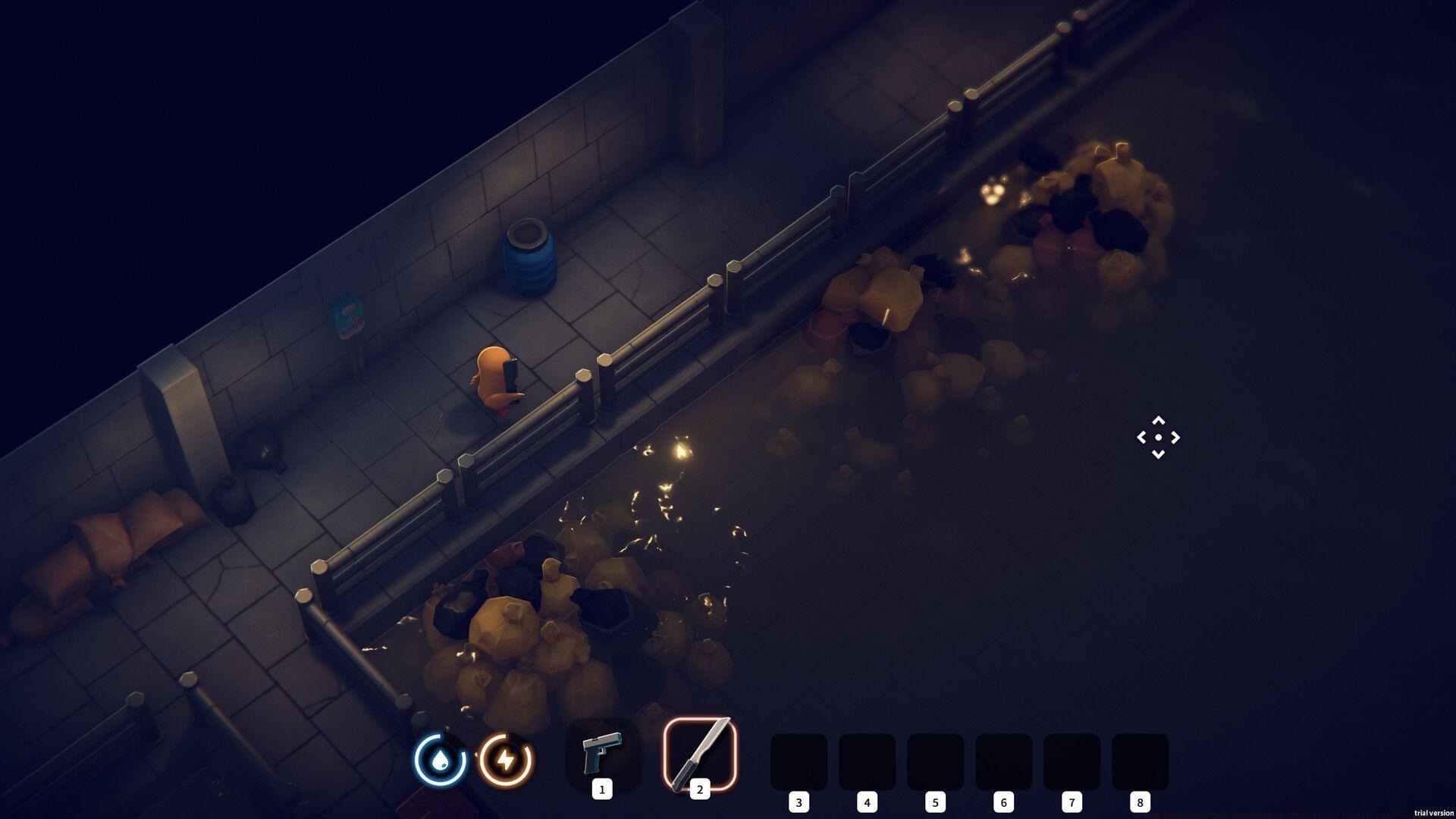
Many players encounter the frustrating Escape from Duckov not launching on Steam error, creating significant barriers to enjoying this popular title. Despite the game’s successful release, technical obstacles frequently prevent seamless gameplay initiation.
When facing this problem, users have multiple troubleshooting paths available. Understanding whether the issue originates from Steam’s infrastructure or local system configuration is the critical first step toward resolution.
Check out: Escape from Duckov crashing on PC error: Possible reasons and fixes
Initial Quick Diagnostics
1) Check Steam’s server status comprehensively
Before implementing complex solutions, always verify Steam’s operational status through reliable monitoring services. SteamDB provides real-time server metrics while Downdetector offers user-reported outage data, giving you comprehensive visibility into platform-wide issues.
When servers experience maintenance or unexpected downtime, launching any Steam game becomes impossible. If monitoring indicates normal operations but your issue persists, proceed with client-level troubleshooting immediately.
Read more: All Escape from Duckov customization options explored
2) Restart Steam client thoroughly
Completely exit Steam using Task Manager to ensure all background processes terminate, then relaunch the application. This clears temporary glitches and memory conflicts that frequently cause launch failures. For stubborn cases, consider rebooting your entire system to refresh all gaming-related services.
3) Verify game file integrity
Corrupted or incomplete game files represent a common cause of launch failures. Access Steam’s properties menu for Escape from Duckov, navigate to Local Files, and select “Verify Integrity of Game Files.” This process automatically replaces damaged components while preserving your save data and settings.
Advanced Troubleshooting Methods
4) Launch with administrator privileges
Right-click the Escape from Duckov executable or Steam shortcut and select “Run as administrator” to bypass permission restrictions. This resolves issues where games lack necessary access to system resources or configuration files.
5) Adjust compatibility settings
For Windows users, right-click the game executable, access Properties, then Compatibility tab. Experiment with different Windows compatibility modes, particularly if running newer operating systems. Disabling fullscreen optimizations has resolved numerous launch problems for Steam games.
6) Update graphics drivers systematically
Outdated GPU drivers frequently prevent modern games from initializing properly. Visit your graphics card manufacturer’s website (NVIDIA, AMD, or Intel) to download the latest stable drivers. Perform a clean installation to remove previous driver remnants that might cause conflicts.
Also read: All Escape from Duckov difficulty settings explored
System-Level Solutions
7) Configure antivirus exceptions
Security software sometimes mistakenly blocks game executables. Add Escape from Duckov’s main .exe file and its installation folder to your antivirus whitelist to prevent false positive blocking. Temporarily disabling real-time protection during launch tests can help identify if this is the underlying issue.
8) Install critical Windows updates
Ensure your operating system has all recent updates installed, particularly those related to gaming, DirectX, and .NET Framework. Missing system components often manifest as mysterious launch failures without clear error messages.
9) Reinstall Visual C++ Redistributables
Many modern games require specific Visual C++ runtime libraries. Download and reinstall both x86 and x64 versions of Microsoft Visual C++ Redistributable packages from the official Microsoft website to ensure all dependencies are properly met.
When to Seek Official Support
If you’ve exhausted all troubleshooting options without success, contacting Team Soda’s official support becomes necessary. Prepare detailed information including your system specifications, Windows version, exact error messages, and a chronological account of troubleshooting steps attempted.
Official support channels typically respond within 48 hours and may provide specialized patches or workarounds not available through general troubleshooting. Meanwhile, check community forums for user-discovered solutions that might address your specific configuration issues.
For more related guides, check out:
No reproduction without permission:SeeYouSoon Game Club » Escape from Duckov not launching on Steam error: Possible reasons and fixes Comprehensive troubleshooting guide to fix Escape from Duckov launch failures on Steam with expert gaming solutions