
TL;DR
- Discord integration requires PS5 beta access or waiting for full rollout
- Link accounts through Settings > User and Accounts > Linked Services
- Use mobile swipe-up or PC transfer features to join PlayStation voice channels
- Cross-platform chat eliminates in-game communication interruptions
- Full audio control and participant visibility available directly from PS5 interface
Discover how to bridge the communication gap between PlayStation 5 and other gaming platforms through Discord’s powerful voice chat integration. This comprehensive guide covers everything from initial setup to advanced features.
Sony has officially begun deploying Discord functionality to PlayStation 5 consoles, following a similar integration pattern previously established with Xbox systems. The setup requires completing several preparatory steps before you can engage in seamless conversations with friends across multiple gaming ecosystems. Beyond basic connectivity, this integration solves the persistent issue of overlapping in-game chat disruptions, providing dedicated voice channels that maintain conversation clarity. The process mirrors cross-platform gaming’s evolution, allowing unified communication regardless of where your friends play.
Accessing Discord integration currently necessitates participation in the PS5 beta testing program, where eligible users receive invitation codes via email. Registration for beta access remains available through official channels, though patience may be required. For those preferring to wait, Discord confirms this feature will become universally available to all PS5 owners in the near future, eliminating the beta requirement entirely.
Follow these detailed instructions to successfully connect your Discord account with your PlayStation Network profile and begin cross-platform voice chatting.
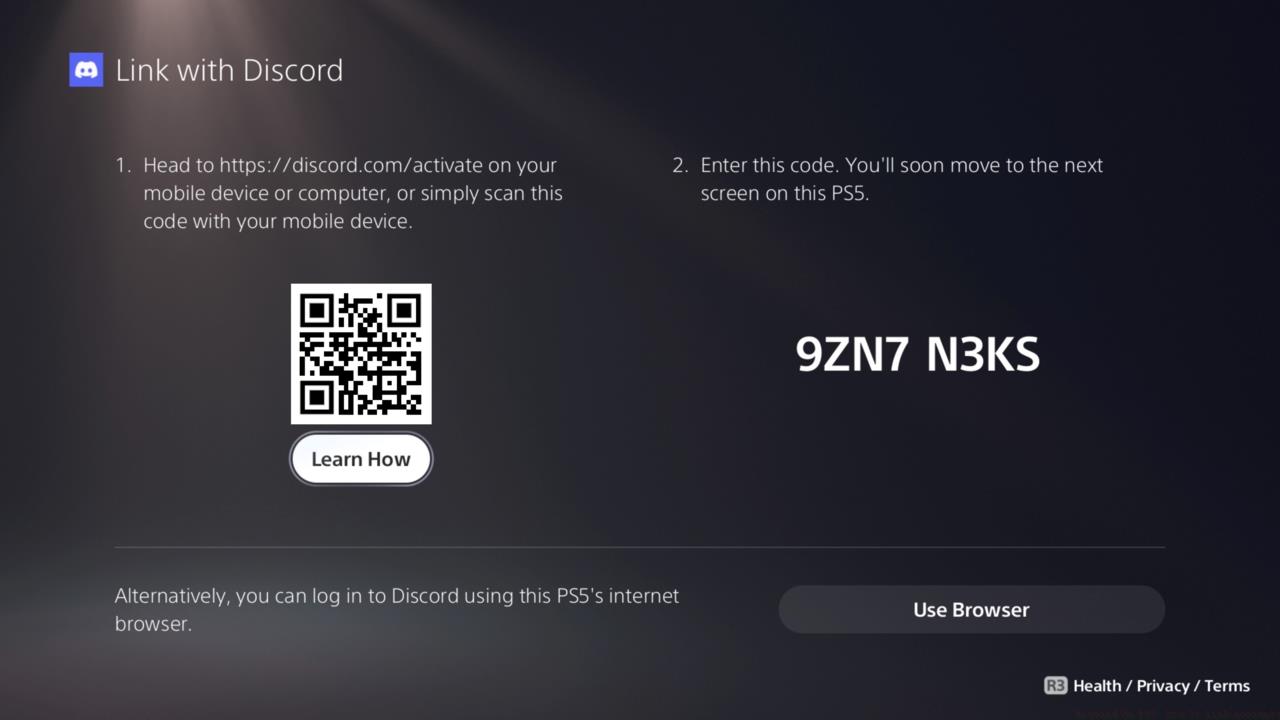
Account linking represents the crucial midpoint in the setup process – once completed, you’re nearly ready to chat.
After inputting your beta access code on the PS5, navigate to the system’s Settings menu and select User and Accounts. Proceed to Linked Services and choose Discord from the available options. This action generates both a scannable QR code and an eight-digit numerical code for authentication. Carefully follow the on-screen prompts to finalize the connection between your Discord and PlayStation Network accounts.
With both accounts successfully linked, you’ve completed the foundational setup requirements.
Once the account linkage is established, you’re prepared to utilize Discord directly from your PS5. The final step involves accessing the Discord application on either your mobile device or computer to initiate voice channel transfers.
Maximize your Discord-PS5 experience with these advanced controls, optimization tips, and solutions to common connectivity issues.
Mobile app users should join their desired voice channel and perform an upward swipe gesture to reveal the Join on PlayStation option tab. PC users will find the transfer functionality by clicking the telephone icon and selecting Transfer to PlayStation. Both methods achieve the same result but cater to different user preferences and device availability.
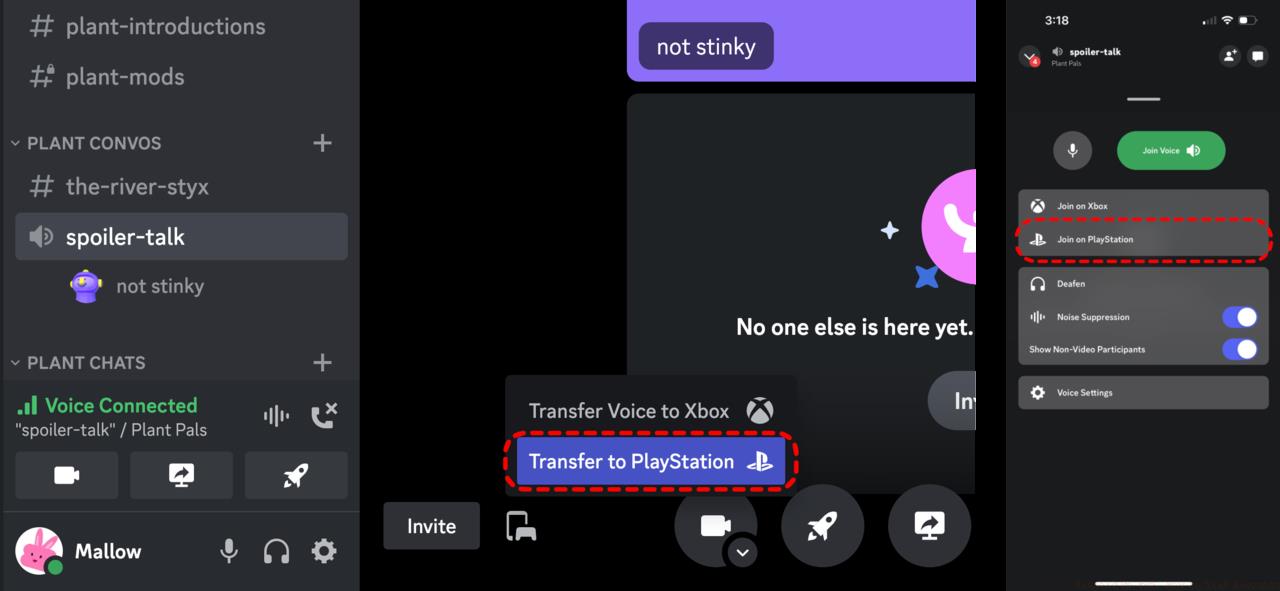
Eliminate voice chat overlap concerns with dedicated Discord channels that maintain consistent audio quality.
After successfully entering a voice channel, you gain comprehensive control over volume adjustments and participant visibility directly through your PS5 interface. This centralized management eliminates the need to switch between devices during gaming sessions.
For additional gaming insights and comprehensive guides, explore our related coverage:
Common setup challenges include authentication failures often resolved by re-linking accounts, audio routing issues typically fixed through PS5 sound settings adjustments, and connectivity problems that may require router port forwarding for optimal performance.
Action Checklist
- Obtain PS5 beta access code or wait for full public release
- Navigate to Settings > User and Accounts > Linked Services > Discord
- Scan QR code or input 8-digit code to link accounts
- Use Discord mobile (swipe up) or PC (phone icon) to transfer voice chat
- Adjust audio settings and monitor participants through PS5 interface
No reproduction without permission:SeeYouSoon Game Club » Discord On PS5: How To Link Accounts Complete guide to linking Discord with PS5 for seamless cross-platform voice chat integration