
Essential PC optimization guide to boost Warzone FPS through driver updates and NVIDIA DLSS settings
Why FPS Optimization Matters in Warzone
Maintaining optimal frame rates in Warzone provides a crucial competitive edge that can determine victory or defeat. Higher FPS delivers smoother gameplay, reduced input lag, and quicker target acquisition – essential elements for outplaying opponents in fast-paced firefights.
Strategic graphics configuration separates average players from elite competitors in Warzone multiplayer. Proper FPS optimization ensures your hardware performs at its peak potential, eliminating frustrating frame drops during critical combat moments that could cost you the match.
While Warzone 2 introduces additional optimization considerations, the original Warzone still demands careful settings adjustment for competitive play. Performance inconsistencies plague even high-end gaming systems when running intensive battle royale titles, creating unpredictable frame timing that disrupts aiming precision. The most aggravating scenarios involve losing engagements due to sudden frame rate collapses during peak action sequences. Fortunately, systematic configuration adjustments can resolve these issues, transforming your gaming experience from stutter-prone to consistently smooth within minutes of implementation.
Essential Driver Updates for Maximum Performance
Beginning with current graphics drivers represents the most impactful first step toward Warzone optimization. This fundamental advice bears repeating because driver updates frequently include game-specific performance enhancements, bug resolutions, and compatibility improvements that directly boost FPS.
Modern graphics cards from both AMD and NVIDIA streamline the update process through intuitive software interfaces. Follow this comprehensive procedure to ensure your system remains current:
- Right-click on your desktop background.
- Choose ‘AMD Radeon Settings‘ from the context menu.
- Navigate to the ‘Home‘ section within the application.
- Locate ‘New Updates‘ in the bottom left corner and select it.
- Click ‘check for update‘ to scan for available driver versions.
- Follow the on-screen instructions to complete the download and installation process.
- Launch GeForce Experience (download available from NVIDIA’s website).
- Select the ‘Drivers‘ tab in the top navigation.
- Click ‘Check for Updates‘ positioned in the upper right area.
- If a driver appears available, choose ‘Express Installation‘ for automated setup.
- Accept any security prompts by clicking ‘Allow‘ when requested.
- The installation will proceed automatically, preparing your system for optimal Warzone performance.
Pro Tip: Schedule monthly driver checks and create system restore points before major updates. Avoid updating drivers right before tournaments, as new versions occasionally introduce temporary compatibility issues that could disrupt your gameplay session.
NVIDIA DLSS Configuration Guide
NVIDIA’s Deep Learning Super Sampling technology revolutionized Warzone performance when introduced during Season 3 Reloaded. RTX graphics card owners can leverage this AI-powered upscaling to achieve substantial frame rate improvements while maintaining visual clarity.
For competitive players prioritizing performance above all else, ‘Ultra Performance’ mode delivers maximum FPS gains by rendering at lower internal resolutions before upscaling. This setting provides the smoothest gameplay experience, though it introduces minor visual artifacts that may affect distant target identification. Balance this trade-off based on your display resolution and personal preference.
DLSS Mode Recommendations:
– Quality: Best for 1080p gaming, minimal visual impact
– Balanced: Ideal for 1440p, good performance/visual balance
– Performance: Recommended for 4K or high refresh rate 1440p
– Ultra Performance: Maximum FPS for competitive 4K gaming
Advanced Graphics Settings Optimization
Beyond core settings, additional graphical adjustments can further enhance Warzone performance. The following configurations significantly impact system resource utilization and should be carefully tuned based on your hardware capabilities.
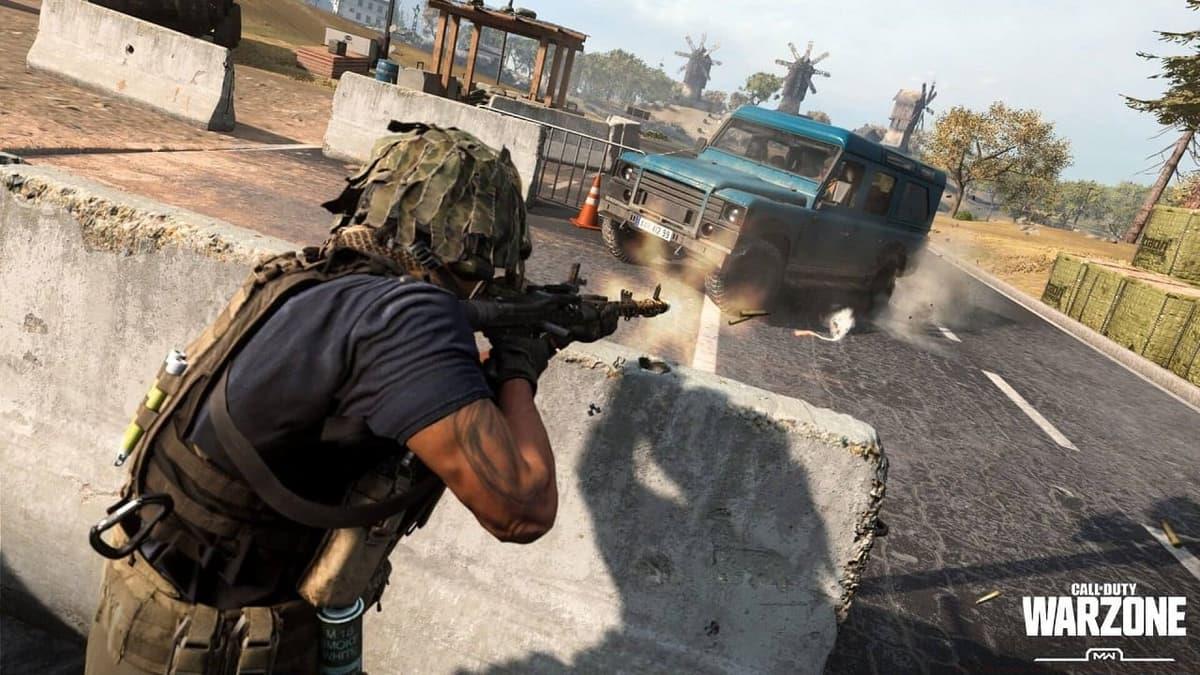 Activision
The expanding Warzone community continues developing optimization resources to enhance player performance across all skill levels.
Critical Performance Settings:
– Texture Resolution: Set to Normal for 6GB VRAM, High for 8GB+
– Shadow Map Resolution: Lower to boost FPS without affecting visibility
– Particle Quality: Reduce to minimize smoke and explosion performance hits
– Ambient Occlusion: Disable for immediate 5-10% FPS improvement
– Screen Space Reflections: Turn off for competitive play
Implementing these optimized configurations minimizes frame rate instability, delivering butter-smooth gameplay responsiveness. While Caldera’s visual splendor may diminish slightly, the competitive advantage gained through consistent high frame rates dramatically improves target tracking and engagement outcomes.
Common Optimization Mistakes:
– Setting everything to Low (can cause CPU bottlenecks)
– Ignoring VRAM limitations when setting texture quality
– Overlooking render resolution scaling
– Forgetting to disable fullscreen optimizations in Windows
– Not monitoring temperatures during extended sessions
No reproduction without permission:SeeYouSoon Game Club » Best Warzone settings on PC to increase FPS Essential PC optimization guide to boost Warzone FPS through driver updates and NVIDIA DLSS settings