
TL;DR
- Video settings prioritize performance with High textures but Low shadows and reflections
- Audio settings at 100% maximize environmental awareness and immersion
- Custom keybinds and 120 FOV enhance movement and situational awareness
- DLSS upscaling provides significant FPS boost on compatible NVIDIA GPUs
- Camera sensitivity at 30% balances precision with responsive turning
Prologue: Go Wayback presents a brutal survival challenge where optimal configuration isn’t just recommended—it’s essential for survival. This demanding title combines punishing weather systems with procedurally generated environments that will test even veteran survival game enthusiasts.
Unlike conventional survival titles, Prologue: Go Wayback features dynamically shifting conditions and complex environmental interactions that demand responsive performance. Before venturing into its unpredictable wilderness, proper PC configuration becomes your first line of defense against the elements.
Video optimization proves particularly crucial, as the game’s performance can fluctuate significantly across different hardware configurations. Audio tuning and control customization also offer substantial gameplay advantages that can mean the difference between life and death in critical moments.
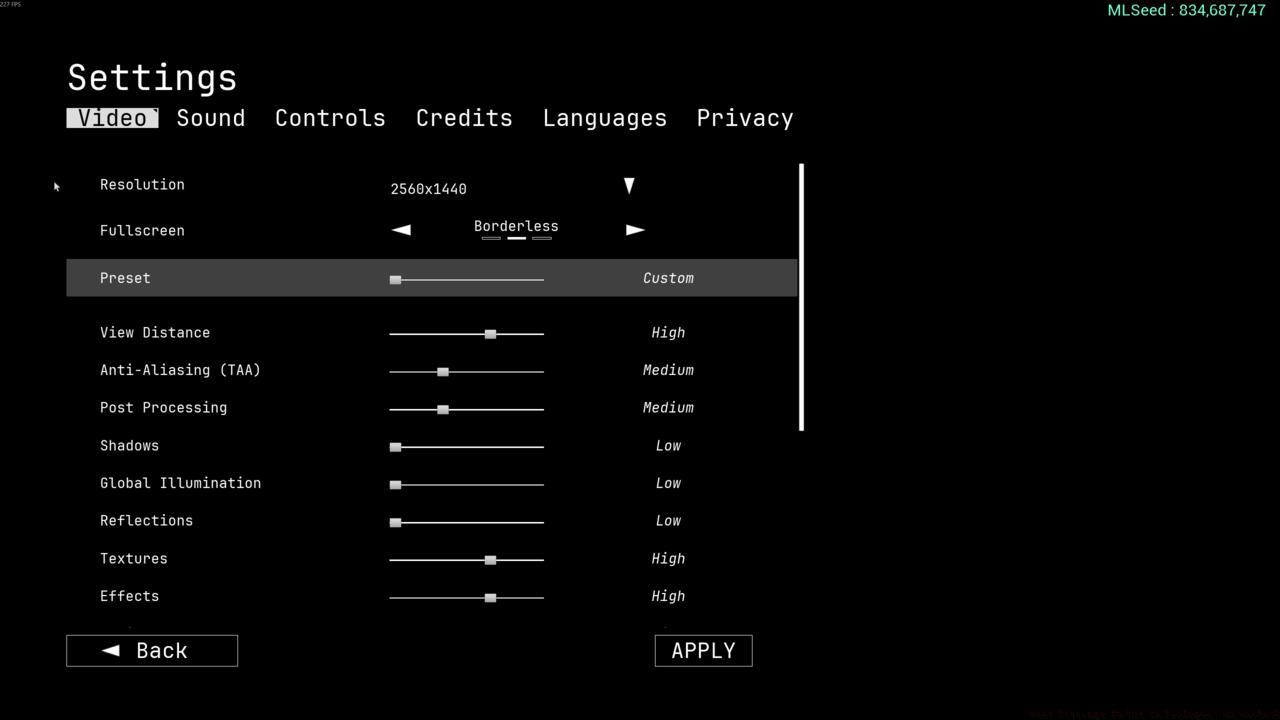
The Video settings in Prologue: Go Wayback
Video Settings
The Video settings in Prologue: Go Wayback
- Resolution: 1920×1080 or the highest resolution of your monitor
- Fullscreen: Borderless
- View Distance: High
- Anti-Aliasing: Medium
- Post Processing: Medium
- Shadows: Low
- Global Illumination: Low
- Reflections: Low
- Textures: High
- Effects: High
- Foliage: High
- Shading: Medium
- Motion Blur: No
- Upscaler: DLSS (if using an Nvidia GPU)
- Frame Generation: DLSS (if you have an applicable Nvidia GPU)
- Sharpener: None
- Upscaler Quality: High
- Sharpener Quality: Low
- Gamma: 2.2
Your video configuration should align with your target framerate objectives. Players achieving over 100 FPS can utilize these balanced settings to maintain visual fidelity while ensuring smooth performance. Those struggling to reach 60 FPS should consider reducing multiple settings to their minimum values for improved responsiveness.
Performance Insight: The “Textures: High” setting consumes significant VRAM but provides crucial visual clarity for identifying resources and threats at distance. Meanwhile, “Shadows: Low” and “Reflections: Low” offer substantial performance gains with minimal gameplay impact.
For competitive players, disabling motion blur entirely eliminates visual distortion during rapid camera movements, while maintaining high foliage settings ensures environmental elements render properly for navigation and cover.
Sound Settings
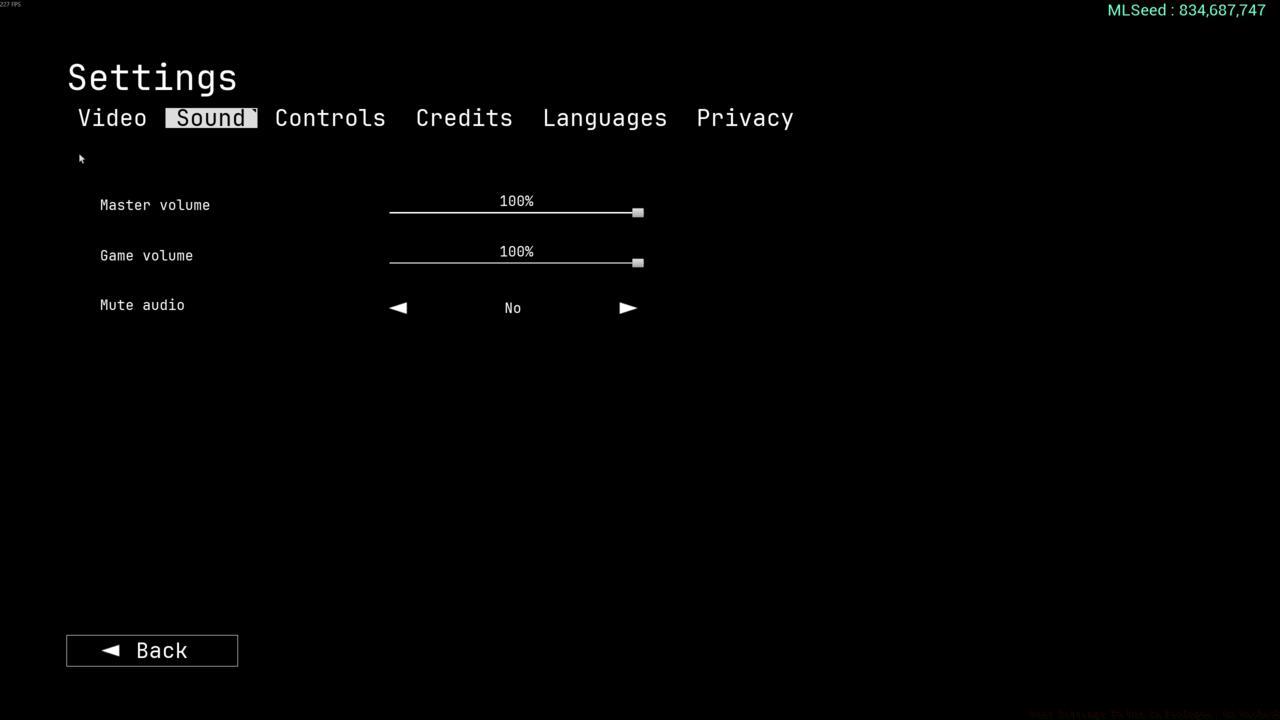
The Sound settings in Prologue: Go Wayback
- Master Volume: 100%
- Game Volume: 100%
- Mute Audio: No
Prologue: Go Wayback’s audio design provides critical environmental cues—from approaching weather systems to distant wildlife movements. Maximum volume levels ensure you don’t miss these audio warnings that could save your character’s life.
Strategic Advantage: Maintaining full audio levels enables you to detect subtle sound cues like cracking ice, shifting terrain, or predator movements long before visual contact. While personal preference dictates final settings, experienced players consistently recommend maximizing audio for situational awareness.
Consider using external audio enhancement software if available, as the game’s binaural audio implementation responds well to virtual surround sound processing for enhanced directional awareness.
Controls Settings
The Controls menu in Prologue: Go Wayback
- Crouch: C or Left Ctrl
- Jump: Space Bar
- Move Backward: S
- Move Forward: W
- Move Left: A
- Move Right: D
- Run: Left Shift
- Walk: Left Alt
- Help: H
- Pause: P or Escape
- Interact with equipped item (secondary): Right Mouse Button
- Carry Item Under Arm: F
- Quick Equip 1: 1
- Quick Equip 2: 2
- Quick Equip 3: 3
- Quick Equip 4: 4
- Quick Equip Map: M
- Holster Equipped Item: 5
- Inspect: Q
- Interact With Equipped Item: Left Mouse Button
- Open Inventory: Tab
- Interrupt Item Placement: Right Mouse Button
- Place Item (hold and release): R
- Walkman Fast Forward: Combo Key and Right Mouse Button
- Walkman Rewind: Right Mouse Button
- Walman Change Volume: Mouse Wheel
- Cancel Build Action: Right Mouse Button
- Camera Sensitivity: 30%
- Camera FOV: 120
Our recommended control scheme introduces subtle optimizations to the default layout while maintaining intuitive accessibility. New players can comfortably use the standard bindings, though experienced survival gamers may prefer custom configurations matching their muscle memory from other titles.
The camera configuration deserves special attention—we’ve reduced sensitivity from default to 30% for improved aiming precision, while increasing field of view to 120 degrees for enhanced peripheral vision. This combination proves particularly effective for tracking environmental threats while maintaining precise interaction control.
Pro Tip: Consider binding frequently used inventory actions to easily accessible keys, and ensure your “Interact” key remains readily available for rapid environmental interactions during tense moments.
Performance Troubleshooting: If experiencing stuttering or frame drops, prioritize reducing Shadows, Global Illumination, and Reflections first, as these typically offer the greatest performance returns. Monitor your VRAM usage—if nearing capacity, lower Texture quality before adjusting other settings.
Hardware-Specific Recommendations: NVIDIA GPU users should absolutely enable DLSS where available, as it provides substantial performance improvements with minimal visual compromise. AMD users should look for FSR implementation in future updates.
Common Configuration Mistakes: Many players mistakenly set all options to Ultra, resulting in unstable performance. Instead, use our balanced approach that maximizes visual clarity where it matters most for gameplay.
Pro Player Settings: Competitive streamers often further reduce Post Processing and Effects to minimize visual distraction during intensive gameplay sequences.
For comprehensive gameplay strategies beyond settings optimization, consult our Complete Guide to master survival techniques and resource management.
Action Checklist
- Configure video settings using our performance-optimized template
- Test framerate in different environments and adjust settings accordingly
- Customize control bindings for frequently used actions
- Fine-tune camera sensitivity and FOV based on personal preference
- Verify audio levels provide clear environmental cue detection
- Explore advanced weapon customization in our Weapons Unlock guide for combat optimization
No reproduction without permission:SeeYouSoon Game Club » Best Settings To Use In Prologue: Go Wayback Optimize Prologue: Go Wayback settings for peak performance, immersive audio, and responsive controls