
TL;DR
- Configure deadzones individually for each controller to eliminate stick drift completely
- Enable 120Hz refresh rate and disable all motion blur for maximum visual clarity
- Use Headphones Bass Boost audio mix and max effects volume for footstep tracking
- Adjust intelligent movement settings to reduce physical strain while maintaining fluid motion
- Optimize field of view between 90-120 for optimal peripheral awareness
Discover how proper configuration can transform your Black Ops 6 gameplay experience from average to exceptional.
Call of Duty: Black Ops 6 launches officially on October 25, but strategic players can gain early access during the open beta period. The second week of beta testing begins September 6, providing the perfect opportunity to fine-tune your settings before the competition heats up. This comprehensive guide delivers expert recommendations for PlayStation and Xbox console players seeking every possible advantage.
While optimal configurations inevitably involve personal preference, we’ve tested extensively to provide settings that balance performance, comfort, and competitive edge.
Mastering Controller Settings
Input Configuration Fundamentals
- Edit button layout: Default or tactical based on controller type
- Stick layout preset: Default for consistency
- Horizontal stick sensitivity: 6-7 for balanced control
- Vertical stick sensitivity: 6-7 matching horizontal sensitivity
- Simplified controls: Off for full mechanical access
- Low motor strain: Off to maintain full responsiveness
- L1 Button ping: Off to prevent accidental reveals
- Swap L12/R1 with L2/R2: Off for traditional trigger feel
Controller Hardware Settings
- Controller Vibration: Off for aiming stability
- Trigger effect: Off for precision input recognition
Your button layout selection should align with your controller’s capabilities. Black Ops 6 introduces revolutionary omnidirectional movement that demands responsive control schemes. The tactical layout proves particularly effective for standard controllers by positioning crouch/slide/dive functions on the thumbstick, enabling rapid movement without compromising thumb positioning. For premium controllers with remapping features like Scuf, maintaining default settings often provides optimal performance.
PS5 players should absolutely disable trigger effects despite their immersive appeal. The haptic feedback introduces minute delays and resistance that can compromise split-second aiming decisions in competitive matches.
Deadzone Precision Calibration
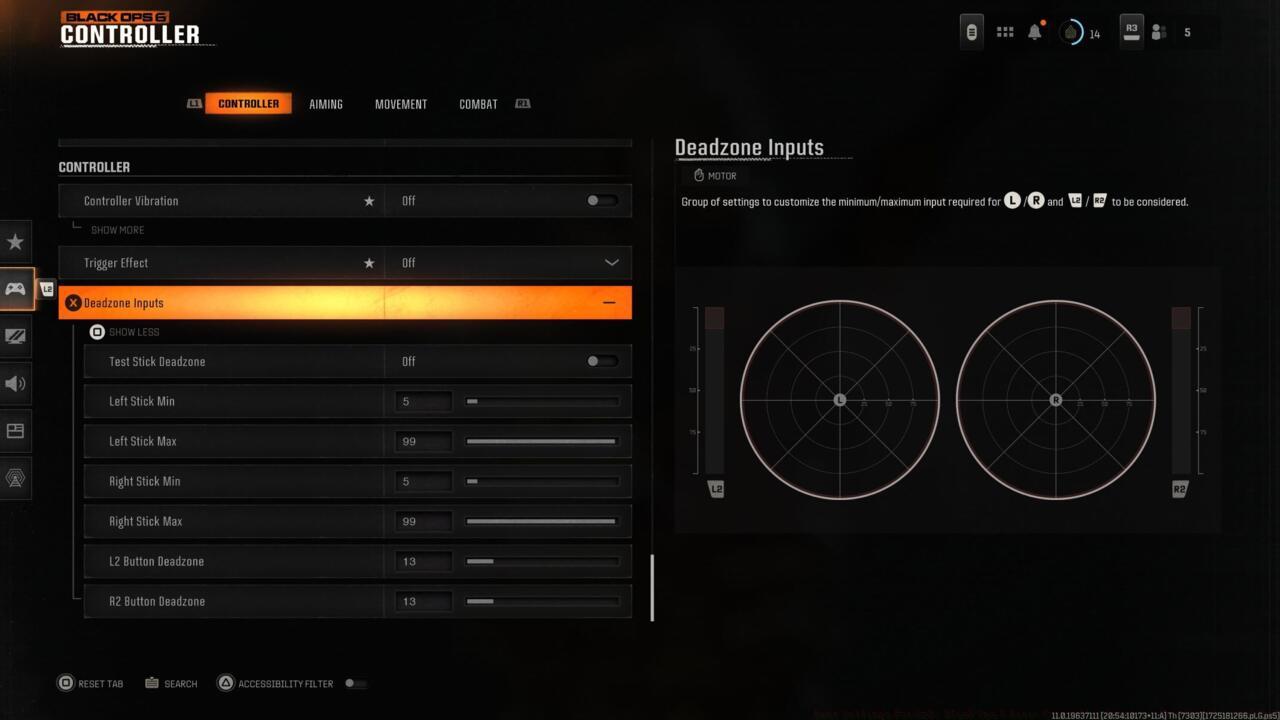
BO6 dead zone setting
Deadzone Configuration Parameters:
- Left Stick Min: 0.3 starting point
- Left Stick Max: 0.99 maximum range
- Right Stick Min: 0.3 baseline
- Right Stick Max: 0.99 upper limit
- L2 Button: 0.0 for instant activation
- R2 Button: 0.0 ensuring immediate response
Controller stick drift varies significantly between individual units, even within the same model. Fortunately, Black Ops 6 retains Modern Warfare 3’s innovative deadzone testing feature directly within the settings menu.
Begin with default deadzone values, then activate the Test Stick Deadzone function. This diagnostic tool displays numerical readings beneath the left and right stick visual representations. Whatever values appear, adjust the minimum stick drift setting for each stick to exceed the displayed number by at least one increment.
For instance: If testing reveals left stick drift at 3 and right stick at 2, configure minimum drift to 4 for left and 3 for right sticks. Retest to confirm complete drift elimination. Maintain L2/R2 triggers at 0.0 to guarantee instantaneous weapon activation without input lag.
Aiming Sensitivity Optimization
- Sensitivity Multiplier:
- Ground vehicle sensitivity: 1.00 standard multiplier
- Air scorestreak sensitivity multiplier: 1.00 balanced control
- Tablet sensitivity: 1.00 default setting
- ADS Sens. Multiplier (Focus): 0.90 for precision targeting
- Look inversion (On foot): Standard orientation
Advanced Aiming Parameters
- Look inversion:
- Ground vehicles: Standard configuration
- Air vehicles: Standard orientation
- ADS Sensitivity transitioning timing: Instant for seamless scope transitions
- Aim response type curve: Standard for predictable input response
- Custom sensitivity per zoom: Off for consistent feel across optics
Aim Assist Configuration
- Target aim assist: On for competitive tracking assistance
Motion Sensor Settings
- Motion Sensor Aiming: Off for traditional stick control
- Motion Sensor Advanced Setting: Off maintaining simplicity
Motion sensor aiming represents a PlayStation-exclusive feature utilizing gyroscopic technology for tilt-based targeting. This functions primarily as an accessibility option for players with specific needs. Most competitive players should maintain this disabled, as the default configuration suggests.
Intelligent Movement Systems
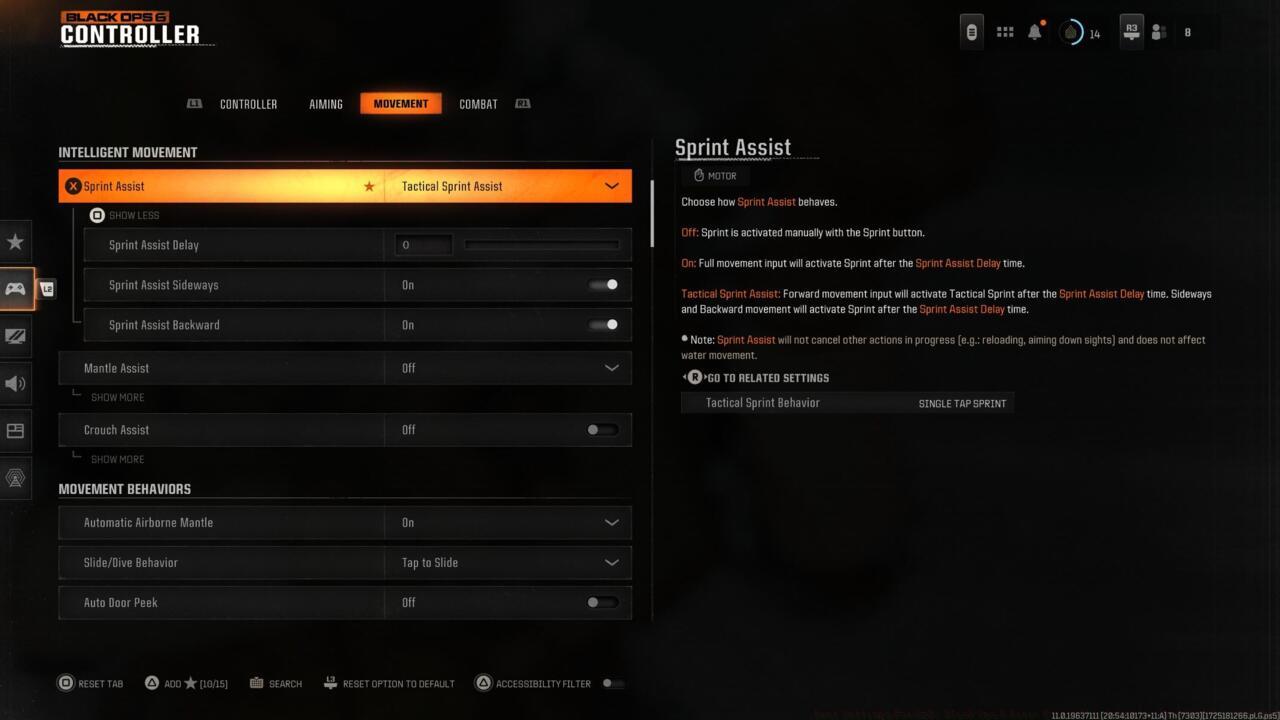
Intelligent movement settings
- Sprint assist: Tactical sprint assist
- Sprint assist delay: Minimum 0 for immediate activation
- Sprint assist sideways: On for omnidirectional mobility
- Sprint assist backward: On for tactical repositioning
- Mantle assist: Off for deliberate climbing control
- Crouch assist: Off maintaining manual crouch management
Black Ops 6’s Intelligent Movement settings revolutionize player mobility by automating movement sequences with reduced input requirements.
These configurations significantly impact gameplay rhythm and should align with individual playstyles. Conservative players might prefer disabled sprint assist for methodical tactical approaches, while aggressive players benefit from the fluid movement and reduced physical strain on hands and thumbsticks.
Mantle assistance can create unpredictable climbing behaviors during critical combat moments. While it promotes constant motion, it often positions players disadvantageously when cover management proves crucial.
Movement Behavior Customization
- Automatic airborne mantle: Off for controlled aerial maneuvers
- Slide/Dive behavior: Tap to slide for responsive evasion
- Auto door peek: Off for deliberate peeking control
Advanced Movement Mechanics
- Sprint/Tactical sprint behavior: Toggle for consistent sprint management
- Auto move forward: Single tap for simplified navigation
- Sprint restore: On for automatic sprint reactivation
- Slide maintains sprint: On for momentum preservation
- Tactical sprint behavior: Single tap sprint for rapid activation
- Plunging underwater: Trigger for deliberate submersion
- Sprinting door bash: On for aggressive entry techniques
Vehicle Control Settings
- Vehicle camera recenter: Short delay for comfortable vehicle operation
- Camera initial position: Free look for situational awareness
Combat Behavior Optimization
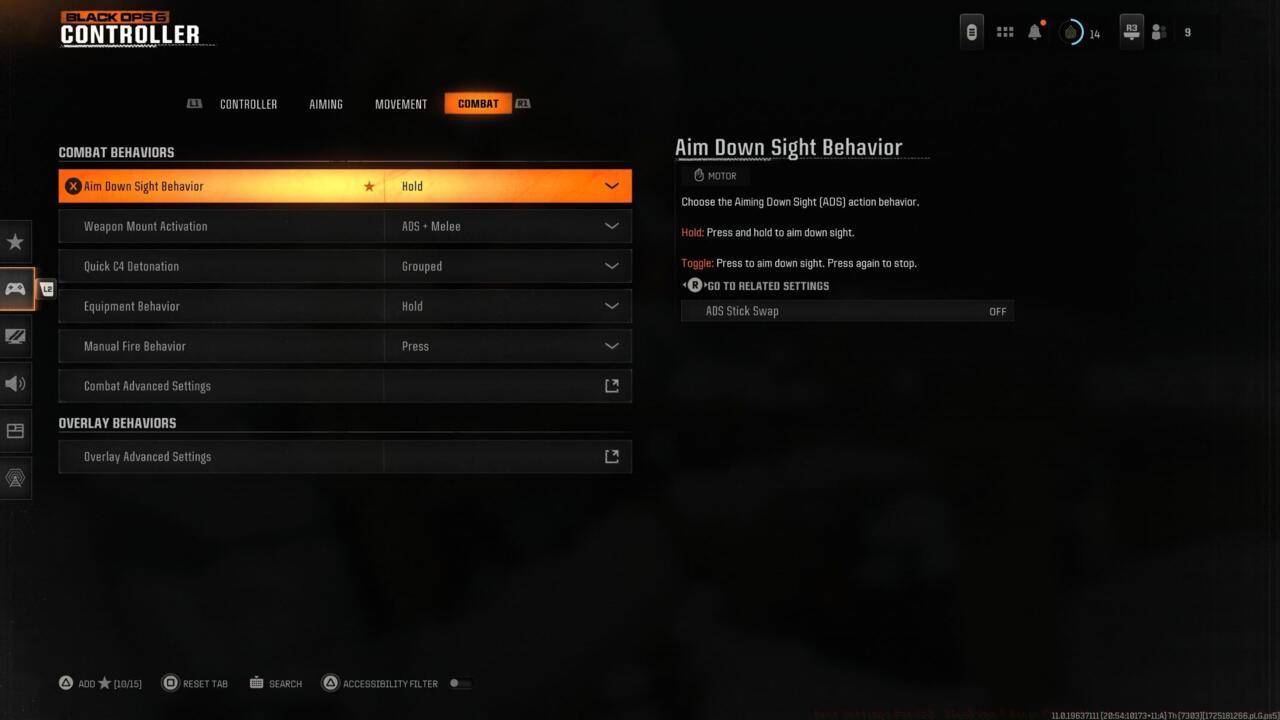
Combat behavior settings
- Aim down sight behavior: Hold for deliberate aiming control
- Weapon mount activation: ADS + melee for controlled mounting
- Quick C4 detonation: Grouped for rapid explosive activation
- Equipment behavior: Hold for intentional equipment deployment
- Manual fire behavior: Press for responsive trigger control
Advanced Combat Configuration
- Change up directional behavior: Ping for communication efficiency
- Change zoom activation: Sprint/Tactical Sprint/Focus for contextual zoom control
- Weapon mount exit: Short Delay for smooth disengagement
- Interact/reload behavior: Prioritize reload for combat sustainability
- Sprint cancels reload: Off for reliable ammunition management
- ADS stick swap: Off for consistent aiming mechanics
- Depleted ammo weapon switch: On for automatic weapon transition
- Scorestreak reordering: Numerical order for systematic streak deployment
- Dedicated melee weapon behavior: Hold melee for deliberate close-quarters engagement
- Swap body shield and execution behavior: Off for predictable equipment interaction
Overlay Interface Settings
- Ping wheel delay: Moderate for balanced communication access
- Double tap ping wheel delay: Moderate for responsive communication
- Wheels behavior: Hold for deliberate interface interaction
Graphics Performance Optimization
Display Configuration
- 120 HZ refresh rate (If applicable): On for superior responsiveness
- Safe area: Customize to match your display’s visible boundaries
- Eco mode preset: Efficiency for optimal performance balance
Post-Processing Effects Management
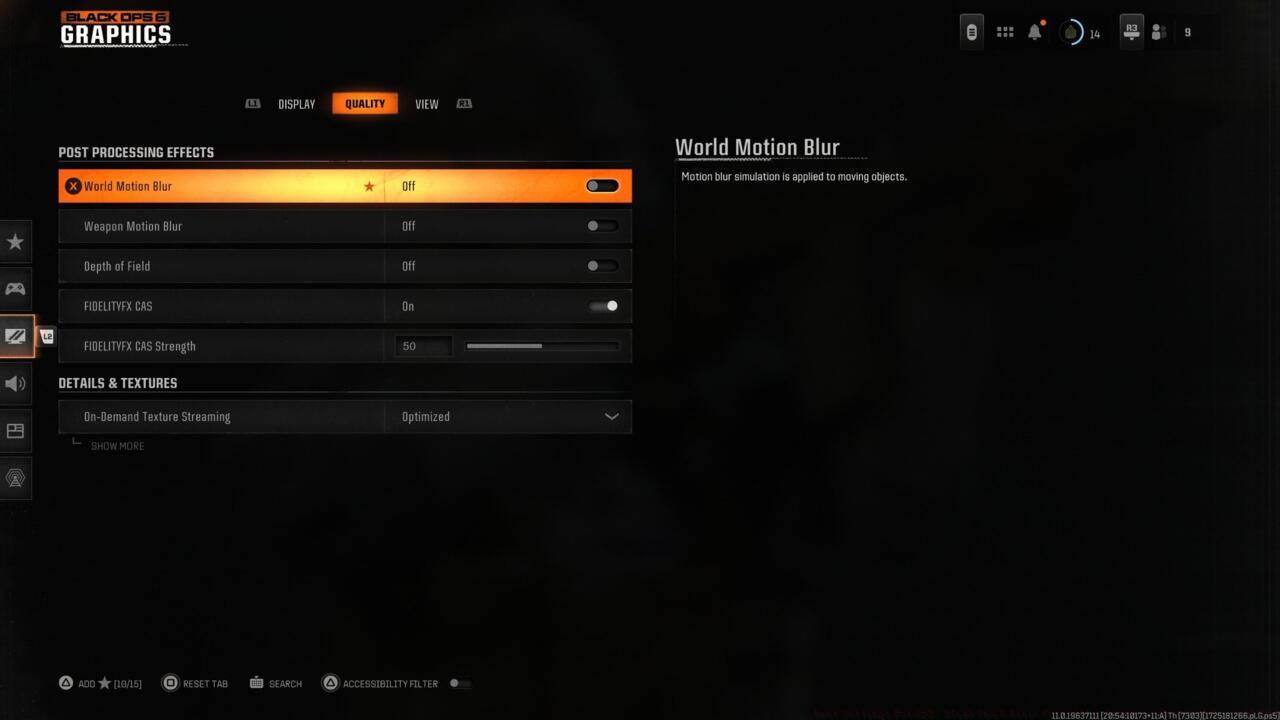
Post processing effects
- World motion blur: Off for environmental clarity
- Weapon motion blur: Off for aiming precision
- Depth of Field: Off for consistent visual focus
- FIDELITYFZ CAS: On for enhanced image sharpening
- FIDELITYFZ CAS Strength: Select between 50-80 based on personal preference
View and Accessibility Settings
Accessibility Solutions:
- Motion reduction: On/Off depending on individual sensitivity
The motion reduction setting proves particularly valuable for players susceptible to motion sickness during intense gameplay sessions. This feature significantly reduces visual movement that can trigger discomfort during extended play periods.
Field of View Configuration
- Field of view: Adjust within 90-120 range for optimal awareness
- ADS field of view: Affected for consistent zoom transitions
- Weapon FOV: Default for traditional weapon presentation
- Vehicle FOV: Default for standard vehicle operation
Increasing your field of view expands peripheral visibility but simultaneously compresses distant elements. While Black Ops 6 permits FOV settings up to 120, extreme values can create disorienting visual compression. Testing various values between 90-120 typically reveals the sweet spot balancing awareness and target identification.
Camera Behavior Settings
- First-Person camera view: Minimum 50% for adequate first-person perspective
- Inverted flashbang: Off/On based on flash sensitivity
The inverted flashbang option provides essential protection for players sensitive to intense light flashes. This accessibility feature converts blinding white flashes into brief black screens, reducing visual discomfort during explosive encounters.
Audio Optimization Strategies
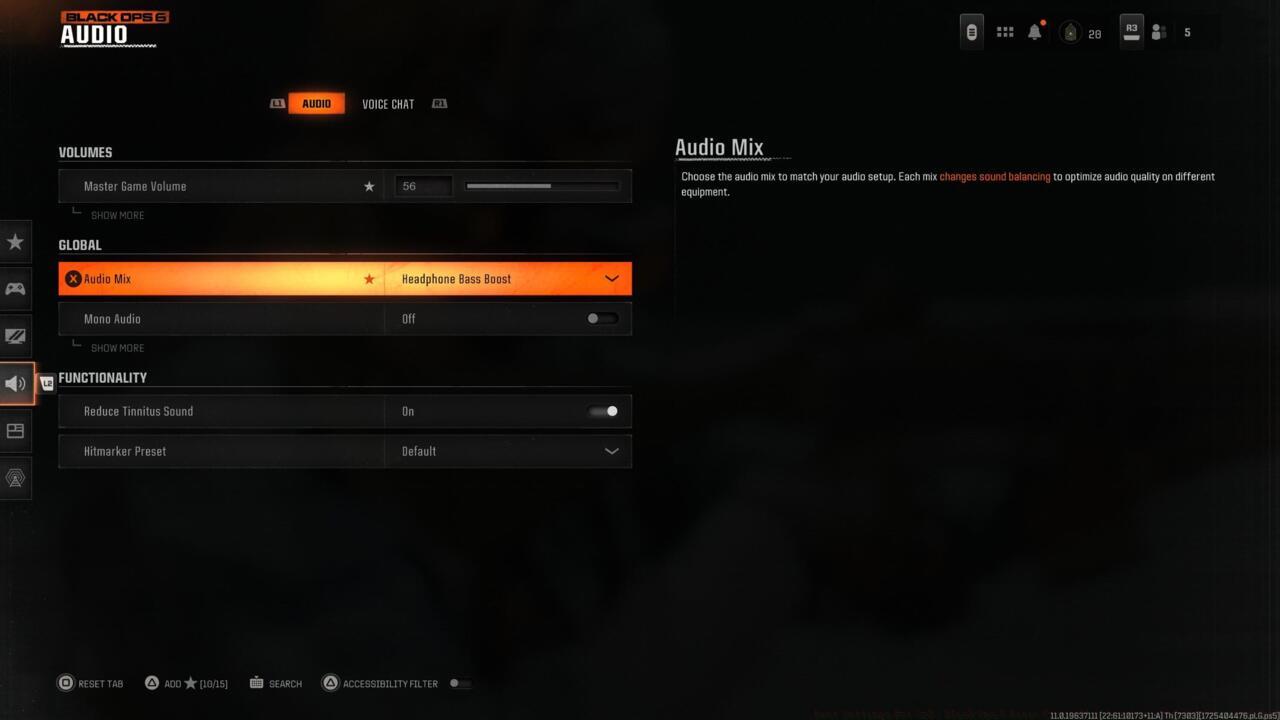
Audio settings
Volume Balancing Techniques
- Master game volume: 70-100 for overall audio presence
- Gameplay music volume: 25-30 to minimize auditory distraction
- Dialogue volume: 80 for clear announcer communication
- Effects volume: 100 for critical gameplay audio cues
- Cinematic music volume: 25-30 for atmospheric balance
Call of Duty audio mixes traditionally emphasize dramatic impact over competitive clarity. Strategic volume adjustment ensures essential gameplay sounds remain prominent while reducing potentially distracting elements.
Effects volume contains the game’s most crucial audio information—footstep positioning, weapon firing directions, and environmental interaction sounds. Never compromise effects volume settings, as footstep audio provides invaluable positional intelligence about enemy movements.
Dialogue channels carry critical announcer alerts regarding enemy scorestreak deployments and objective status changes. Maintaining dialogue at audible levels ensures you never miss critical match information.
Global Audio Configuration
- Audio mix: Home Theater or Headphones Bass Boost based on audio setup
- Speakers/headphones device: Configure according to your specific audio hardware
- Mono audio: Off for spatial audio advantages
Audio mix selection represents one of the most subjective settings, heavily dependent on your audio equipment configuration. Television audio outputs benefit significantly from Home Theater settings, delivering balanced soundscapes with adequate footstep detection. Console headset users typically prefer Headphones Bass Boost for enhanced low-frequency response that emphasizes enemy movement sounds.
Audio Functionality Options
- Reduce tinnitus sound: On/Off based on personal preference
- Hitmarker sound effects: Default for traditional feedback
This configuration category addresses personal comfort preferences. Many competitive players enable Reduce Tinnitus Sound to mitigate the extreme audio effects from flashbang and concussion grenades that can overwhelm auditory senses during critical engagements.
Voice Communication Management
- Voice chat volume: 80 for clear teammate communication
- Voice chat device: On for communication functionality
- Proximity chat: On for environmental awareness
- Last words voice chat: On or Off depending on death comms preference
- Game voice channel: Configure based on desired audio exposure
Properly configuring these console settings will dramatically enhance your aiming precision, movement fluidity, audio awareness, and visual clarity throughout your Black Ops 6 experience.
Implementing these carefully tested settings will provide immediate improvements to your Black Ops 6 performance. Remember that individual preferences vary, so use these recommendations as starting points for your personal optimization journey.
For players looking to expand their tactical knowledge beyond settings configuration, our Complete Guide offers comprehensive strategies for mastering game mechanics and developing advanced combat techniques.
Action Checklist
- Calibrate deadzones using the built-in test tool to eliminate stick drift
- Configure aiming sensitivity between 6-7 with 0.90 ADS multiplier
- Optimize intelligent movement settings for reduced physical strain
- Enable 120Hz refresh rate and disable all motion blur effects
- Adjust audio mix to Headphones Bass Boost with effects volume at 100
- Test field of view between 90-120 to find optimal peripheral awareness
No reproduction without permission:SeeYouSoon Game Club » Best Settings For CoD: Black Ops 6 Beta- Controller Layouts, Sensitivity, And More Master Black Ops 6 with optimized controller, graphics, and audio settings for competitive advantage