
Master Dying Light: The Beast with optimal graphics, HUD settings, and performance tuning strategies
Essential Graphics Optimization Strategies
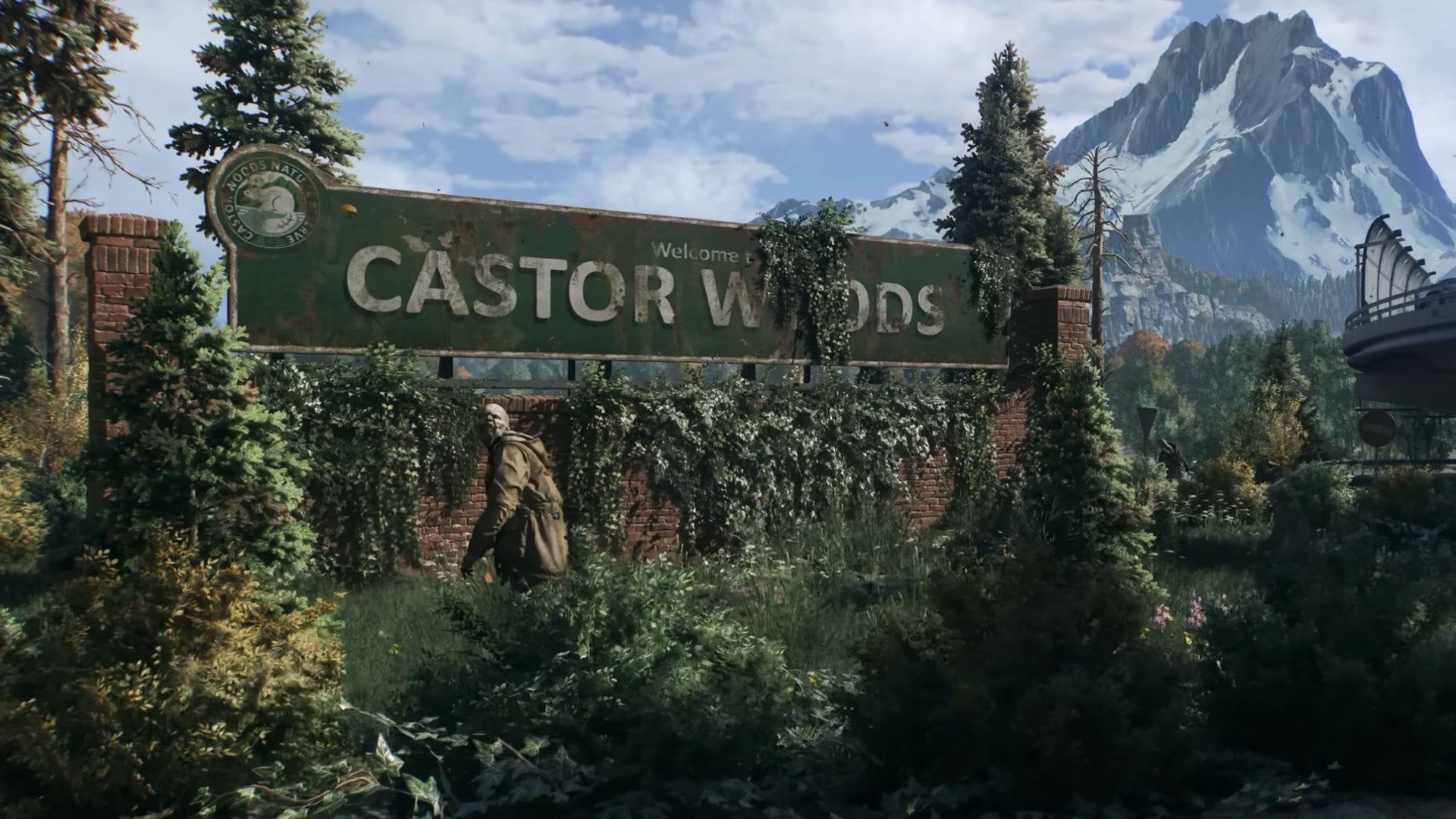
Properly configuring Dying Light: The Beast’s graphical parameters transforms your adventure through Castor Woods from a technical challenge into a seamless survival experience. Techland’s enhanced C-Engine delivers remarkable visual fidelity, but strategic adjustments ensure consistent performance across diverse hardware configurations.
Essential Reading: Complete Dying Light: The Beast skill tree breakdown
Achieving stable 1440p resolution at high settings typically demands premium 80 or 90 series graphics cards, though the game’s inherent stability provides respectable frame rates even on modest hardware. When encountering performance inconsistencies, immediately activate Ultra Performance upscaler quality or disable motion blur entirely for immediate improvements. Owners of modern RTX 40 series GPUs should leverage DLSS Frame Generation technology to substantially boost frame rates without sacrificing visual quality.
Gameplay and HUD Configuration Mastery
Beyond pure graphics, Dying Light: The Beast offers extensive gameplay customization that significantly impacts your survival effectiveness. The HUD and control settings provide nuanced adjustments that can streamline parkour navigation and combat responsiveness.
These carefully selected configurations help newcomers quickly adapt to the intense zombie-infested environments of Castor Woods:
- Monkey Bar Auto-Jump: Enabled – Automates traversal transitions for fluid movement
- Grappling Hook Crosshair: Dynamic – Contextual aiming assistance for precise navigation
- Recognition Arc: Dynamic – Intelligent object highlighting based on proximity and relevance
- Co-Op Player Icons: Active – Essential for team coordination in multiplayer sessions
While these settings provide crucial assistance for beginners, series veterans often disable certain assists to increase challenge and realism. The Dynamic Recognition Arc proves particularly valuable during night sequences when visibility decreases and quick item identification becomes critical for survival.
Advanced Performance Tuning Techniques
For players seeking every performance advantage, several advanced tuning techniques can further optimize your Dying Light: The Beast experience. Shadow quality and texture streaming represent the most impactful settings for system resource management.
Critical Performance Considerations:
- Reduce shadow resolution before lowering texture quality for better performance balance
- Enable Dynamic Resolution Scaling if consistent frame rates outweigh pristine image quality
- Adjust Field of View (FOV) to 90-100 for optimal spatial awareness without performance cost
- Monitor VRAM usage to prevent texture streaming issues during extended play sessions
Common performance pitfalls include overestimating system capabilities and neglecting driver updates. Always ensure your GPU drivers are current, as Techland frequently releases game-specific optimizations. For systems with 8GB VRAM or less, maintaining medium texture settings prevents frustrating stuttering during rapid traversal through dense urban environments.
No reproduction without permission:SeeYouSoon Game Club » Best PC optimization guide for Dying Light: The Beast Master Dying Light: The Beast with optimal graphics, HUD settings, and performance tuning strategies