
Expert solutions to fix Battlefield 6 Xbox launch issues and optimize your gaming experience
Understanding Battlefield 6 Xbox Launch Problems
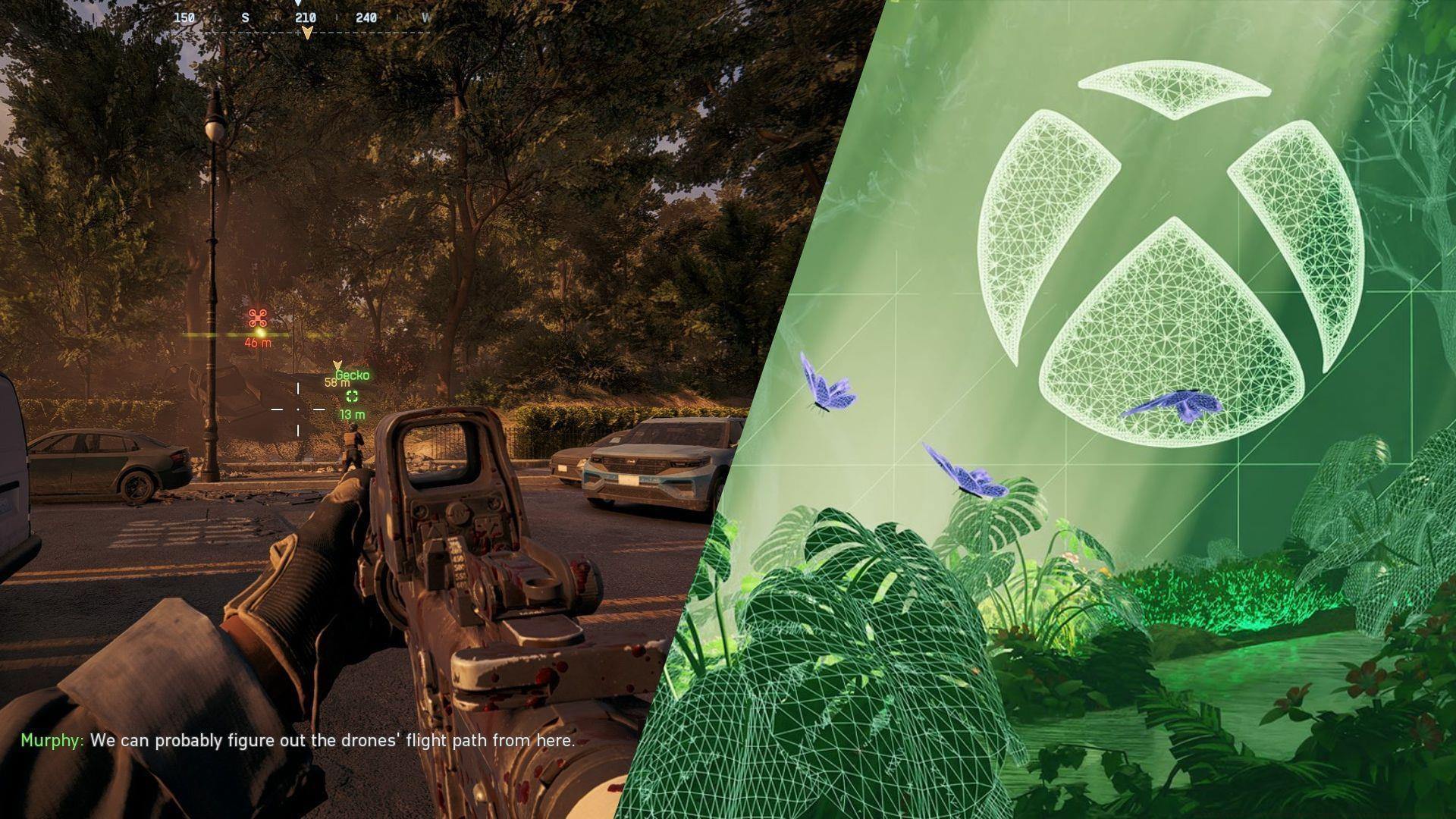
Battlefield 6 has officially launched on Xbox Series X|S consoles, bringing both excitement and technical challenges for early adopters. Many players encounter startup failures, unexpected crashes, or connection errors during initial gameplay sessions. These launch-day complications stem from multiple factors including server congestion, system compatibility, and installation anomalies that developers anticipated through their queue system implementation.
Distinguishing between server-related delays and local hardware issues is crucial for effective troubleshooting. Server problems typically manifest as connection timeouts or queue positioning screens, while local issues cause complete application failures or system crashes. Understanding this distinction helps players apply appropriate solutions rather than wasting time on irrelevant fixes.
The temporary nature of most launch-week problems cannot be overstated. Development teams actively monitor server performance and release hotfixes for critical issues. However, persistent problems often indicate deeper system conflicts requiring manual intervention through the methods outlined below.
System Software Solutions
Outdated Xbox operating systems frequently block new game launches due to compatibility requirements and security protocols. Microsoft regularly releases system updates that include essential gaming enhancements and stability improvements. Neglecting these updates creates technical barriers that prevent Battlefield 6 from initializing properly.
Complete console updating requires these specific steps:
- Press the Xbox navigation button on any connected controller
- Navigate through Profile & System > Settings > System > Updates section
- Install any available console updates then perform full system restart
Cache corruption represents another major contributor to game instability. Temporary data accumulation creates conflicts with new game installations, particularly during high-demand launch periods. Advanced power management goes beyond simple restart procedures:
- Perform complete console shutdown through settings menu
- Disconnect power cable for minimum five minutes to clear residual charge
- Reconnect power source and initiate fresh startup sequence
- Launch Battlefield 6 as first application after reboot
For persistent caching issues, consider accessing developer settings to clear persistent storage cache through the Blu-ray menu. This advanced technique resolves deeper system conflicts that standard power cycling cannot address.
Game File Management
Corrupted installation files represent the most stubborn Battlefield 6 launch obstacles, especially for players who pre-loaded the game before official release. Pre-loading complications occur when initial download packages contain incomplete data or version mismatches that conflict with day-one patches. These file integrity issues demand complete reinstallation rather than partial repairs.
Proper game reinstallation follows this comprehensive process:
- Access My Games & Apps library and locate Battlefield 6 tile
- Press Menu button and select Uninstall game completely
- Open Xbox Store and search for Battlefield 6 specifically
- Initiate fresh installation with stable internet connection
- Avoid system usage during download to prevent corruption
Pre-load optimization strategies include waiting until official launch time before downloading, ensuring stable internet connectivity throughout installation, and verifying file integrity through game management options. These preventative measures significantly reduce corruption probability and improve first-launch success rates.
For players with limited bandwidth, consider downloading during off-peak hours when network congestion minimizes. This approach reduces packet loss and installation errors that contribute to file corruption and subsequent launch failures.
Advanced Troubleshooting Strategies
When basic solutions fail, advanced network configuration often resolves underlying connectivity issues. Xbox Series X|S consoles benefit from specific network settings that optimize gaming performance: open NAT types, port forwarding for Battlefield 6 specific ports, and DNS configuration using gaming-optimized servers like Google DNS or Cloudflare.
Performance optimization extends beyond basic troubleshooting. Monitor your console’s storage capacity – maintaining at least 10% free space prevents system resource conflicts. External storage devices should use SSD technology for optimal Battlefield 6 performance, particularly for faster load times during multiplayer matches.
Common player mistakes include repeatedly attempting quick restarts without proper shutdown procedures, interrupting installation processes, and neglecting system updates before game launch. These behaviors exacerbate existing issues and create additional technical complications.
Support escalation becomes necessary when all troubleshooting methods exhaust without resolution. Contact EA technical support with detailed information: error codes encountered, troubleshooting steps already attempted, and your specific Xbox model. This preparation streamlines the support process and accelerates solution delivery.
For ongoing performance optimization, regularly check official Battlefield social channels for server status updates and planned maintenance windows. These resources provide real-time information about widespread issues affecting multiple players simultaneously.
No reproduction without permission:SeeYouSoon Game Club » Battlefield 6 not working on Xbox: Possible reasons and fixes Expert solutions to fix Battlefield 6 Xbox launch issues and optimize your gaming experience