
Comprehensive guide to fixing Battlefield 6 DirectX errors with advanced troubleshooting techniques
Understanding DirectX Errors in Battlefield 6
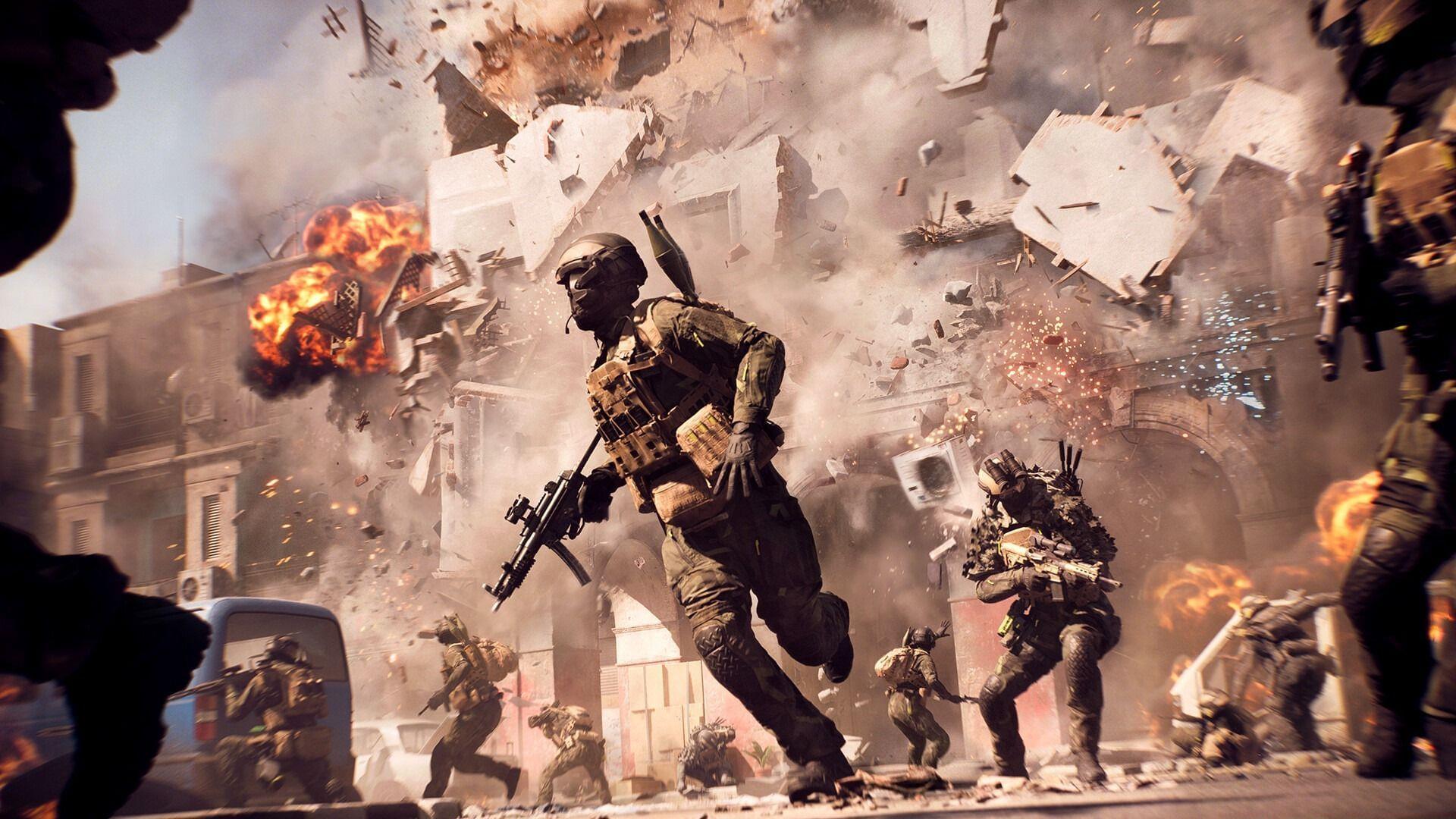
DirectX errors in Battlefield 6 stem from multiple system-level complications that disrupt the communication pipeline between your gaming software and hardware components. DirectX functions as the essential middleware that enables seamless interaction between Battlefield 6 and your computer’s graphics processing unit, ensuring optimal rendering performance and visual fidelity. When this communication channel experiences interruptions, players encounter the frustrating DirectX malfunction that halts gameplay.
The underlying architecture of DirectX manages critical rendering tasks including shader compilation, texture mapping, and frame buffer management. Common catalysts for these disruptions include outdated driver packages, hardware capability mismatches, conflicting background applications, and corrupted game installation files. Understanding these root causes provides the foundation for implementing effective solutions.
Driver Updates: GPU-Specific Solutions
Outdated graphics drivers represent the most frequent culprit behind Battlefield 6 DirectX malfunctions. Modern gaming titles like Battlefield 6 receive continuous driver optimizations from GPU manufacturers to address performance bottlenecks and compatibility issues. Maintaining current driver versions ensures your system can handle the game’s demanding graphical requirements.
NVIDIA Graphics Cards: Launch the NVIDIA GeForce Experience application and navigate to the Drivers section. Select the ‘Check for updates’ option and install the latest Game Ready Drivers specifically optimized for Battlefield 6. These drivers include custom profiles that enhance stability and prevent DirectX-related crashes.
AMD Graphics Cards: Access AMD Software: Adrenalin Edition and utilize the automatic update detection feature. For advanced users, consider performing a clean installation using the AMD Cleanup Utility before applying new drivers, which removes previous driver remnants that might cause conflicts.
Intel Arc Graphics: If using Intel’s discrete graphics solutions, ensure you’ve installed the latest Intel Graphics Command Center and updated to the most recent driver package specifically validated for gaming applications.
Graphics Optimization Strategies
When your computer’s hardware resources cannot adequately support Battlefield 6’s graphical demands, DirectX errors frequently occur during intensive gameplay sequences. Strategic settings adjustment provides an immediate solution to alleviate hardware strain and restore stability.
Navigate to Battlefield 6’s Options menu, then proceed to Graphics > Graphic Settings. Implement these critical adjustments:
Advanced players should consider maintaining Texture Filtering at Anisotropic 4x for visual clarity while reducing other settings. Monitor your VRAM usage in the performance overlay to ensure you’re not exceeding your graphics card’s capacity, as this directly triggers DirectX failures.
Background Process Management
Third-party overlays and system monitoring utilities often create DirectX conflicts in Battlefield 6 by injecting code into the game’s rendering pipeline. These applications, while useful for performance tracking, can interfere with the game’s exclusive full-screen mode and DirectX handshake procedures.
Common problematic software includes MSI Afterburner, RivaTuner Statistics Server, Discord overlay, Xbox Game Bar, and NVIDIA ShadowPlay. Completely exit these applications through the system tray before launching Battlefield 6, rather than merely disabling their overlay functions.
For persistent issues, examine your startup applications via Task Manager and disable unnecessary background processes that might consume GPU resources. Browser hardware acceleration represents another frequent conflict point—consider disabling this feature in Chrome, Edge, or Firefox when gaming.
File Integrity and System Health
Corrupted or missing game files represent another common source of Battlefield 6 DirectX errors. The Steam platform includes built-in verification tools that can identify and replace damaged game components.
Access your Steam Library and right-click on Battlefield 6, then select Properties > Local Files > Verify integrity of game files. This process scans all game components and automatically replaces any corrupted data with fresh downloads from Steam servers.
For comprehensive system health, consider reinstalling DirectX using the latest redistributable package from Microsoft’s official website. Additionally, ensure your Windows installation is current with the latest updates, as these often include critical fixes for graphics subsystems and DirectX components.
Regular system maintenance including disk cleanup and temporary file removal can prevent file system errors that might contribute to DirectX malfunctions during extended gaming sessions.
Advanced Troubleshooting Techniques
When standard solutions fail to resolve Battlefield 6 DirectX errors, advanced troubleshooting methods can identify deeper system issues. Begin by examining Windows Event Viewer for specific error codes related to DirectX or graphics driver failures, which provide clues about the underlying problem.
Power management settings frequently cause instability—configure Windows Power Options to High Performance mode and access your GPU control panel to disable any power-saving features that might interrupt rendering during gameplay.
Registry conflicts occasionally trigger DirectX issues. Use reputable registry cleaning utilities cautiously to remove obsolete DirectX entries, but always create system restore points before making changes.
Hardware monitoring during gameplay helps identify thermal throttling or power delivery issues. If your GPU temperatures exceed 85°C or experience significant clock speed fluctuations, consider improving case airflow or adjusting fan curves to maintain stability.
As a last resort, performing a clean Windows installation ensures complete removal of any deep-seated system conflicts, though this represents the most time-intensive solution.
No reproduction without permission:SeeYouSoon Game Club » Battlefield 6 DirectX error: Possible fixes and reasons Comprehensive guide to fixing Battlefield 6 DirectX errors with advanced troubleshooting techniques