
TL;DR
- Console commands provide powerful PC-exclusive tools for gameplay customization and troubleshooting
- Access commands via tilde (~) key and master proper syntax for optimal results
- Commands span character development, world manipulation, quest management, and technical adjustments
- Strategic command combinations enable creative gameplay approaches and problem-solving
- Always backup saves before using potentially game-altering commands
Console commands represent one of the most powerful gameplay modification tools available exclusively in the PC version of Oblivion Remastered. These developer-level functions allow players to manipulate nearly every aspect of their gaming experience, from simple quality-of-life improvements to complete game overhauls.
As a hallmark feature of Bethesda’s RPG design philosophy, console commands provide direct access to the game’s underlying systems. While the original Oblivion featured extensive console functionality, the remastered edition preserves and optimizes these capabilities for modern systems.
The strategic applications range from minor adjustments to major interventions. You might fix broken quests that would otherwise require reloading earlier saves, adjust character attributes to better match your roleplaying vision, or simply experiment with creative gameplay possibilities beyond the intended design.
Accessing the console command interface requires specific steps that PC players can execute during active gameplay sessions. Console and PlayStation users cannot utilize these features due to platform restrictions.
Follow this precise activation sequence to unlock the console’s potential:
Command Syntax Mastery: Proper command execution depends on precise formatting. Most commands follow specific patterns: some require target specifications using [ID] placeholders, while others need numerical values indicated by [#] notation. Always ensure correct spacing and bracket usage to avoid errors.
Avoiding Common Mistakes: Many users encounter issues by omitting required spaces between command elements or using incorrect parameter formats. For item-related commands, you’ll need to research specific item codes through external resources or in-game exploration.
| Console Command | In-game Action | Pro Tips & Strategic Applications |
|---|---|---|
| tgm |
Enables God Mode |
Ideal for exploring dangerous areas without survival concerns; disables achievement progression |
| player.additem [ID] [#] |
Adds a specific item and a specific amount of the item to the player’s inventory |
Essential for replacing lost quest items or testing equipment before committing to upgrades |
| removeitem [ID] [#] |
Removes a specific item and a specific amount of the item from the player’s inventory |
Useful for roleplaying weight management or removing accidentally acquired items |
| fov [#] | Changes your field of view (1-180) | Adjust to 90-110 for optimal third-person gameplay; reset to 75 for first-person immersion |
| unlock [target] | Unlocks specified door/chest/etc. | Bypass stuck lockpicking scenarios or access developer-only areas |
| advlevel | Level up by one | Use strategically to control world level scaling and enemy difficulty progression |
| player.setlevel [#] | Sets your level to whatever number you specify | Combine with attribute adjustments to create custom character progression arcs |
| setav [attribute] [#] | Sets an attribute to a specific number | Maximum attribute value is 100; exceeding this may cause skill calculation errors |
| modpca [attribute] [#] | Adds a specified number of points to an attribute | Progressive enhancement preferred over maxing attributes immediately for balanced gameplay |
| modpcs [skill] [#] | Adds a specific number of levels to a skill | Adjust skills to match character backstory or correct unbalanced specialization choices |
| advskill [skill] [#] | Levels up a specific skill by a specified number | Monitor skill mastery progression to avoid triggering unexpected level advancements |
| SetPCFame [#] | Sets your fame level to a specific number | Higher fame affects NPC reactions and certain quest availability thresholds |
| SetPCInfamy [#] | Sets your infamy level to a specific number | Balance fame and infamy for specific faction requirements or roleplaying scenarios |
| setcrimegold [#] | Sets your bounty level to a specific number | Useful for testing guard behavior or escaping impossible bounty situations |
| player.setcrimegold 0 | Sets your bounty to zero gold | Immediate solution for when bounty hunting becomes overwhelming or breaks questlines |
| player.payfinethief | Pays a bounty without removing stolen goods from your inventory | Preserves carefully collected rare items while clearing legal complications |
| player.payfine | Pays a bounty and removes stolen goods from your inventory | Strategic choice when you want to completely reset your criminal status |
| kill [target] | Kills a named target instantly | Use for eliminating essential characters (caution: may break questlines) |
| killall | Kills all living creatures in an area | Effective for clearing bugged enemy encounters or testing combat scenarios |
| startcombat [target] | A specified target becomes hostile | Create custom combat challenges or test defensive capabilities against specific enemy types |
| stopcombat [target] | A specified target becomes passive | Resolve accidental aggression from essential NPCs without reloading saves |
| setscale [target] [#] | Alter the size of a specified target to be small or big | Values between 0.5 and 2.0 generally remain stable; extreme sizes may cause pathfinding issues |
| player.setscale [#] | Alter the size of the player to be small or big | Creative roleplaying applications or navigating through tight spaces normally inaccessible |
| player.setfactionrank [ID] [#] | Set your Faction rank to a specific number | Access faction-specific content without meeting traditional requirements; may affect story immersion |
| completequest [questID] | Completes a specified quest instantly | Primary use case: bypassing quest-breaking bugs that prevent normal completion progression |
| psb | Unlocks every spell | Overwhelms spell menu; consider targeted spell additions instead for better organization |
| player.addspell [spellID] | Adds a specified spell to your spellbook | Research spell IDs beforehand to avoid cluttering interface with unnecessary abilities |
| player.removespell [spellID] |
Removes a specified spell from your spellbook |
Clean up spell list after using psb command or remove accidentally acquired magical effects |
| moveto [locationID] | Moves the player to a specified location | Essential for escaping stuck geometry or quickly traveling between tested locations |
| player.placeatme [ID] [#] | Duplicates an item or target at the player’s location | Exercise caution with NPC duplication – may cause dialogue conflicts and script errors |
| lock [target] [#] | Locks a specified door/chest/etc. at a certain lockpicking level | Create custom challenges or secure areas during roleplaying scenarios |
| tfow | Shows the entire world map | Reveals all geographical features; useful for planning travel routes or finding hidden locations |
| coe (X),(Y) | Teleports the player to specific coordinates | Advanced navigation technique requiring coordinate research; ideal for precision positioning |
| tmm 1 | Shows all world map markers | Discover fast travel points without manual exploration; may reduce sense of discovery |
| tcl | Turns on/off collision | Photography mode, exploration of unfinished areas, or escaping from stuck positions in terrain |
| swdp | Shows what NPC is detecting the player | Stealth gameplay debugging tool; identifies detection sources during difficult sneaking sequences |
| disable [target] | Removes a target from the game | Permanent removal solution for problematic objects or NPCs; use with extreme caution |
| enable [target] | Adds a removed target to the game | Restore accidentally disabled essential characters or objects |
| activate [target] | Activates a specified target | Trigger scripted events manually or activate objects that failed to respond through normal interaction |
| getav [attribute] | Shows a specified attribute’s points | Diagnostic tool for attribute-related issues or verifying character build effectiveness |
| SexChange | Changes the player’s body type | Visual change only; does not affect voice or gender-specific dialogue options in most cases |
| ShowClassMenu | Changes the player’s class | Respec character build without starting new game; preserves progress while allowing mechanical adjustments |
| ShowRaceMenu | Changes the player’s race | Alters racial bonuses and appearance; some quests may react unexpectedly to race changes mid-game |
| ShowBirthsignMenu | Changes the player’s Birthsign | Strategic adjustment for optimizing build effectiveness or experimenting with different playstyles |
| ShowSpellMaking | Shows the spellbook screen | Access custom spell creation without visiting specific locations; convenient for on-the-fly magical adjustments |
|
ShowEnchantment |
Shows the enchantments screen | Modify equipment attributes without visiting enchantment altars; useful for testing optimal gear combinations |
| SetOwnership | Changes the ownership of an item to the player | Legalize acquired items for safe selling or usage; particularly useful for roleplaying characters with specific moral codes |
| SetOpenState [1] | Unlocks doors/chests/etc. instantly | Alternative to unlock command with different underlying mechanics; test both for specific scenarios |
| SetOpenState [0] | Locks doors/chests/etc. instantly | Create custom secure areas or reset lockpicking practice scenarios |
| removeallitems | Removes all items from the player’s inventory | Extreme inventory reset; always backup save before use as recovery requires manual item restoration |
| dispel [spellID] | Removes a specified spell effect from the player | Counteract permanent magical effects or remove unwanted enchantments affecting gameplay balance |
| dispelallspells | Removes all spell effects from the player | Clean solution for when spell effects become bugged or conflict with other game systems |
| equipitem [ID] | Equips a specified item from the player’s inventory | Quick equipment switching for combat preparation or testing different gear combinations rapidly |
| DuplicateAllItems [ID] | Duplicates a specified target’s inventory to a nearby chest | Preservation technique for unique items or resource multiplication for crafting and experimentation |
| setquestobject [ID] [flag] | Turns a specified item into an item for a quest | Fix broken quest items that failed to register proper quest flags through normal gameplay |
| showquestlog | Shows your quest log | Alternative interface for quest management; useful when standard journal navigation experiences interface issues |
| showquestlog 1 | Shows your completed quests | Review gameplay accomplishments or verify quest completion status for achievement tracking |
| showquestlog 0 | Shows your uncompleted quests | Focus management tool for prioritizing remaining objectives and planning gameplay sessions efficiently |
| caqs | Completes every quest | Nuclear option for experiencing all content quickly; permanently alters save file and eliminates natural progression |
| GetStage [questID] | Shows your current quest objective | Diagnostic command for identifying stuck quest stages or verifying progression requirements |
| player.completequest [questID] | Completes a specified quest | Targeted solution for specific problematic quests rather than global completion |
| SetStage [questID] [stage] | Sets a quest for a specified objective | Advanced quest debugging; requires detailed knowledge of quest stage progression to avoid sequence breaking |
| sq | Shows all quests and their objectives | Comprehensive quest status overview; ideal for identifying bugged objectives or planning efficient completion routes |
| sqt | Shows the objective and ID of a quest | Technical information display for modders or advanced users troubleshooting complex quest interactions |
| movetoqt | Teleports the player to the current quest objective | Navigation assistance for complex dungeon locations or when quest markers malfunction or provide unclear directions |
| showsubtitle | Shows subtitles | Accessibility feature for players with hearing impairments or when playing in noisy environments |
| tm | Shows menus | Interface restoration command for when menu systems become unresponsive or visually glitched |
| tfc | Toggles free camera mode | Screenshot composition, environmental exploration, or cinematic gameplay recording |
| tai | Shows AI behavior | Developer tool for observing NPC routines or diagnosing AI-related gameplay issues |
| tcai | Shows combat AI behavior | Combat system analysis; understand enemy behavior patterns or test defensive strategies in controlled conditions |
| tdetect | Shows AI and player detection | Stealth gameplay optimization; identify detection triggers and improve sneaking technique effectiveness |
| tfh | Toggles Full Help mode | Comprehensive tooltip system; useful for new players learning game mechanics or veterans exploring obscure systems |
| save [name] | Saves the game with specific text | Organizational tool for creating specific save points during complex quest sequences or before making irreversible gameplay decisions |
| qqq | Exits the game instantly | Emergency exit for game freezing or immediate shutdown requirements; unsaved progress will be lost |
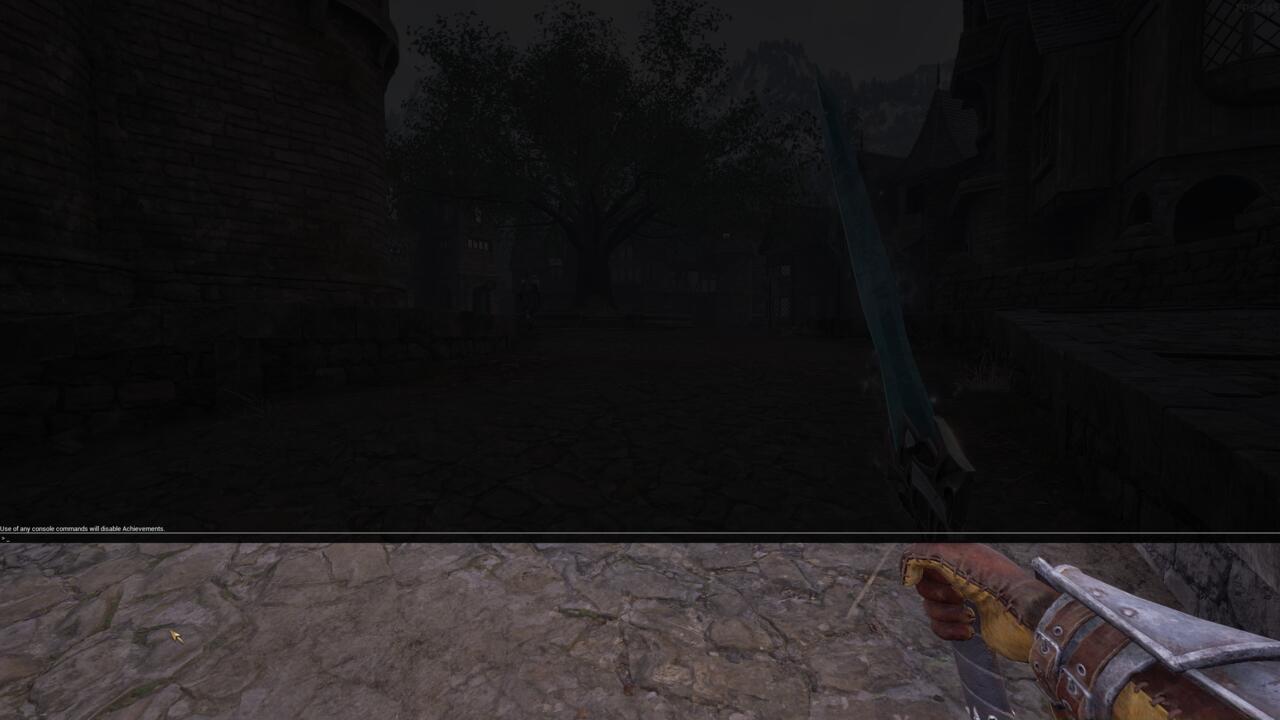
The console command interface provides direct access to Oblivion Remastered’s underlying systems for advanced customization and troubleshooting.
Strategic Command Combinations: Advanced users often combine multiple commands for sophisticated results. For instance, using player.placeatme to create multiple NPCs followed by setscale to vary their sizes can create unique encounters. Similarly, combining faction rank adjustments with fame/infamy modifications enables precise control over how different groups perceive your character.
Performance Optimization: Commands like fov and tmm can significantly impact game performance. Higher field of view values may reduce framerate in dense areas, while revealing all map markers can increase loading times when fast traveling.
Creative Gameplay Possibilities: Beyond troubleshooting, console commands unlock creative potential. You might use tcl to explore hidden developer areas, create custom scenes using placeatme, or experiment with different character builds using the class and race modification commands without committing to permanent choices.
For players seeking to deepen their understanding of Oblivion’s mechanics, our Complete Guide offers additional strategic insights that complement console command mastery.
When planning character development strategies, consider consulting our Class Guide for insights on optimal skill distributions that you can then implement using the attribute and skill modification commands covered in this reference.
Action Checklist
- Create backup save before experimenting with game-altering commands like caqs or removeallitems
- Master basic activation: Press ~ key, observe console interface, practice simple commands like tgm
- Research specific item IDs and quest codes for targeted command usage
- Experiment with field of view (fov) and collision (tcl) for gameplay comfort and exploration
- Create custom gameplay scenarios using command combinations like placeatme and setscale
- Utilize quest debugging commands (SetStage, GetStage) to resolve stuck objectives
No reproduction without permission:SeeYouSoon Game Club » All Console Commands And Cheats In Oblivion Remastered Master Oblivion Remastered console commands for enhanced gameplay, troubleshooting, and creative freedom